

Mailchimp Integration
Connect Mailchimp with Gumlet to capture leads through video forms and add them to your Mailchimp lists.
Before you begin
Make sure you have:
- Access to Integrations in your Gumlet dashboard.
- A Mailchimp account with permission to authorize apps.
- Existing Mailchimp lists, if you want to sync Gumlet form leads to Mailchimp lists.
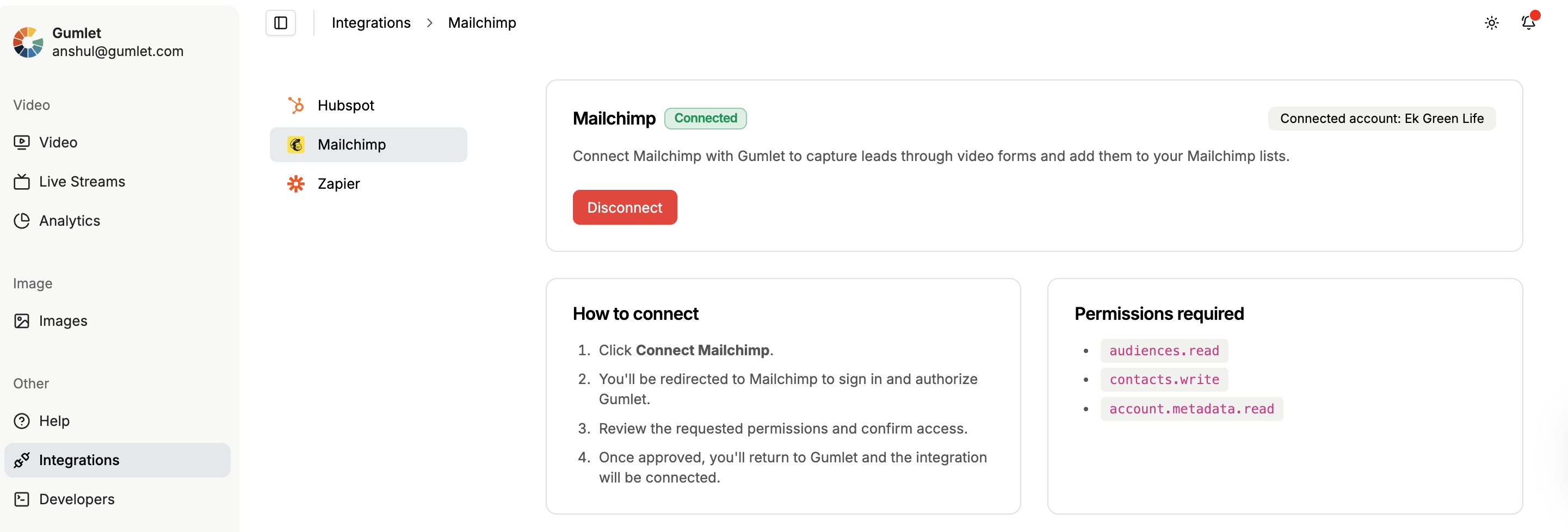
Connect Mailchimp
- Go to Integrations in your Gumlet dashboard.
- Select Mailchimp.
- Click Connect Mailchimp.
- Sign in to Mailchimp and authorize Gumlet.
- Once approved, you’ll be redirected back to Gumlet and the integration will be connected.
Permissions required
When connecting Mailchimp, Gumlet requests the following permissions:
audiences.readcontacts.writeaccount.metadata.read
These permissions are used to fetch Mailchimp lists, create or update contacts.
How to use
Sync Gumlet form leads to Mailchimp lists
- Go to Video Details.
- Open Form / Lead Capture.
- Select Gumlet Form from the dropdown.
- Choose a list from the Mailchimp Sync List dropdown.
- Save or publish the video settings.
When a lead is captured through the Gumlet form, it is also added to the selected Mailchimp list.
Disconnect Mailchimp
You can disconnect Mailchimp anytime from the integration page.
- Go to Integrations.
- Open Mailchimp.
- Click Disconnect.
- Confirm the action in the modal.
After disconnecting, new leads from Gumlet will stop syncing to Mailchimp until you reconnect.
Updated 3 months ago
Did this page help you?