Gumlet Video Editor
Edit Gumlet-hosted videos in your browser - trim, split, add text, and publish changes back to the same asset without leaving the Gumlet workflow.
Beta - The editor is actively being improved.
The Gumlet Video Editor is a browser-based timeline editor opened from the Gumlet dashboard for a specific video asset. Edits are saved as a project (timeline state). When you are ready, use Replace Video to render your timeline and upload the result to Gumlet, overwriting the asset’s original source file.
What you can do
| Capability | Description |
|---|---|
| Trim, Split & Crop | Cut clips on the timeline and rearrange segments |
| Merge Clips | Join multiple clips to create a single video |
| Add Media | Add images or video on video to create engaging content |
| Add background | Add background color with text/image to create a nice intro/outro |
| Text overlays | Add styled text on top of your video |
| Replace video | Render and upload the edited file back to Gumlet |
Prerequisites
- A Gumlet account with access to the video asset.
- The asset must be ready and expose a progressive download URL in Gumlet metadata.
- A modern desktop browser (Chrome, Edge, or Safari recommended).
- WebCodecs support is required for Replace Video (in-browser render). If your browser lacks
VideoEncoder/AudioEncoder, replace will not start.
Open the editor from the dashboard
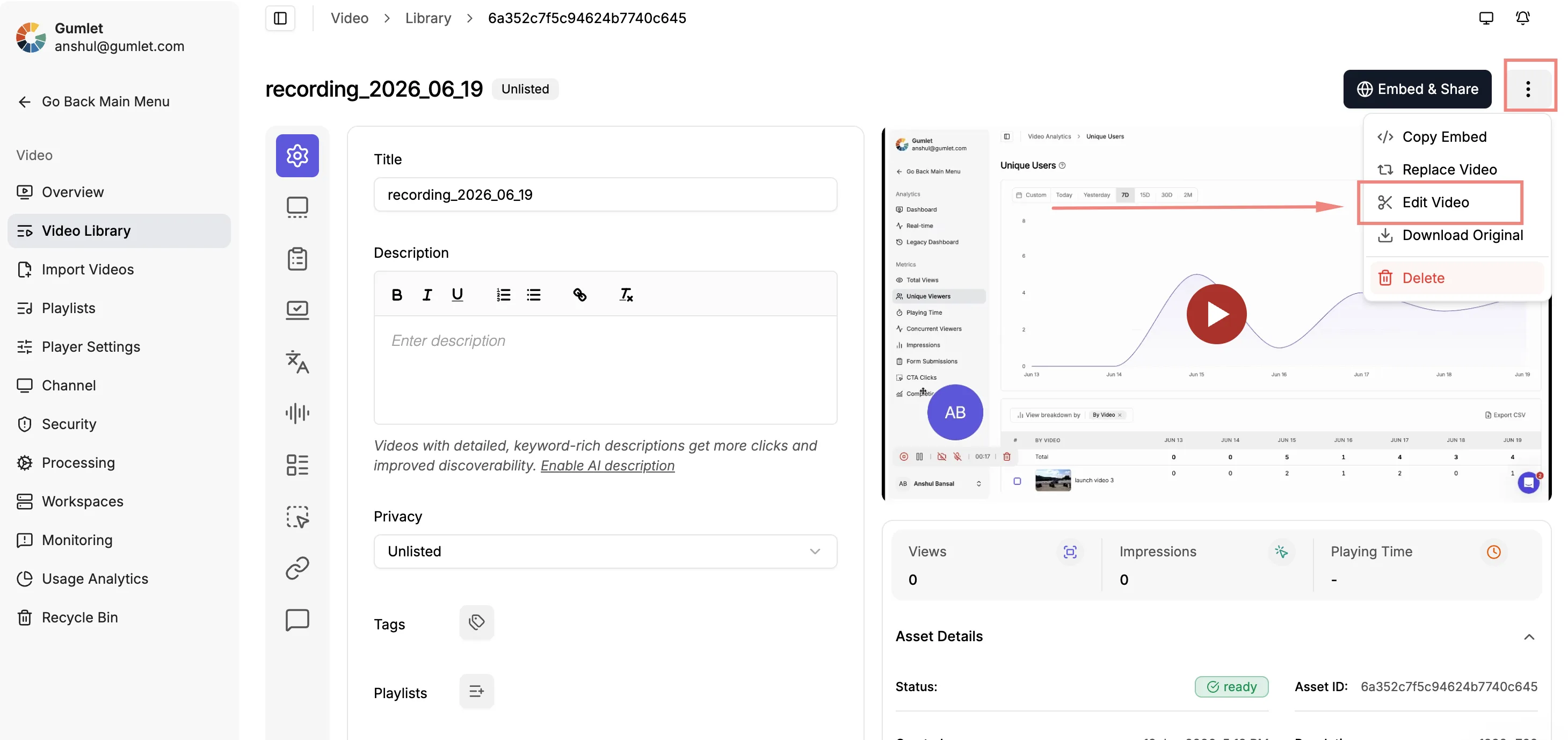
- Log in to Gumlet Dashboard.
- Open Video Library → select your asset.
- Click Edit Video.
The editor opens with your asset loaded on the timeline.
Open via URL (direct link)
https://editor.gumlet.com/?asset_id=<your-asset-id>
You must be logged in to Gumlet. Without asset_id, you are redirected to the video library.
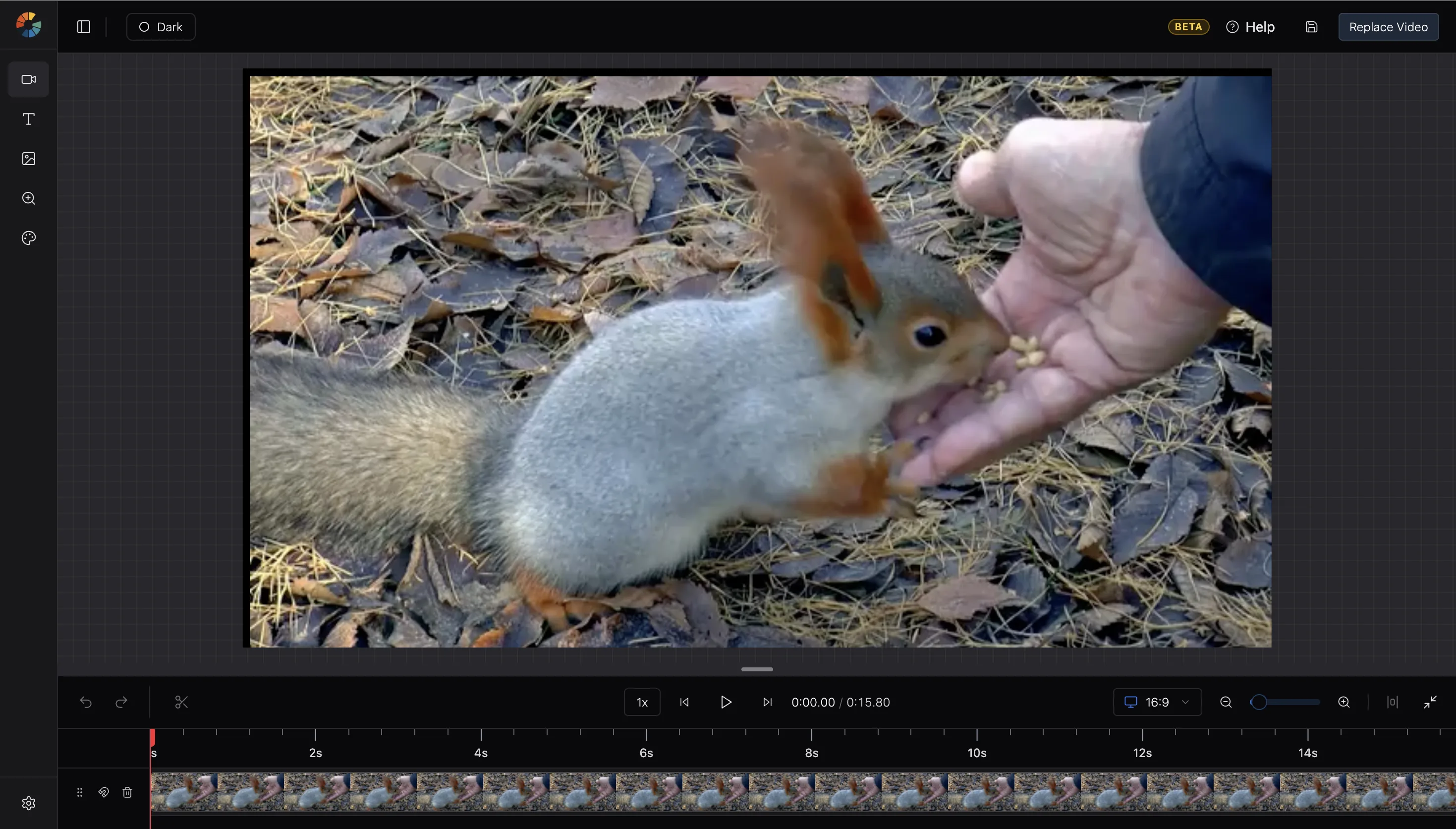
Timeline basics
- Play / Pause —
Space - Split at playhead —
S - Duplicate selection —
⌘/Ctrl + D - Delete selection —
Backspace - Undo / Redo —
⌘/Ctrl + Z/⌘/Ctrl + Shift + Z - Zoom timeline —
⌘/Ctrl + -(zoom out),⌘/Ctrl + +(zoom in) - Go to start / end —
⌘/Ctrl + ←/⌘/Ctrl + →
Open Settings in the sidebar for the full keyboard shortcut list.
Save your project
The editor autosaves your timeline to browser storage (IndexedDB) every 5 seconds.
Replace video on Gumlet
Replace Video renders your edited timeline in the browser and uploads it to Gumlet, overwriting the original source for that asset.
Steps
- Click Replace Video in the header.
- Read the confirmation — this action cannot be undone.
- Click Replace Video again to start.
- A blocking progress modal shows:
- Rendering your edits — in-browser video render
- Uploading to Gumlet — multipart upload to your asset
- When complete, choose Visit Asset Details or Keep Editing.
Keep the tab open until upload finishes.
Reset project
Under Settings → Project, you can reset the saved timeline for this asset. This deletes the project on the server and in the browser; the next load uses the latest stored cloud version. This cannot be undone and may remove recent edits that have not yet been saved to the cloud.
Important notes
| Topic | Detail |
|---|---|
| Overwrite | The uploaded file replaces the asset’s original source on Gumlet |
| Duration | Longer or higher-resolution timelines take longer to render and upload |