

Add Text, Background, Images & Styles
Add overlays and styling to your Gumlet video - text titles, background colors, uploaded images, and enter/exit animations.
Add text overlays
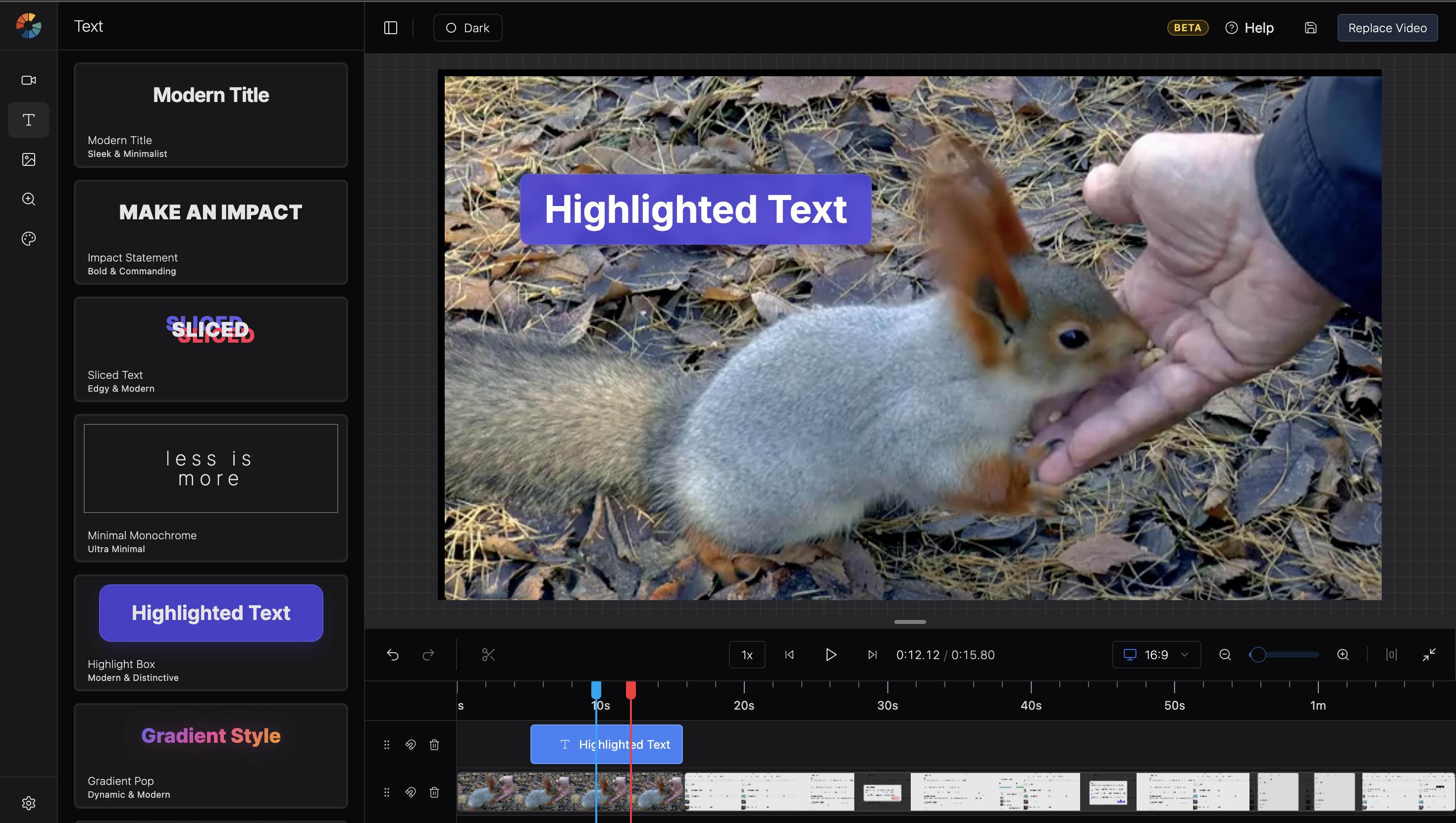
- Open the sidebar and click the Text icon.
- Choose a template from Default Text Styles, or drag a template onto the canvas or timeline.
- Click the text on the canvas and type in the field (“Enter your text here…”).
Position and resize on canvas
- Drag the text to move it.
- Use the corner handles to resize.
- Use the rotation handle to rotate.
- Canvas toolbar: Duplicate, Fill Canvas, Delete.
Style text
With a text item selected, use the Style tab in the sidebar.
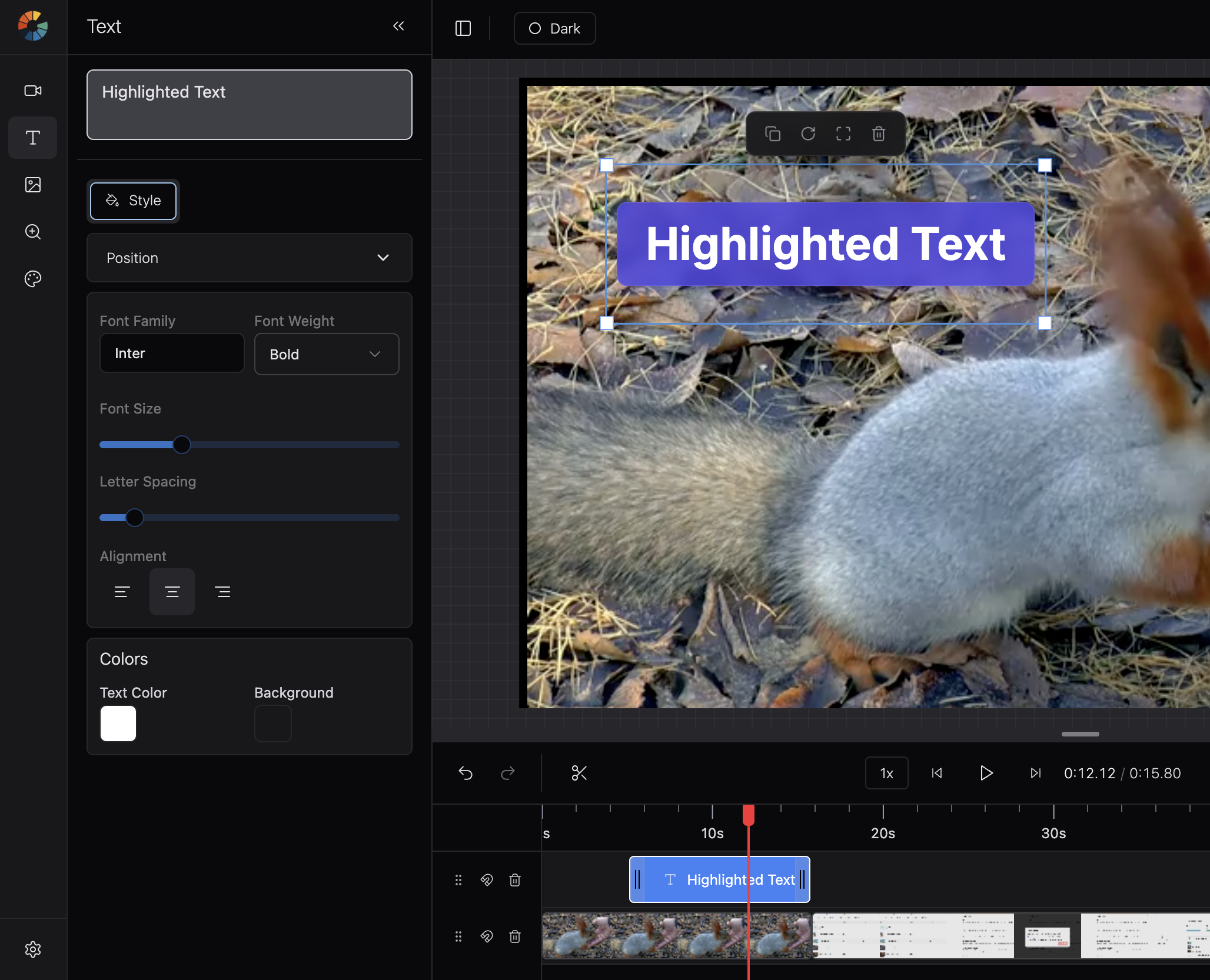
| Section | What you can change |
|---|---|
| Typography | Font family, font weight, text transform, font size (1–12 rem) |
| Colors | Text color; background color behind the text box |
| Alignment | Left, center, or right |
Add enter and exit animations
With text (or a video clip) selected, open the Settings tab.
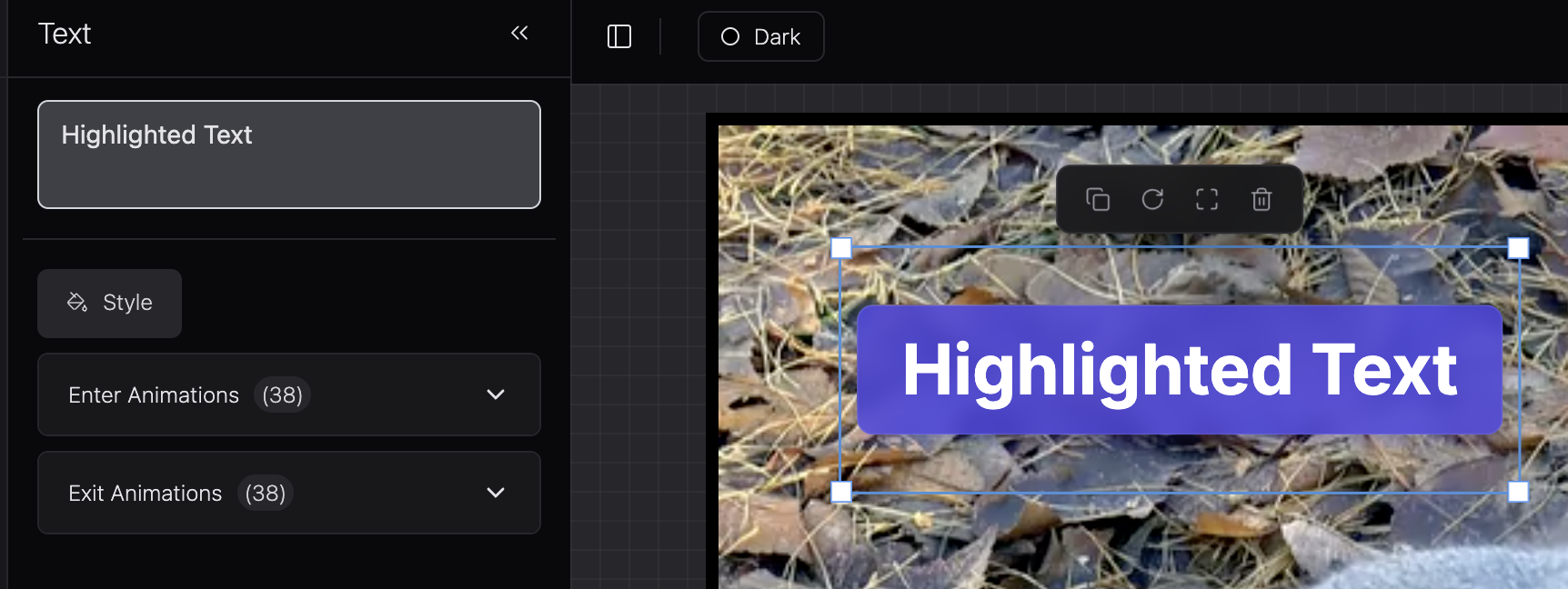
- Expand Enter Animations and pick a preset, or choose None.
- Expand Exit Animations and pick a preset, or choose None.
Animations play during preview and are included when you Replace Video.
Add a background color
The composition background is separate from the text box background color.
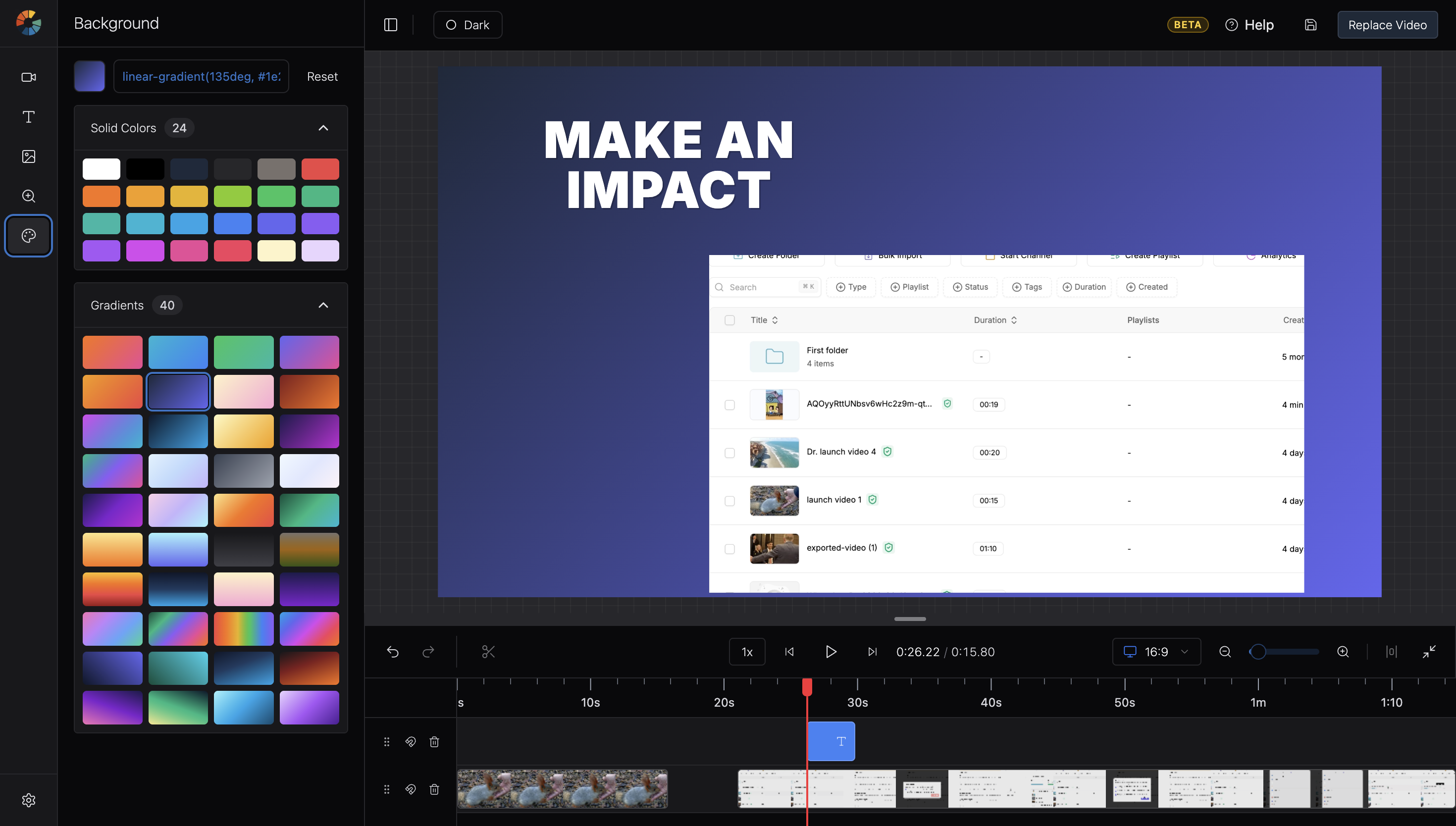
- Open the sidebar Background icon (palette).
- Pick a color from the swatch, enter any CSS value (hex, gradient, etc.), or choose a preset under Solid Colors or Gradients.
- Click Reset to restore the default.
The background fills the frame behind all clips and overlays. It is saved with your project and exported on Replace Video.
Add images
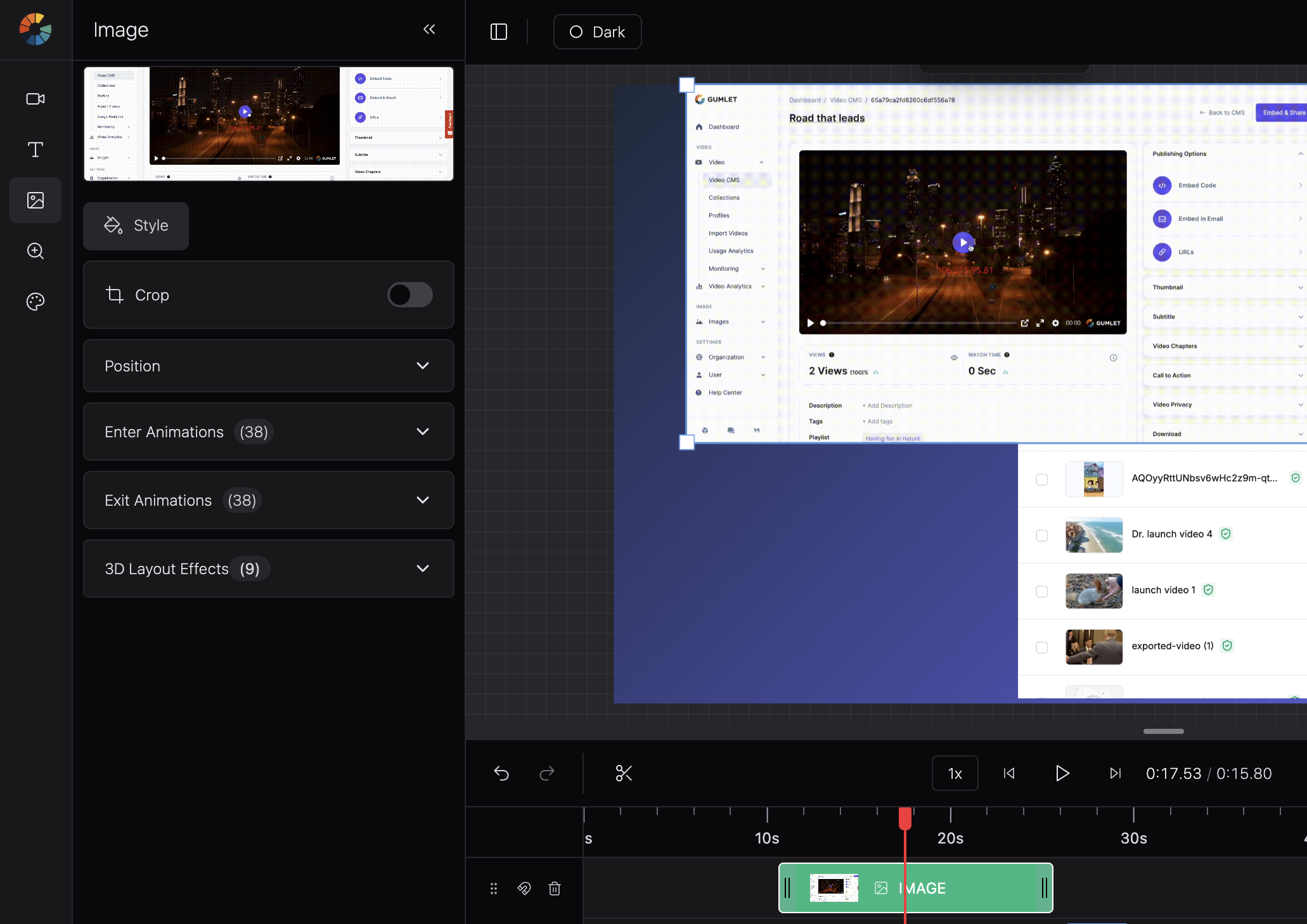
- Open the sidebar Image icon.
- Open the My Library tab.
- Click Upload and select an image from your device.
- Click the thumbnail or drag it onto the canvas or timeline.
Style images
With an image selected, use Style for appearance and Settings for enter/exit animations (same pattern as text).
Add extra video clips
Use this to layer B-roll, intros, or other footage onto your Gumlet source video.
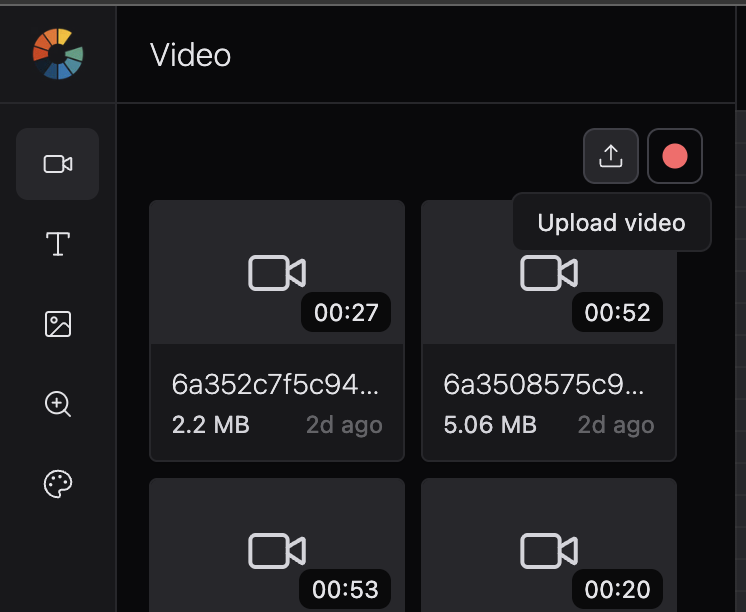
- Open the sidebar Video icon.
- Click the Upload icon in the panel toolbar (tooltip: “Upload video”).
- Select a video file from your device.
- Click or drag the file from My Library onto the timeline.
Updated 2 months ago
Did this page help you?