

Import from Vdocipher
Migrate from Vdocipher to Gumlet
If you currently use Vdocipher to host and protect your videos, our Import tool helps you move your entire library to Gumlet with just a few clicks.
Requirements:
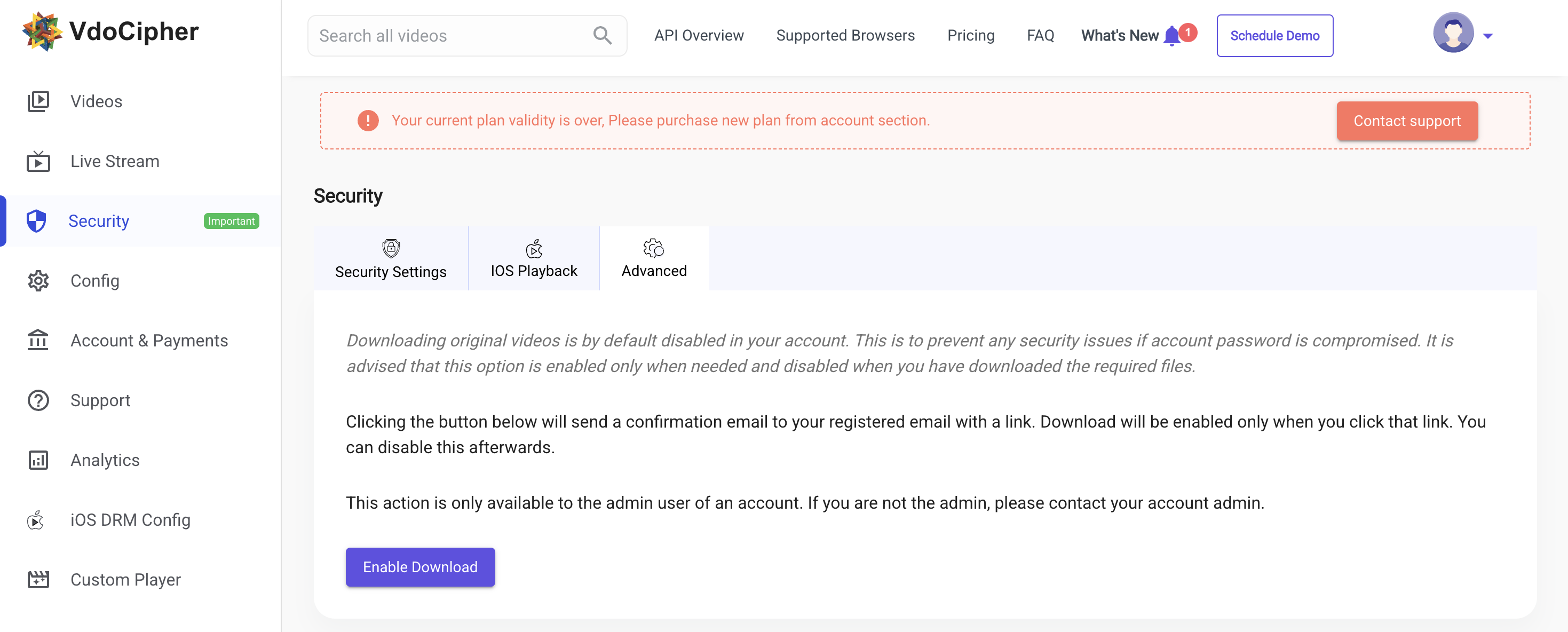
- An API key from a Vdocipher account, with Downloads enabled
- A paid Gumlet account (subscribe here)
Step-by-step: import from Vdocipher
-
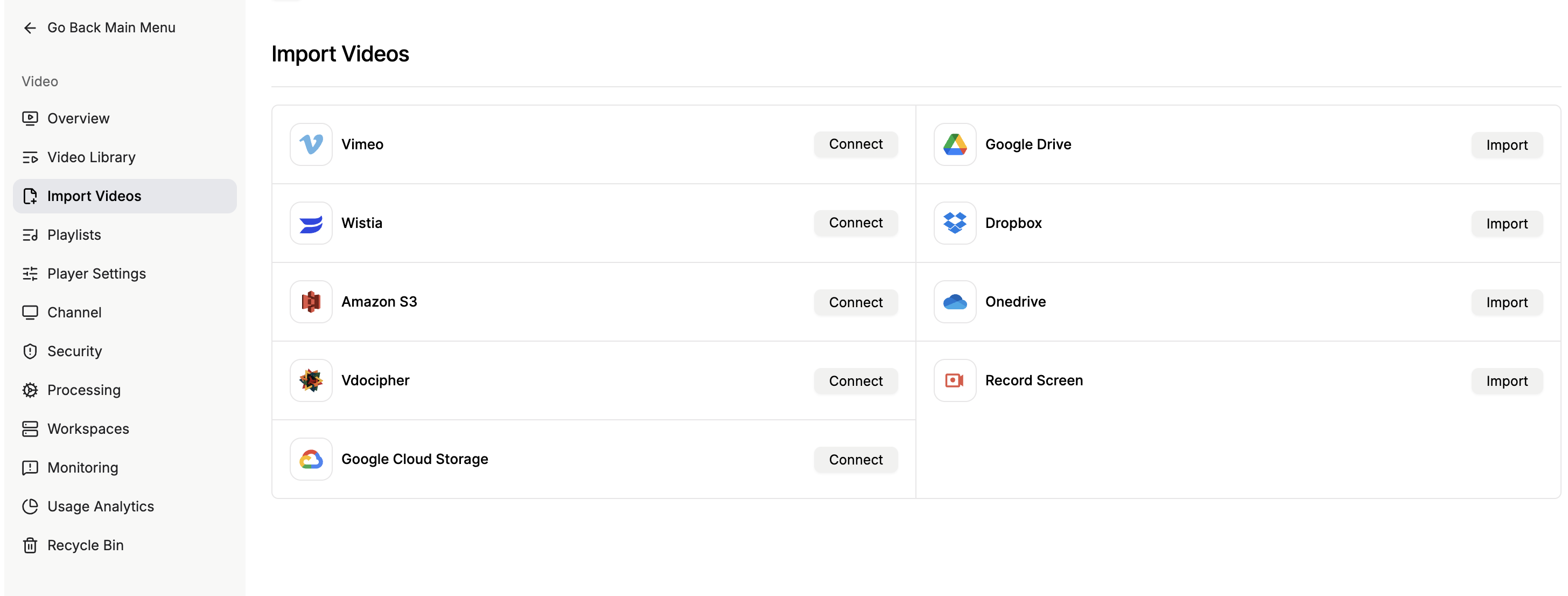
Go to the Import page and click Connect under Vdocipher.
-
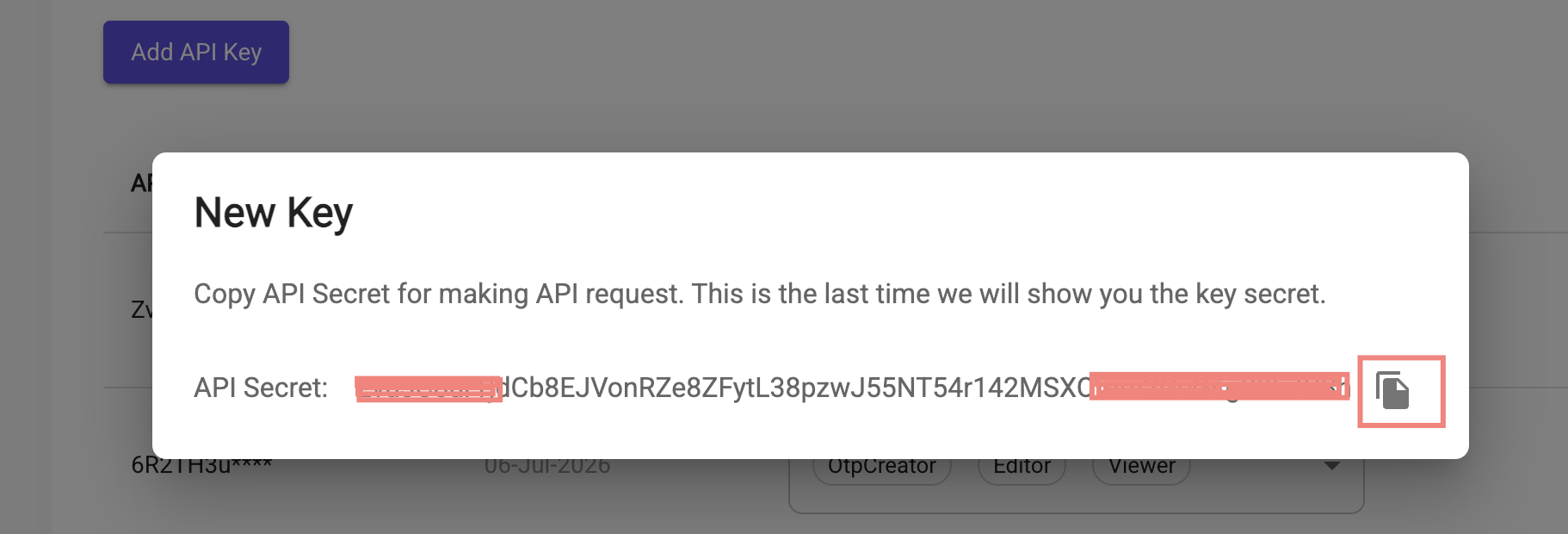
Get the API key from the Vdocipher dashboard.
- Click on Config in the sidebar
- Then generate an API key by clicking on the API key button.
- A new key will be generated and available for use.
-
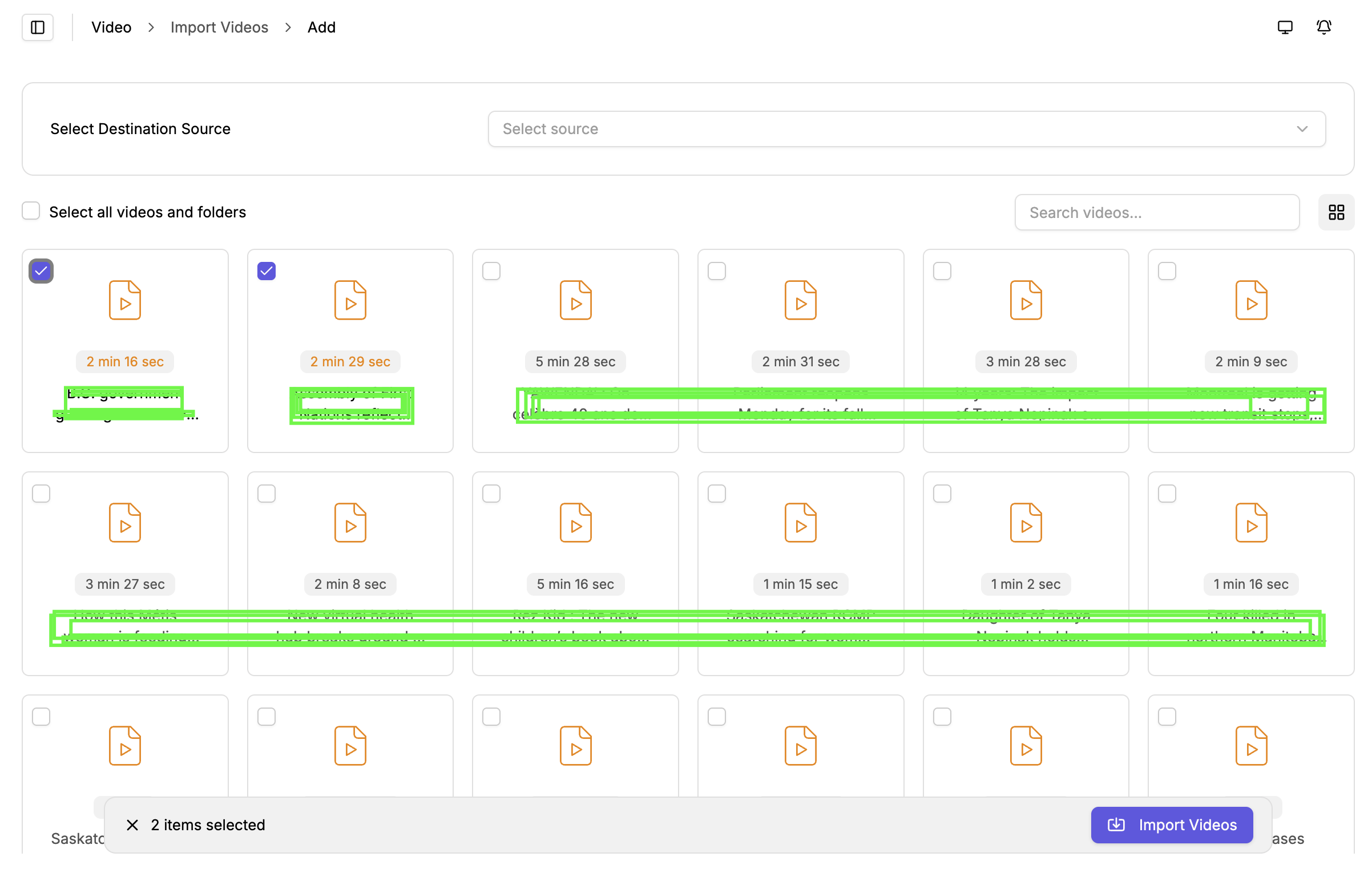
Select the Destination workspace in Gumlet.
-
Choose files and folders you want to import.
-
Click Import Videos to start the migration.
Import progress
- Track live import progress from your Gumlet dashboard: https://dash.gumlet.com/video/import-videos/.
- Get an email notification when the import job finishes, along with a quick summary of the imported videos.
Update Embed Code
All your videos are imported to Gumlet. If you use Vdocipher Embeds, you must replace your URL prefix with a Gumlet prefix to support the same URL structure to play your videos directly.
The Vdocipher Embed URL looks like https://player.vdocipher.com/v2/?otp=20160313versASE3232uiNHivbGDtJoBS4icnDU3DmjedrB8hnuHeRX5lcUBYkgj&playbackInfo=eyJ2aWRlb0lkIjoiYWViM2VmN2ZhYmE5NDM5MGE1ZTBmYTVlODc2OThiNjgifQ==
Replace https://player.vdocipher.com/v2/ with https://play.gumlet.io/embed/vc
Your new URL will be like https://play.gumlet.io/embed/vc?otp=20160313versASE3232uiNHivbGDtJoBS4icnDU3DmjedrB8hnuHeRX5lcUBYkgj&playbackInfo=eyJ2aWRlb0lkIjoiYWViM2VmN2ZhYmE5NDM5MGE1ZTBmYTVlODc2OThiNjgifQ==
Limitations
- Migration is slower than standard uploads; the dashboard can be closed while it runs.
- You need to enable Download in your Vdocipher account. Navigate to Security > Advanced > click on the "Enable Download" button
Updated 17 days ago