

Playback Speed
Change how fast your video plays. The Gumlet editor has two separate speed controls - one for preview and one for individual clips.
Preview speed (whole project)
Preview speed affects how fast the timeline plays back while you edit. It does not change the speed of clips in your final export.
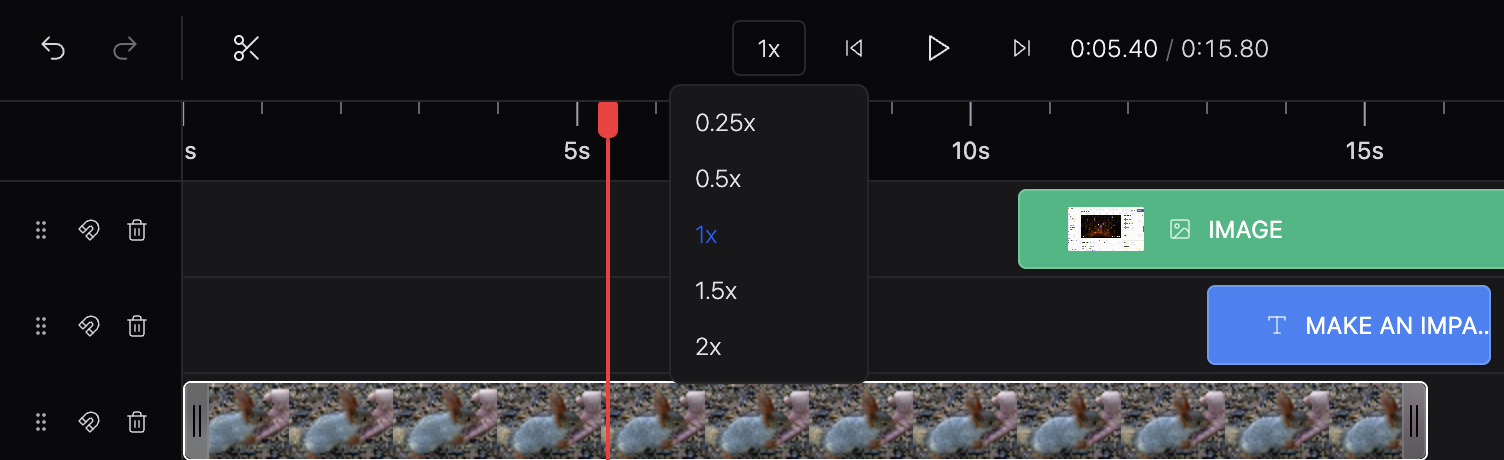
- On the timeline toolbar, find the speed dropdown (shows 1x by default).
- Choose a speed:
| Speed Options |
|---|
| 0.25x |
| 0.5x |
| 1x |
| 1.5x |
| 2x |
Use slower speeds to check fine edits; use faster speeds to skim long timelines.
Preview speed is saved with your project state. It is a editing convenience only - the exported video uses each clip’s own speed setting (below).
Per-clip speed
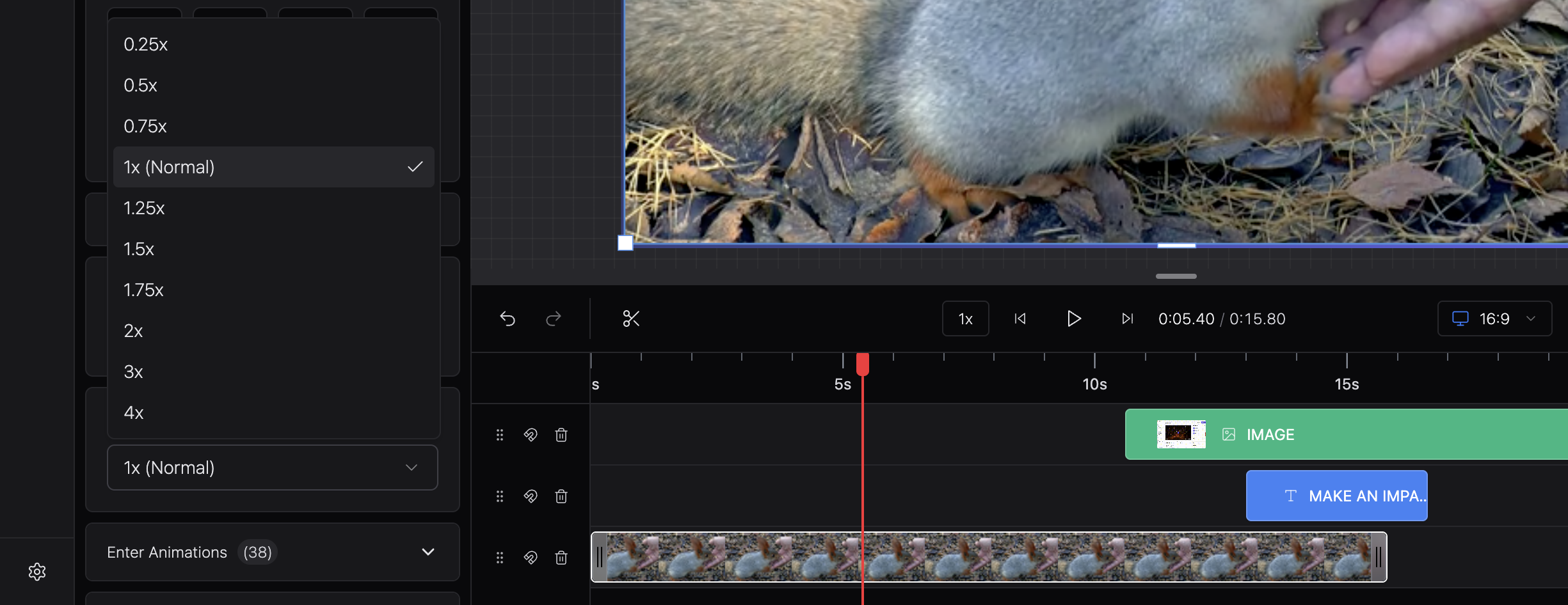
Per-clip speed changes how fast a specific video clip plays. This is included when you Replace Video.
- Select a video clip on the timeline or canvas.
- Open the Settings tab in the sidebar.
- Find Playback Speed.
- Choose a speed from the dropdown:
| Option |
|---|
| 0.25x |
| 0.5x |
| 0.75x |
| 1x (Normal) |
| 1.25x |
| 1.5x |
| 1.75x |
| 2x |
| 3x |
| 4x |
When you change clip speed, the clip’s duration on the timeline updates automatically; a 10-second clip at 2x becomes 5 seconds on the timeline.
Preview speed vs clip speed
| Preview speed | Per-clip speed | |
|---|---|---|
| Where | Timeline toolbar dropdown | Clip Settings tab |
| Range | 0.25x – 2x | 0.25x – 4x |
| Affects export | No | Yes |
| Affects timeline duration | No | Yes |
Common workflows
Slow-motion effect
- Select the clip.
- Set Playback Speed to 0.5x or 0.25x.
- Preview with
Space. - Replace Video to export.
Speed up a long section
- Select the clip.
- Set Playback Speed to 1.5x, 2x, or higher.
- Trim the clip if needed after the duration shrinks.
Review edits faster (without changing export)
- Set the toolbar preview dropdown to 1.5x or 2x.
- Scrub and play through the timeline.
- Reset preview to 1x before replacing if you prefer.
Updated 2 months ago