

Hubspot Integration
Connect HubSpot with Gumlet to capture leads through video forms and sync them to your HubSpot CRM and lists.
Before you begin
Make sure you have:
- Access to Integrations in your Gumlet dashboard.
- A HubSpot account with permission to authorize apps.
- Existing HubSpot forms, if you want to embed HubSpot forms in your video.
- Existing HubSpot lists, if you want to sync Gumlet form leads to HubSpot lists.
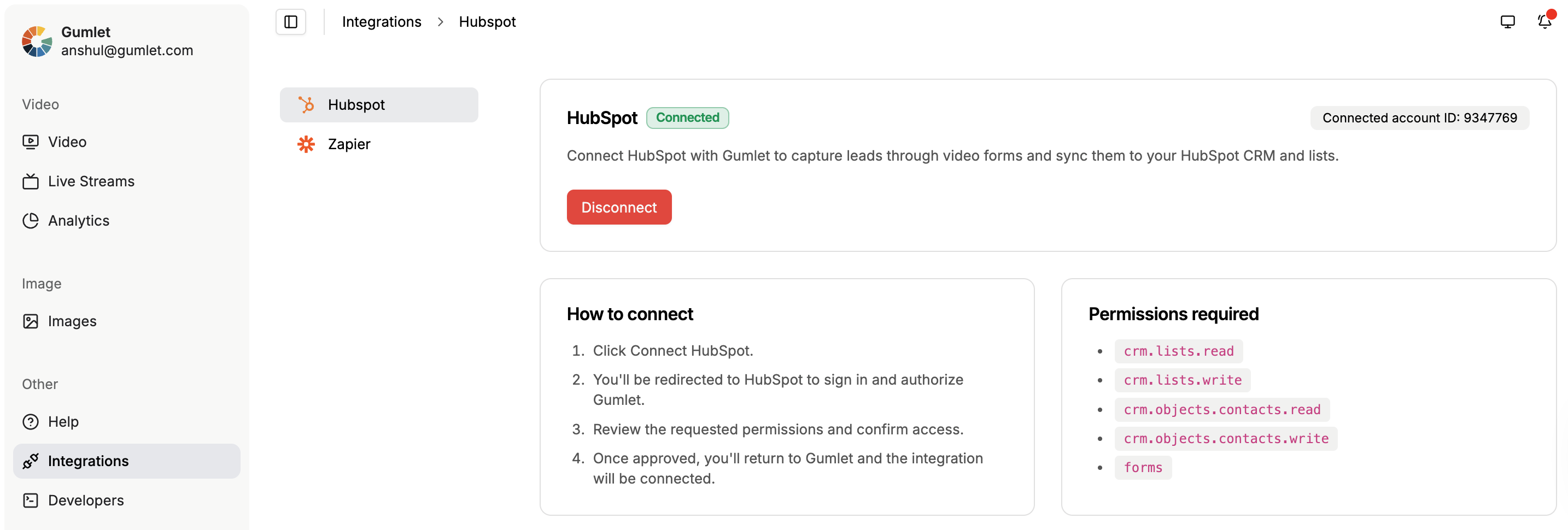
Connect HubSpot
- Go to Integrations in your Gumlet dashboard.
- Select HubSpot.
- Click Connect HubSpot.
- Sign in to HubSpot and authorize Gumlet.
- Once approved, you’ll be redirected back to Gumlet and the integration will be connected.
Permissions required
When connecting HubSpot, Gumlet requests the following permissions:
crm.lists.readcrm.lists.writecrm.objects.contacts.readcrm.objects.contacts.writeforms
These permissions are used to fetch HubSpot forms, read and update contacts, and sync leads to HubSpot lists.
How to use
HubSpot can be used in two ways inside Gumlet.
Use HubSpot forms in your video
- Go to Video Details.
- Open Form / Lead Capture.
- Select HubSpot from the dropdown.
- Choose the HubSpot form you want to embed.
- Save or publish the video settings.
When a viewer submits the form, the lead is captured directly in HubSpot.
Sync Gumlet form leads to HubSpot lists
- Go to Video Details.
- Open Form / Lead Capture.
- Select Gumlet Form from the dropdown.
- Choose a list from the HubSpot Sync List dropdown.
- Save or publish the video settings.
When a lead is captured through the Gumlet form, it is also added to the selected HubSpot list.
Disconnect HubSpot
You can disconnect HubSpot anytime from the integration page.
- Go to Integrations.
- Open HubSpot.
- Click Disconnect.
- Confirm the action in the modal.
After disconnecting, new leads from Gumlet will stop syncing to HubSpot until you reconnect.
Updated 4 months ago
Did this page help you?