Custom End Screens
Learn how end screens work, why they help, and when to use more videos, buttons, share buttons, custom images, custom messages, or an empty screen after a video ends.
You can use end screens to keep viewers engaged after a video ends, guide them to the next action, and make the final moment of playback useful.
Overview
An end screen appears after the video finishes. Instead of ending on a dead stop, you can use that space to recommend more content, drive a call to action (CTA, a prompt that tells the viewer what to do next), encourage sharing, or show custom branded content.
End screens help you:
- Keep viewers watching with follow-up content
- Drive clicks to one focused next step
- Increase reach through social sharing
- Reinforce branding with custom visuals
- Show a final message or announcement
- Avoid an abrupt ending with a clean final screen
How to end screens?
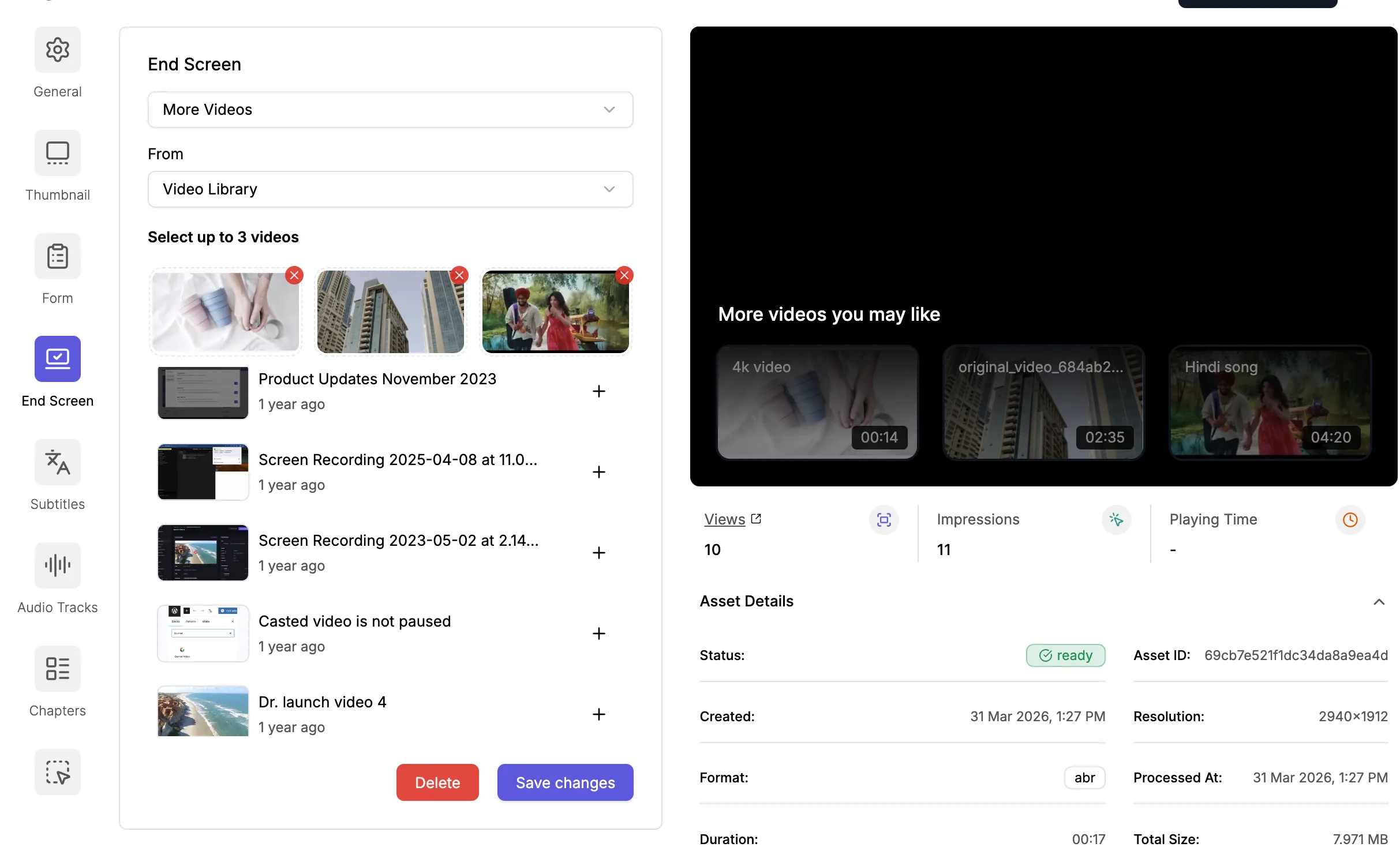
- Navigate to Video Library and click on a video thumbnail where you want to add an End Screen.
- Click on End Screen on the video settings page.
- Select the End Screen type from the dropdown. We offer many types of end screens, explained below.
- Customize your End Screen and save settings.
- On Embedding, your viewers will see the selected screen after the video ends.
Types of end screens
1. More videos
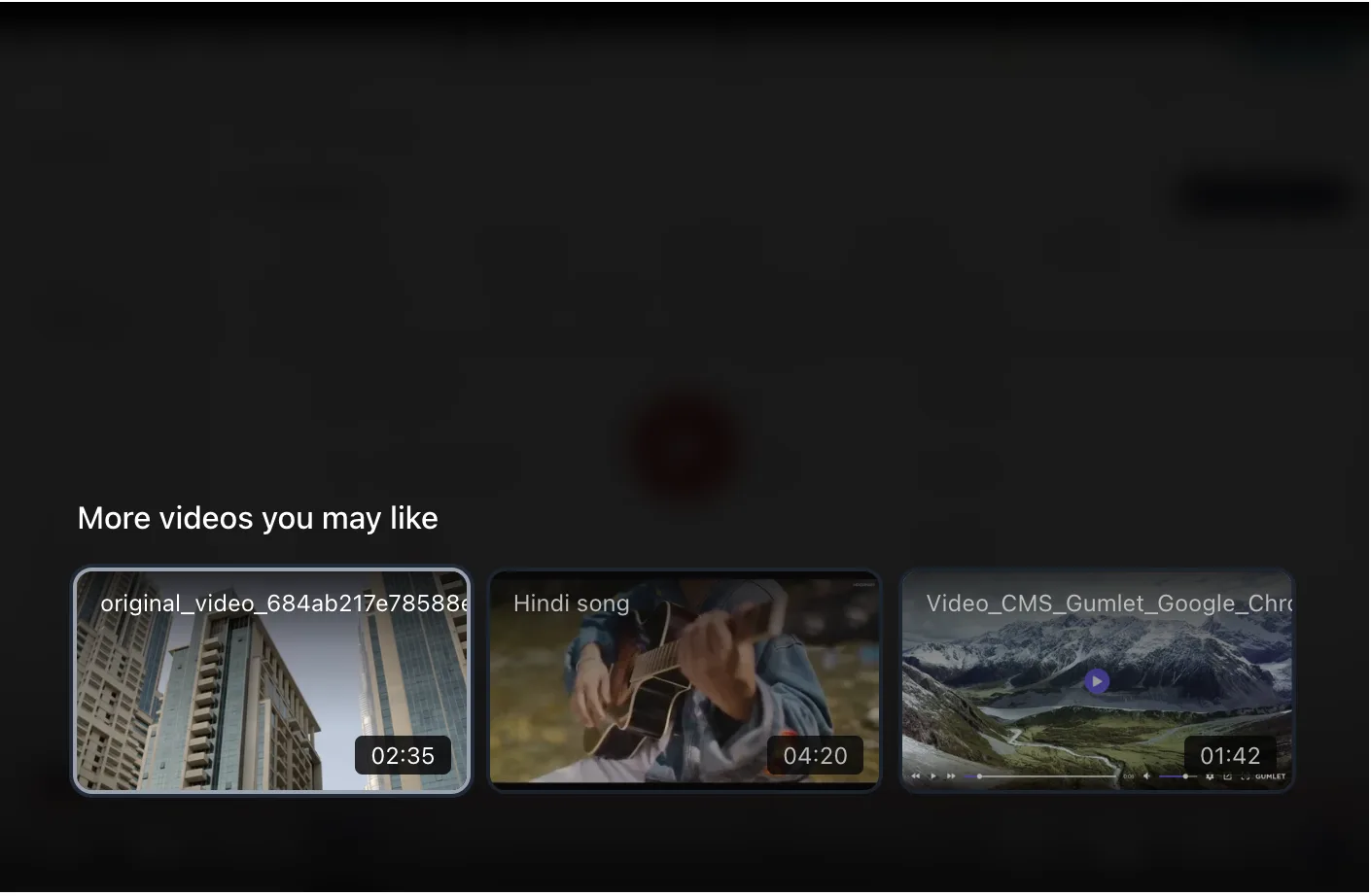
Use More videos to show 3 videos after the current video ends.
This option works well when your goal is to keep viewers in your content flow. It gives them an immediate next choice instead of making them search for another video.
How to add?
- Click on End Screen on the video settings page.
- Select More Videos from the dropdown.
- You can either select 3 videos from the Video Library or select a playlist, so that we select the most recent videos.
- Save Settings.
Why this helps
- Increases the chance that viewers continue watching
- Reduces drop-off after the video ends
- Helps surface related or follow-up content
Best for
- Series and playlists
- Product education
- Training libraries
2. Add a button
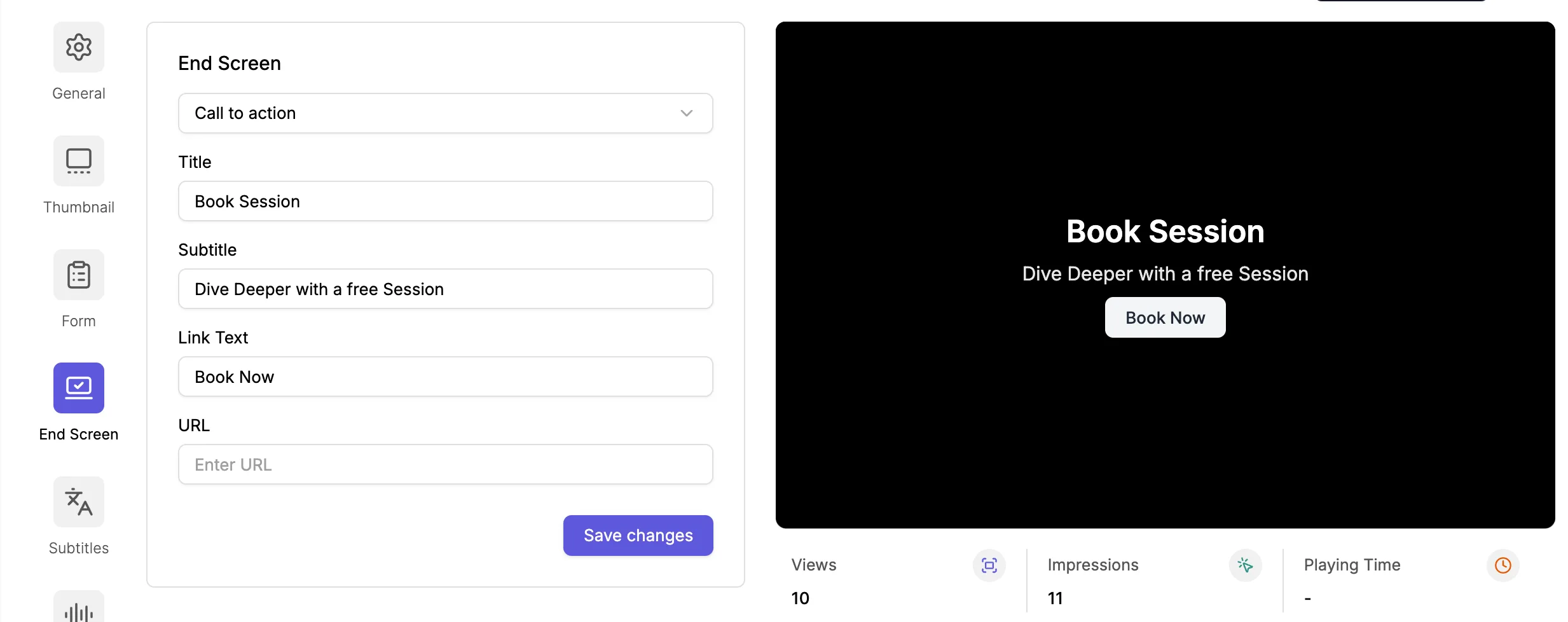
Use the Add a button to show a single focused CTA after the video ends.
This option is best when you want viewers to take a specific next step. A single button keeps the decision simple and directs attention to one destination.
How to add?
- Click on End Screen on the video settings page.
- Select Call to action from the dropdown.
- Add Title, Sutitle, Button text, and URL.
- Save Settings.
Why this helps
- Keeps the next action clear and focused
- Reduces distraction compared to showing multiple choices
- Works well for conversion-oriented videos
Best for
- Sign-up flows
- Demo requests
- Download or contact actions
3. Share buttons
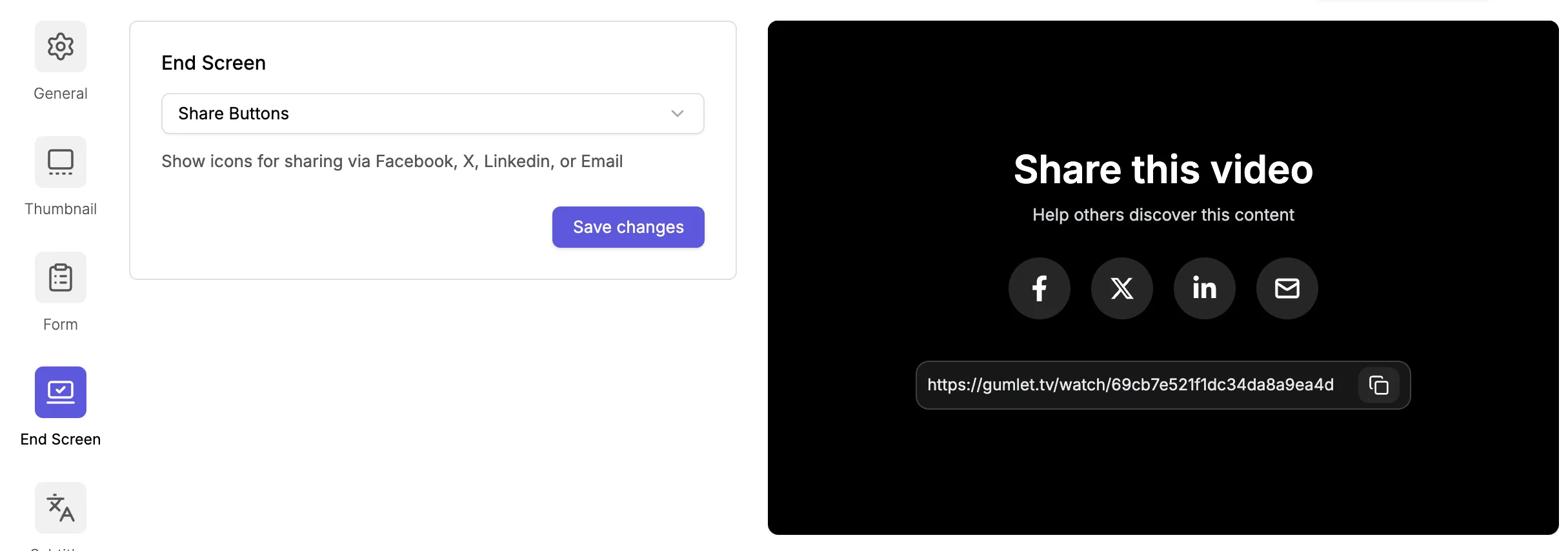
Use Share buttons to let viewers share the video after it ends.
This option helps turn engaged viewers into distributors. If a video is useful, timely, or worth recommending, sharing can help it spread faster.
How to add?
- Click on End Screen on the video settings page.
- Select Share Buttons from the dropdown.
- Save Settings.
Why this helps
- Makes sharing available at the moment the viewer finishes watching
- Expands reach beyond your existing audience
- Encourages viewers to promote content they found valuable
Best for
- Announcements
- Campaign videos
- Educational content
- Community-driven or awareness content
4. Custom image
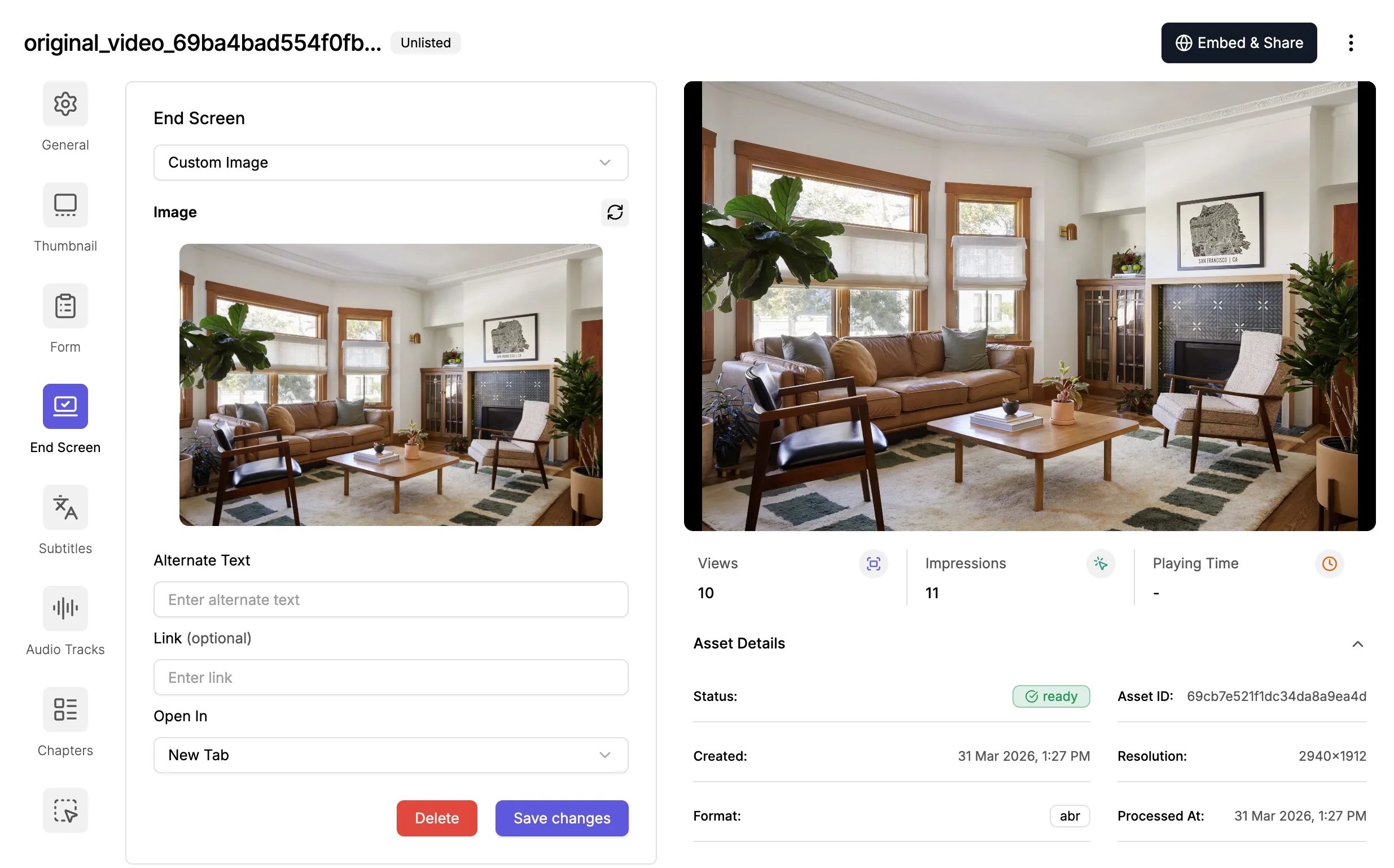
Use Custom image to show an image with a link after the video ends.
This option gives you more control over the visual presentation of the end screen. It works well when you want to match a campaign, highlight a partner, or create a branded destination.
How to add?
- Click on End Screen on the video settings page.
- Select Custom image from the dropdown.
- Select an image, image alternate text, and URL (if needed).
- Save Settings.
Why this helps
- Gives you a flexible branded visual at the end of the video
- Let's you direct viewers to a specific link
- Works well when design and messaging need tighter control
Best for
- Promotions
- Partner campaigns
- Visual calls to action
5. Custom message
Use Custom message to show a text area after the video ends.
This option is useful when the most important information is text rather than a button or image. You can use it to leave a final instruction, explain a next step, or display a short note.
How to add?
- Click on End Screen on the video settings page.
- Select Custom Message from the dropdown.
- Add Title and Message.
- Save Settings.
Why this helps
- Gives you space for a clear written message
- Works when a viewer needs context or instructions
- Helps reinforce the takeaway from the video
Best for
- Final reminders
- Short announcements
- Support or follow-up instructions
- Event or campaign messaging
6. Empty screen
Use Empty screen to show a black screen after the video ends.
This option is the most minimal end screen. It removes visual noise and gives you a clean finish when you do not want to show recommendations, links, or messages.
How to add?
- Click on End Screen on the video settings page.
- Select Empty Screen from the dropdown.
- Add Title, Sutitle, Button text, and URL.
- Save Settings.
Why this helps
- Creates a quiet, distraction-free ending
- Avoids pushing viewers to another action
- Keeps the close of the video visually simple
Best for
- Minimal branded experiences
- Videos that need a clean stop
- Cases where no follow-up action is needed
7. Lead Capture Form
Use the Form to display a form in the video to capture a lead.
You can add an automated flow of leads to your CRM, mailing lists, and other systems using Zapier, Make, or Pabbly.
Learn more about lead capture forms here .
Choosing the right end screen
Use this quick guide to choose the best option:
- If you want viewers to continue watching, choose More videos.
- If you want one strong conversion action, choose Add a button.
- If you want viewers to help distribute the content, choose Share buttons.
- If you want a branded visual that links somewhere, choose Custom image.
- If you want to display text-based instructions or a note, choose Custom message.
- If you want a clean, silent ending, choose Empty screen.
- If you want to capture leads, choose Form.
The best end screen depends on what should happen after the video ends. Start with the action you want from the viewer, then choose the end screen type that supports that goal.