

Trim, Split, Cut & Crop
Edit the length and framing of your clips - shorten segments, cut at a point, and crop video to a new aspect ratio.
Trim a clip
Trimming removes footage from the start or end of a clip without splitting it.
- Select a clip on the timeline.
- Hover the left or right edge of the clip until the resize cursor appears.
- Drag the edge inward to shorten, or outward to reveal more of the source (if available).

There is no dedicated Trim menu item - trimming is done entirely by dragging clip edges on the timeline.
Split (cut) a clip
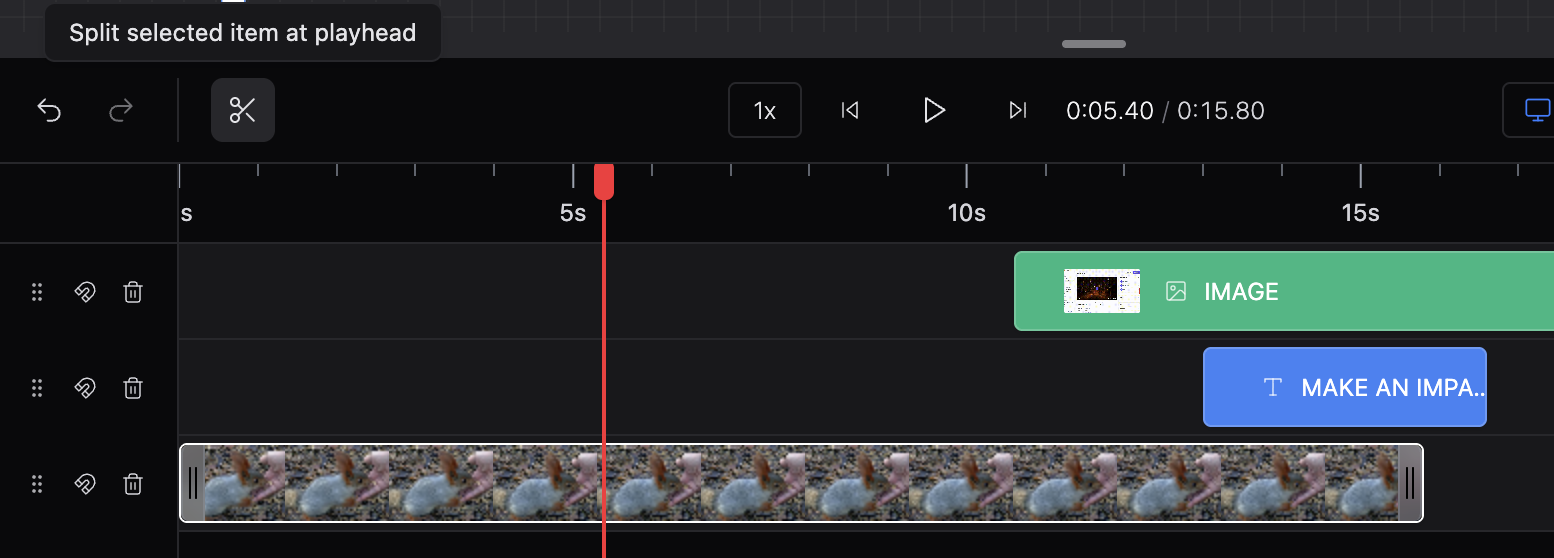
Splitting divides one clip into two segments at the playhead. Use this to cut out a section, reorder parts, or merge segments later.
Keyboard
- Select one clip on the timeline.
- Move the playhead over the selected clip.
- Press
S.
Toolbar
- Select one clip and position the playhead.
- Click the scissors icon on the timeline toolbar.
After splitting
- Each segment can be moved, trimmed, or deleted independently.
- To remove a middle section: split twice, select the middle segment, press Backspace.
- See Merge clips to join remaining segments.
If split is disabled, check the tooltip: you may need to select a single item and move the playhead over it.
Crop a video clip
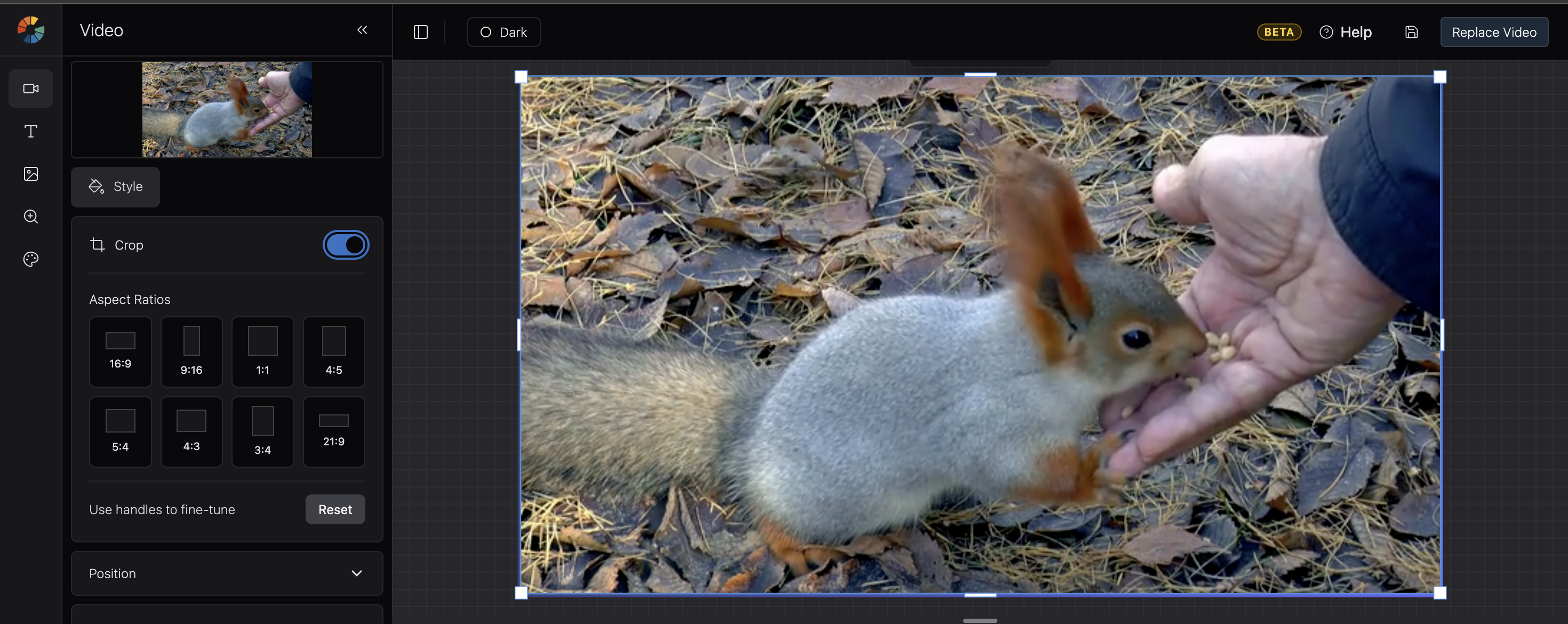
Cropping changes which part of the video frame is visible in the clip - not the overall aspect ratio of the composition.
- Select a video clip on the timeline or canvas.
- Open the Settings tab in the sidebar.
- Turn on the Crop switch.
- Pick an Aspect Ratio preset (16:9, 9:16, 1:1, 4:5, 5:4, 4:3, 3:4, 21:9).
- Drag the handles on the canvas to fine-tune the crop area.
- Click Reset to clear the crop.
Cropped framing is included when you Replace Video.
Change composition aspect ratio
The overall output frame (composition) is separate from per-clip crop.
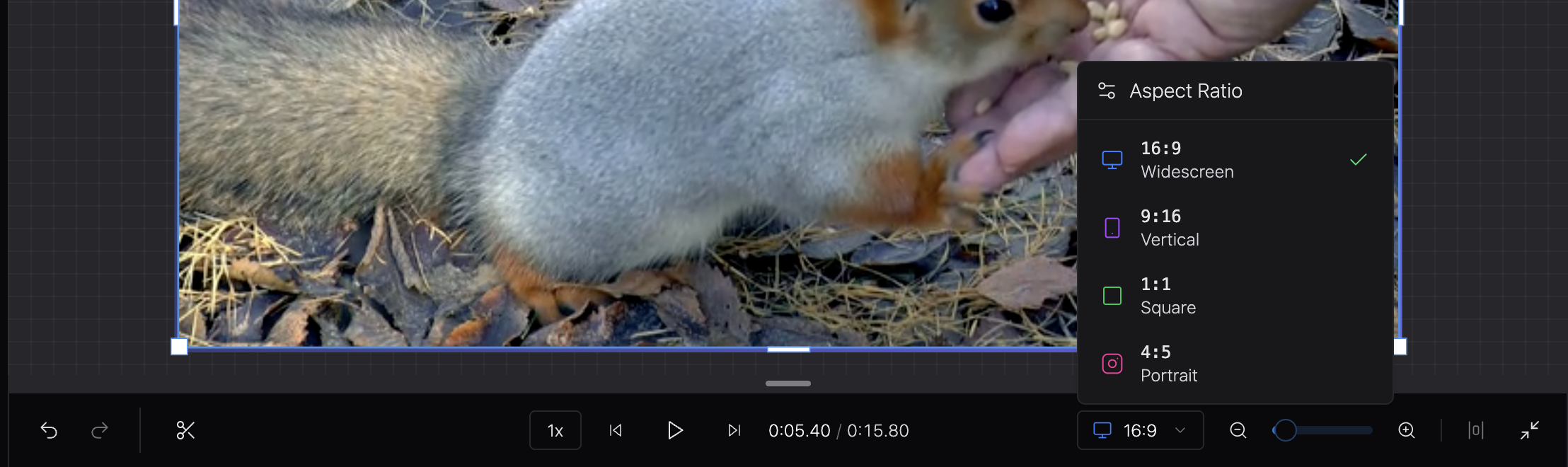
- On the timeline toolbar, open the aspect ratio dropdown.
- Choose 16:9 (Widescreen), 9:16 (Vertical), 1:1 (Square), or 4:5 (Portrait).
This sets the canvas frame for the entire project. Individual clips can still be cropped within that frame.
Duplicate and delete
| Action | How |
|---|---|
| Duplicate | Select item → ⌘/Ctrl + D, or right-click → Duplicate |
| Delete | Select item → Backspace, or right-click → Delete |
Keyboard shortcuts
| Shortcut | Action |
|---|---|
S | Split at playhead |
Backspace | Delete selected items |
⌘/Ctrl + D | Duplicate selection |
⌘/Ctrl + Z | Undo |
⌘/Ctrl + Shift + Z | Redo |
Space | Play / Pause |
Open Settings in the sidebar for the full shortcut list.
Updated 2 months ago