Lead Capture inside Videos
Add forms inside your video embed to capture leads
Lead capture inside videos lets you collect viewer information directly from the Gumlet player using either Gumlet Form or HubSpot.
Use lead capture for demos, webinars, gated content, and other videos where viewers are likely to share their details while watching.
You can configure lead capture per video from Video Details → Form / Lead Capture in your Video Library.
Types of forms
You can use Gumlet Form for native in‑player lead capture, or connect integrations like HubSpot to use your existing CRM forms and lists.
Gumlet supports the following lead capture options:
| Form type | Description |
|---|---|
| Gumlet Form | Use Gumlet’s native in-video form to collect leads inside the player. |
| HubSpot Form | Embed an existing HubSpot form directly inside your video. |
| Gumlet Form + HubSpot Sync | Use Gumlet’s form and automatically send captured leads to a selected HubSpot list. |
How to set up lead capture
- Open your Video Library.
- Click the video thumbnail/title and go to Video Details.
- Open Form.
- Choose your Form type (Gumlet Form or HubSpot).
- Configure fields and save.
Use HubSpot with lead capture
If you connect HubSpot from **Integrations **, you can:
- Select HubSpot in Form / Lead Capture to embed an existing HubSpot form inside your video.
- Select Gumlet Form and choose a HubSpot Sync List to send Gumlet form leads to a HubSpot list.
For detailed setup steps, permissions, and troubleshooting, see the HubSpot Integration guide.
What Gumlet offers
Gumlet forms offer every customization that you might need. Here are the main things:
- Add a title and subtitle
- Form Type: Hubspot or Gumlet Form
- Form position - whether you want it in the start, during the video or towards the end
- Form alignment - left, right, and center
- Sync with Hubspot List: Works with Gumlet form
- You can also make the form skippable, which works well for offers, trailers, and low‑friction lead gen.
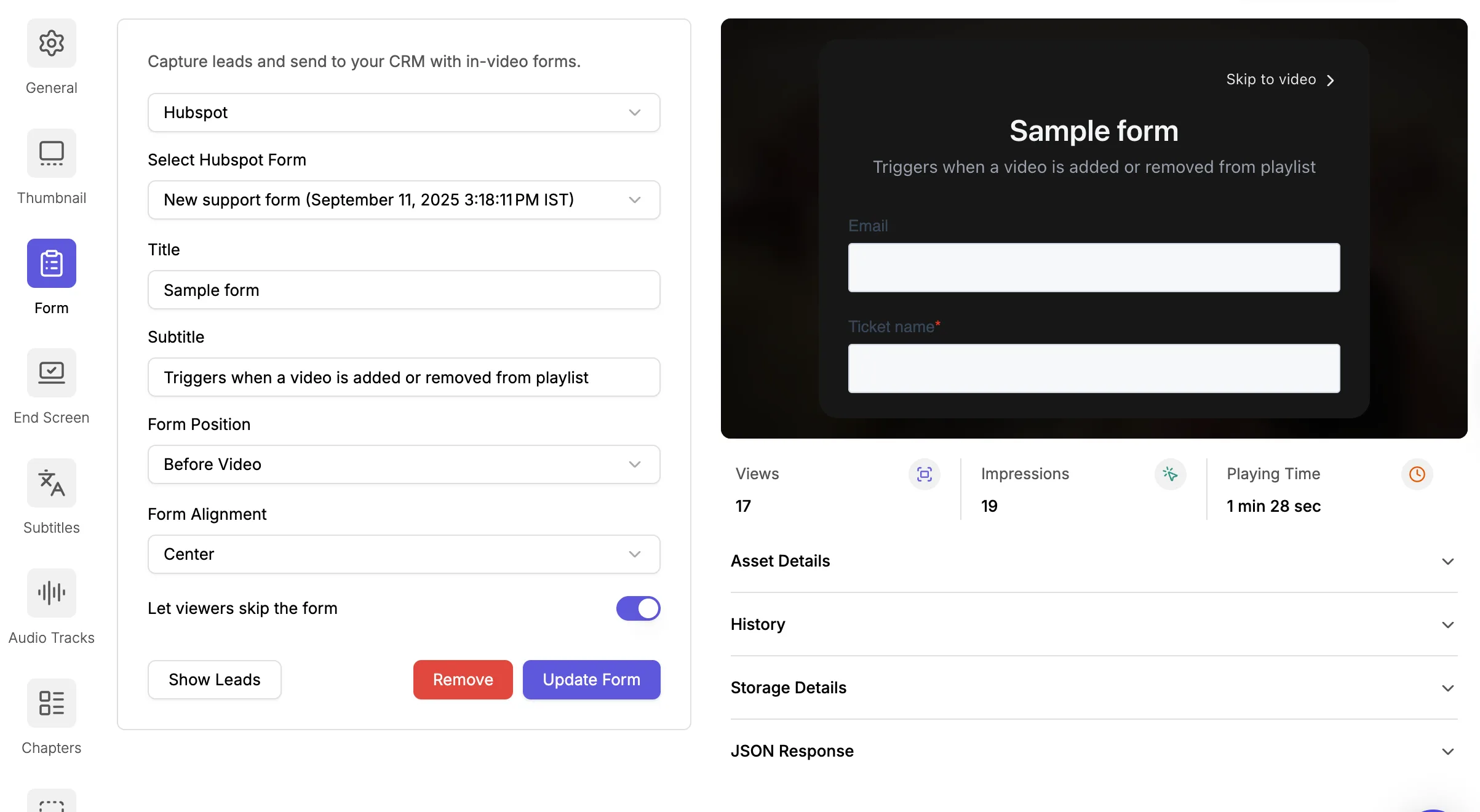
Tip: Didn't like the position or alignment? You can always update the form without changing the embed code.
By default, the leads you capture are shown in your Gumlet dashboard.
You can export them as CSV or use integrations like HubSpot, Zapier, Make, or Pabbly to send leads directly to your CRM.
When to use which option
| If you want to… | Use this option |
|---|---|
| Capture leads using Gumlet’s native experience | Gumlet Form |
| Use an existing HubSpot form inside your video | HubSpot Form |
| Keep Gumlet’s form UI and sync leads to HubSpot | Gumlet Form + HubSpot Sync |