Manage Videos
Manage all your videos on a single panel
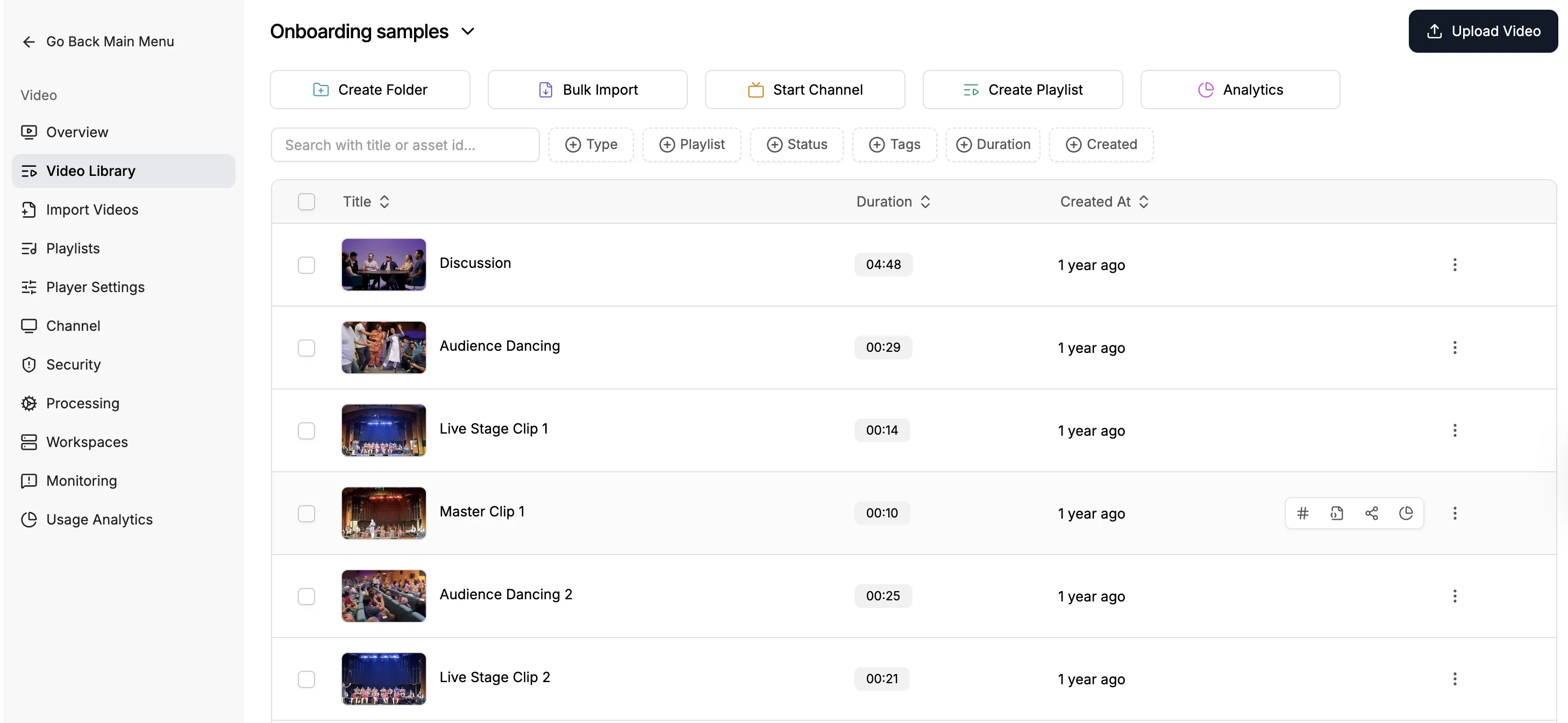
Gumlet is built to improve user experience and engage your users. Gumlet video library is the central place to manage all your videos. You can head to the video library section, and you will see this screen:
How your video library is structured
Your Gumlet account is organized in a simple hierarchy so you always know where a setting applies:
-
Workspace
Top-level container for all your videos, folders, subfolders, channels, playlists, and team members. Workspace settings act as defaults for everything you create. -
Folders and subfolders
Internal organization in the video library. Use them to manage videos for your team (projects, clients, departments). Folders and subfolders are not shown to viewers and do not change how a video is shared, embedded, or watched. -
Channels and playlists
Public-facing experiences. Playlists group videos for sharing and embedding. The channel is the public page that displays the playlists you include on it. -
Videos
The actual video assets that are uploaded, processed, protected, embedded, and tracked. Many settings can be customized per video to override workspace or channel defaults.
These are two independent trees that share the same videos:
| Internal (video management) | Public (sharing and embedding) | |
|---|---|---|
| Structure | Workspace → folder → subfolder → video | Workspace → channel → playlist → video |
| Who uses it | Your team in the dashboard | Viewers on the channel page, playlist links, and embeds |
| Typical use | Keep the library tidy (for example Clients / Acme / Q3) | Publish a course, series, or branded channel |
A video can live in a folder for your team and appear in any number of playlists for viewers. Putting a video in a folder does not add it to a playlist or the channel. Adding a video to a playlist does not move it in the library.
Folders and subfolders have no relationship to channels or playlists. Organize internally with folders. Publish with playlists, then attach those playlists to the channel (or embed a playlist on its own).
How channels and playlists relate
- Create playlists as public sets of related videos (a course, a series, and similar groupings).
- Add those playlists to the channel under Included Playlists, and reorder them for the channel page.
- Share the channel URL, invite members, or embed an individual playlist. Viewers never see your folder tree.
Manage videos with folders and subfolders
Create folders to organize videos neatly in your video library. You can also create subfolders (folders inside other folders) to group related videos, separate projects or categories, and keep the library structured.
How to create a folder?
-
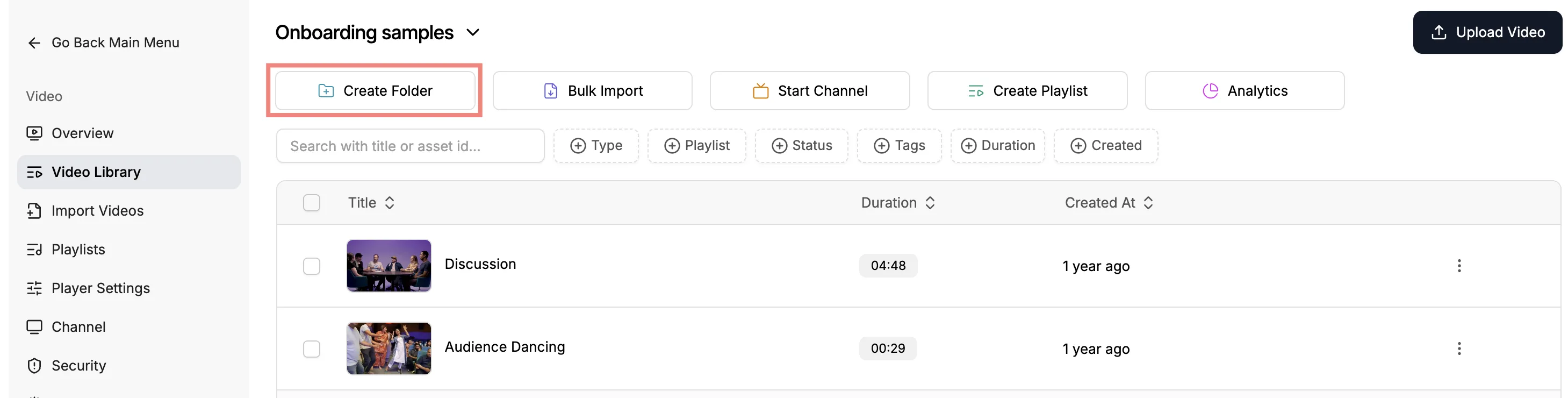
Click on the Create Folder button in your video library.
-
Give it a name, and your folder is ready.
How to create a subfolder?
- Open the parent folder in the video library.
- Click Create Folder and name it. That folder becomes a subfolder of the one you are in.
- Or, from the library, use the 3 dots on a folder and Move to Folder to nest it under another folder.
Tip: You can nest multiple levels of subfolders. Moving a folder also moves the videos and subfolders inside it.
How to move videos in a folder?
-
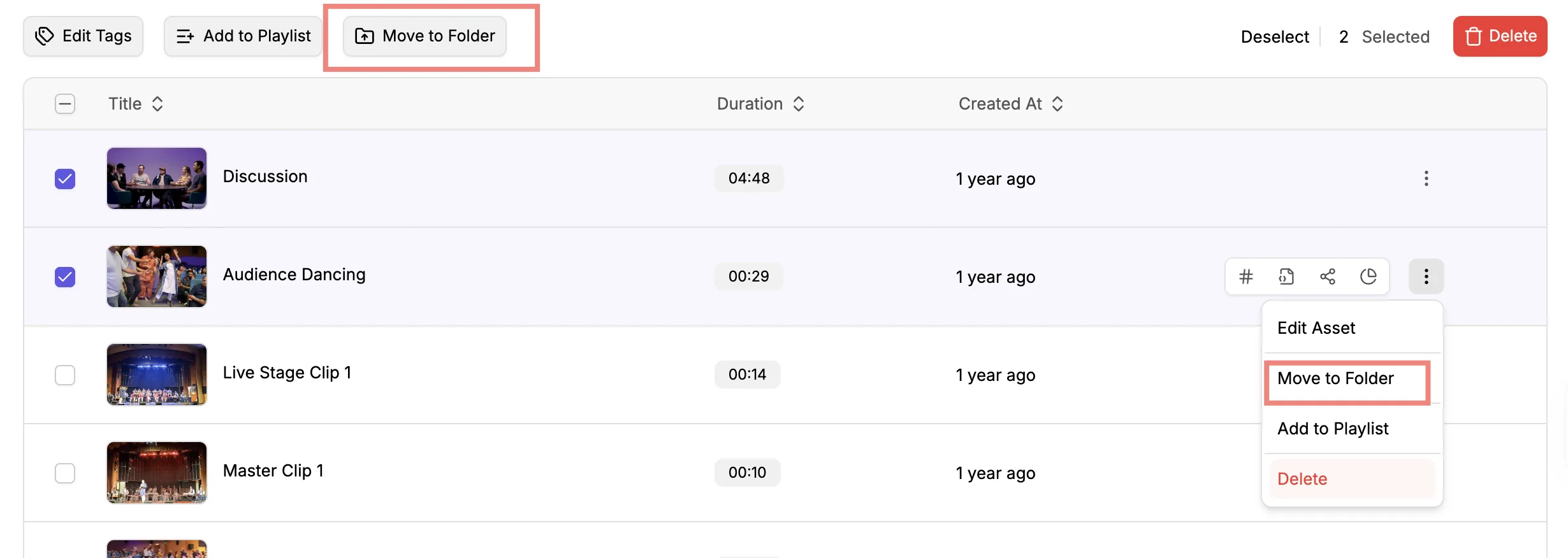
Click on the 3 dots against a video or select video(s).
-
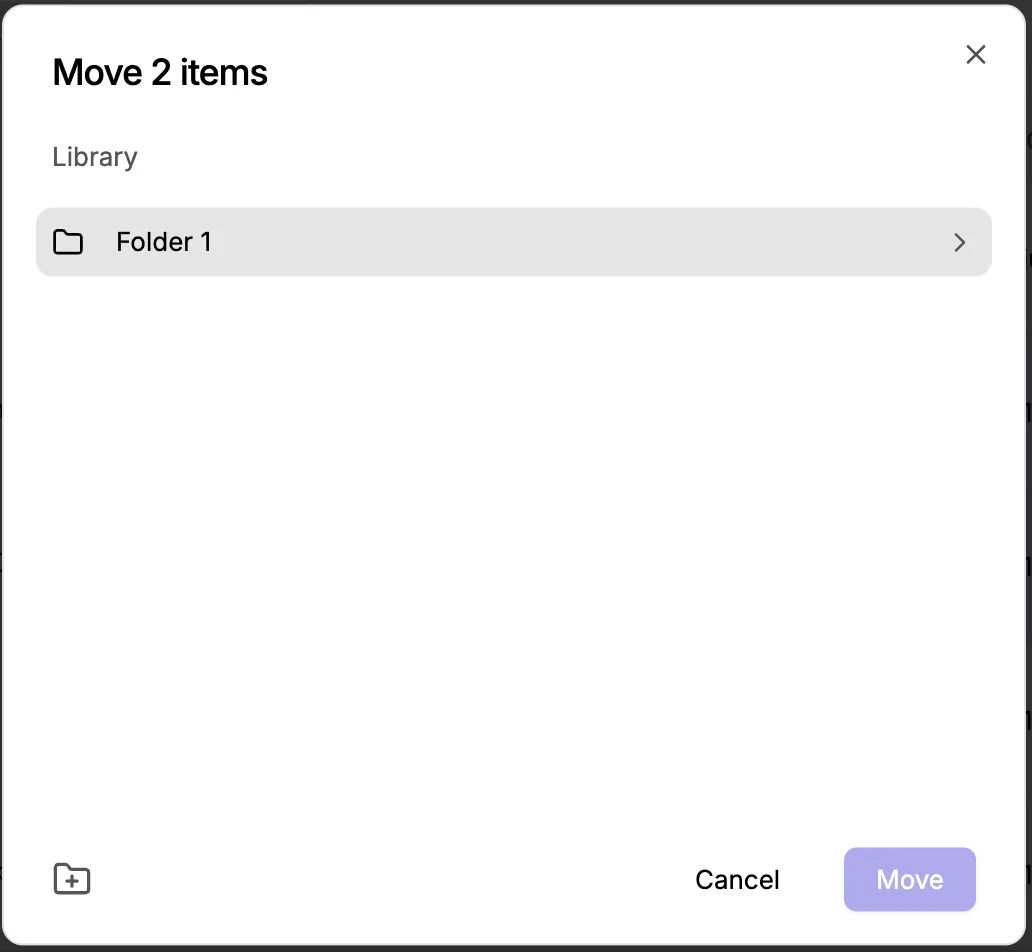
Choose "Move to Folder" to move a single or multiple videos.
-
Select a folder or subfolder, or create a new one on the fly.
-
Click on the Move button to move the video to the selected folder.
Deleting a folder will delete all the items inside that folder, including subfolders and videos.
What can I configure at each level?
Different settings apply at different levels in this hierarchy. Higher levels define defaults, and lower levels (especially individual videos) can override those defaults where allowed.
| Workspace | Folders / subfolders | Channels / Playlists | Single videos | |
|---|---|---|---|---|
| Processing settings | Set default processing profile for new videos in the workspace. | No direct controls; videos inherit workspace defaults. | No direct controls; videos keep their own processing settings. | Override per video (only if set before upload or via API). |
| Privacy & access | Default privacy for all newly uploaded videos in the workspace. | Folders and subfolders do not have separate privacy settings. | Channel-level visibility - public and membership where configured. | Per-video privacy (public, unlisted, password, signed URL, DRM, embed restrictions, etc.). |
| Player customization | Default player theme, logo, colors, and controls for the workspace. | No player UI settings; used only for internal organization. | Channel/playlist layout and theme for channel pages and playlist embeds. | Per-video player overrides: controls, logo, colors, watermark, CTAs, forms, etc. |
| Branding & domains | Custom domains for video preview, playlist and channel. | Not applicable. | Channel branding (cover image, description, social links, channel custom domain). | Video title, thumbnail, description, and SEO metadata. |
| Security & protection | Global protection defaults (e.g., signed URLs, DRM availability). | Possible bulk actions on videos in a folder or subfolder. | Channel-level restrictions such as login/membership-based access. | Per-video signed URLs, DRM settings, password protection, allowed domains, CSP, and more. |
| Analytics & reporting | Workspace-wide usage and analytics across all videos. | Filter analytics by folder using analytics tools. | Channel/playlist performance (views, watch time, conversions where applicable). | Detailed per-video analytics, engagement graphs, and user-level analytics where enabled. |
| API customization | Workspace-level API keys, webhooks, and upload/manage APIs. | Use folder IDs in API calls to organize or filter lists of videos. | Channels and playlists can be created/managed via API where supported. | Set or update processing, privacy, player options, and metadata per video using the API. |
Settings defined at the workspace or channel level act as sensible defaults. When you customize a specific video, its video-level configuration takes priority for that video.
Configure via dashboard or API
Anything you can configure from the dashboard (processing profiles, privacy, player options, metadata) can also be managed programmatically using the Video Upload / Manage APIs. Use workspace settings for consistent defaults, and use video-level API calls when you need to control behavior dynamically for each video.
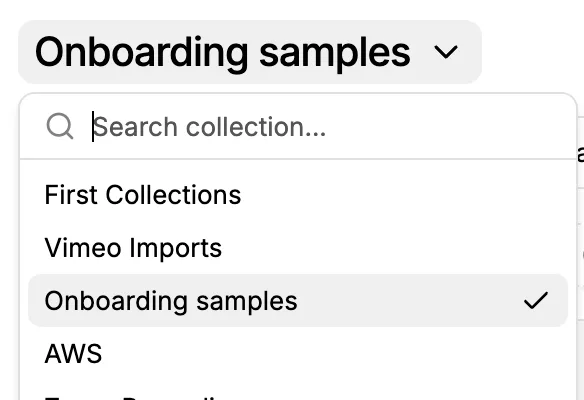
Switching Workspaces
You can create more workspaces from the left sidebar > Workspaces. You can switch to a different workspace from the drop-down menu above the videos table in the video library.