Video Reviews
Review videos with your team inside Gumlet, or share review links externally to collect client feedback with precise, time-based comments.
Gumlet supports internal video reviews inside the dashboard, where teams can mark points at specific timestamps, reply to feedback, and resolve comments before publishing. Also, review-link workflow that let you collaborate with collaborators, making it easier to collect actionable feedback from clients without moving the conversation to email or chat.
Internal reviews
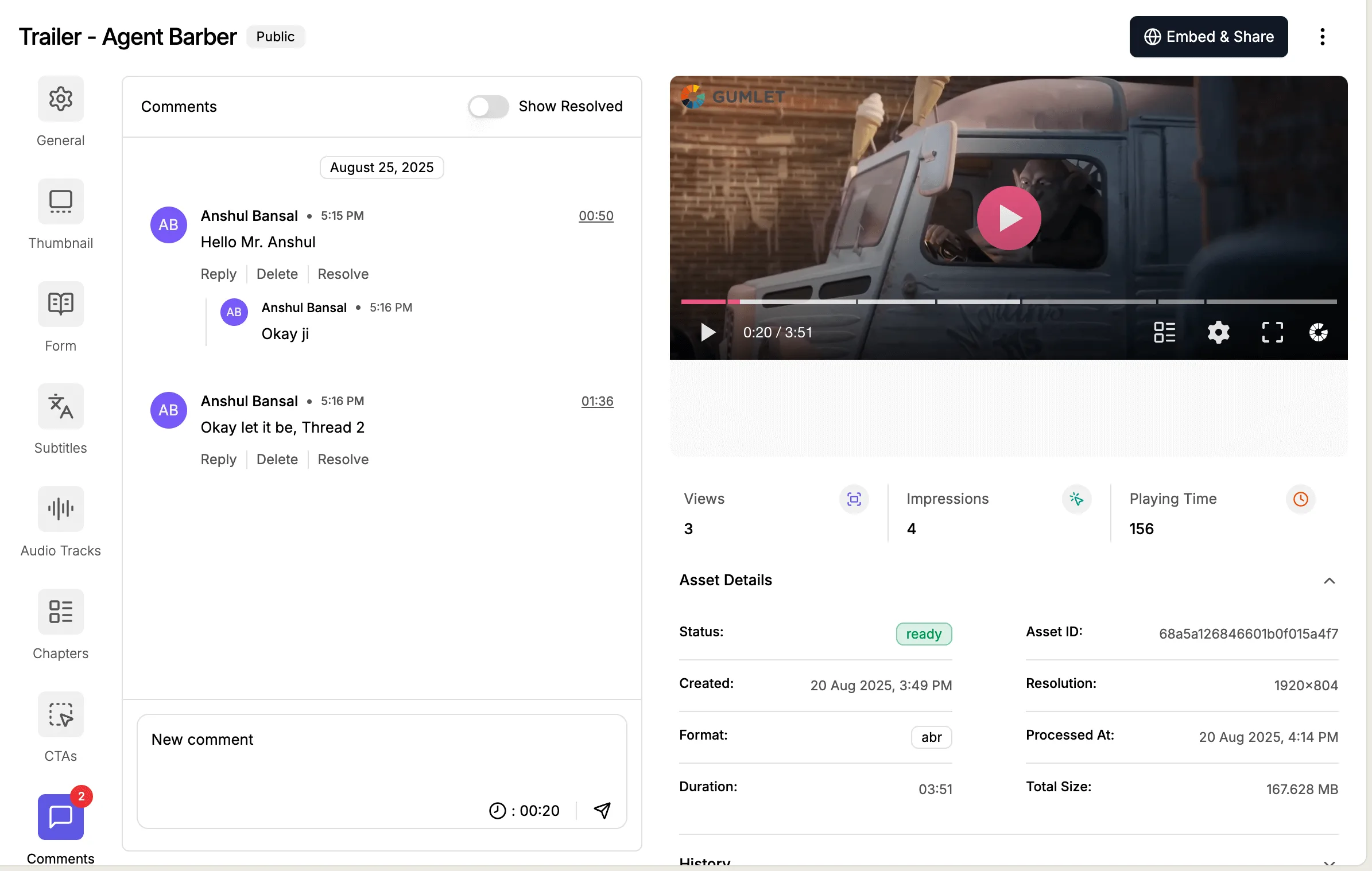
Internal reviews happen on the video details page inside Gumlet. Team members can open the Comments tab, mark a point in the video, add review notes, reply in a thread, and resolve comments once the requested changes are complete.
What you can do
- Mark specific points in a video for visual feedback.
- Add comments tied to exact moments in the video.
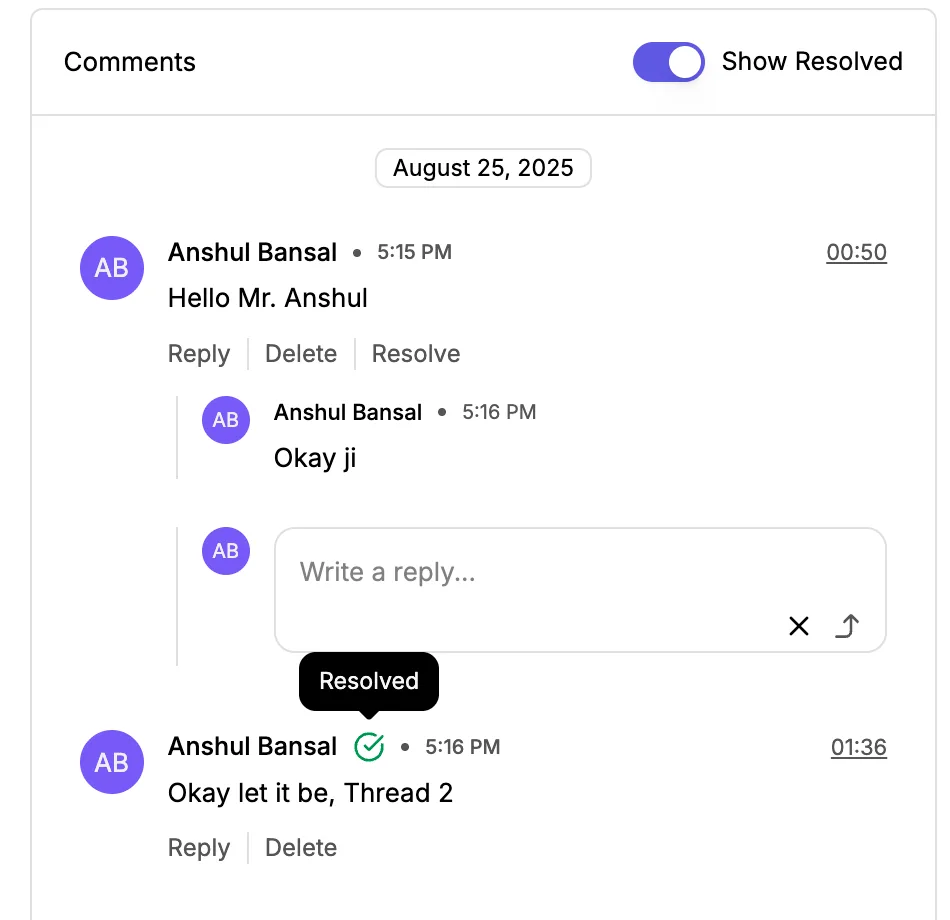
- Reply to comments and keep discussion in one thread.
- Resolve feedback after edits are complete so videos can move to publish faster.
How internal reviews work
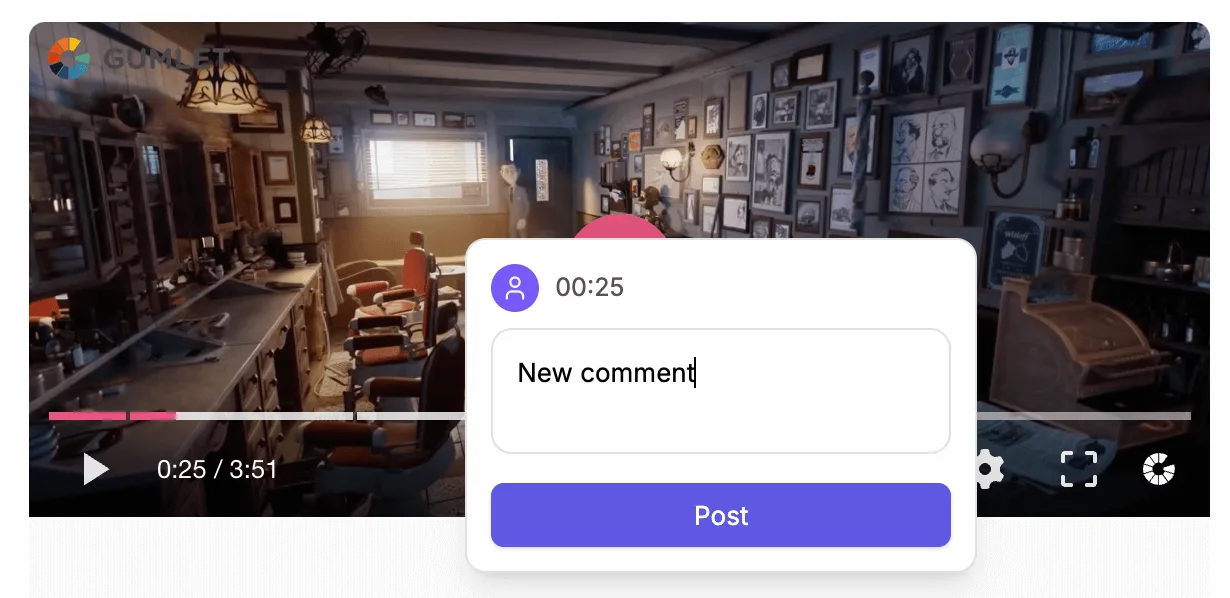
- Open a video details page in Gumlet.
- Click the Comments tab.
- Mark a point on the video timeline.
- Add a comment with the required review note.
- Reply to the review or resolve it after the edit is done.
External review links
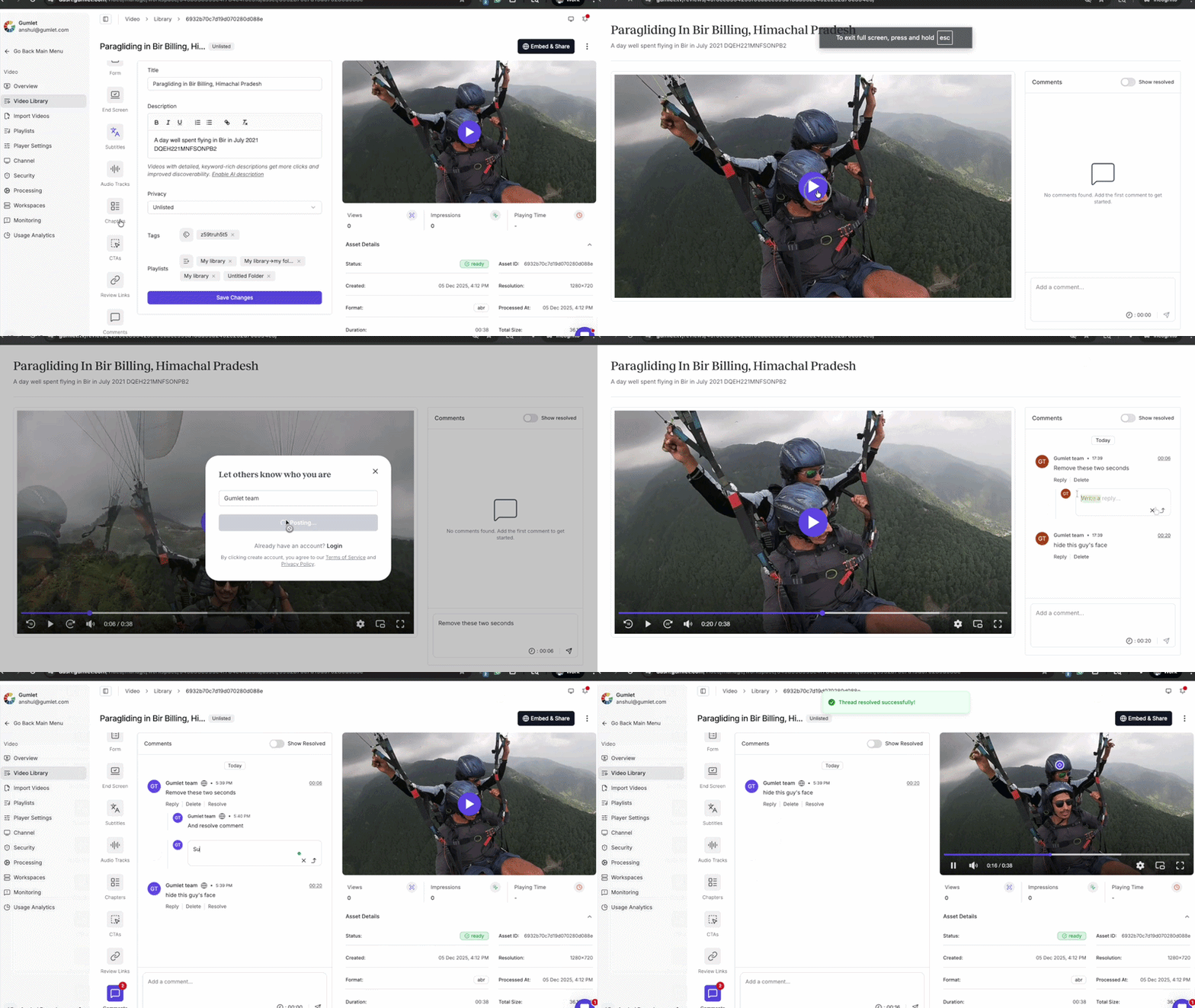
Review links let teams share a video with clients or collaborators and collect precise feedback outside the workspace. You can create a named review link, can set an expiry date, and then shares that link for review.
What reviewers can do
External reviewers can leave time-based comments such as "remove these two seconds" or "make this guy’s face blur," making edit requests more specific and easier to execute. Teams can then act on the requested changes and resolve comments in the same review workflow.
Create a review link
- Open the relevant video in Gumlet.
- Navigate to "Review Links" tab and click Create review link.
- Add a link name for the reviewer, client, or project.
- Set an expiry date and create a link.
- The link will be copied to share with stakeholders.
When to use each workflow
| Workflow | Best for | Access model | Typical outcome |
|---|---|---|---|
| Internal reviews | Editorial QA, marketing review, team feedback | Inside the Gumlet dashboard for team members | Review threads are discussed and resolved before publish |
| External review links | Client approval, stakeholder sign-off, partner collaboration | Shared link created from the video | External comments are collected as actionable edit requests |
Notifications
For internal comments, new comments, replies, or resolutions trigger email notifications by default. Teams that need customized workflows can also use Gumlet’s Zapier integration for tailored notifications and automations.
Best practices
Use internal reviews when feedback should stay limited to workspace collaborators, and use review links when feedback needs to come from external stakeholders. Clear, time-based comments such as "trim 00:12 to 00:14" or "blur this face here" reduce ambiguity and help editing teams act faster.