Time based expiry URLs
Generate temporary video embed code with time-based expiry URLs at the video level or workspace level, set a duration, and copy the generated embed code.
Use time-based expiry URLs to generate embed code that works for a limited time and stops working after it expires.
Overview
Time-based expiry URLs help you control how long a video URL or embed remains valid. This is useful when you want to share videos for a fixed period, limit access after a campaign ends, or avoid leaving permanent links active.
You can enable expiry URLs in two places:
- Video level when you want to control expiry for one specific video
- Workspace level inside Signed URLs when you want to manage this at the workspace level
After you enable it, select how long the URL should remain active. Once that time duration passes, the URL expires and no longer works.
Generate a time-based expiry URL
-
Navigate to the video settings page and click Embed and Share.
-
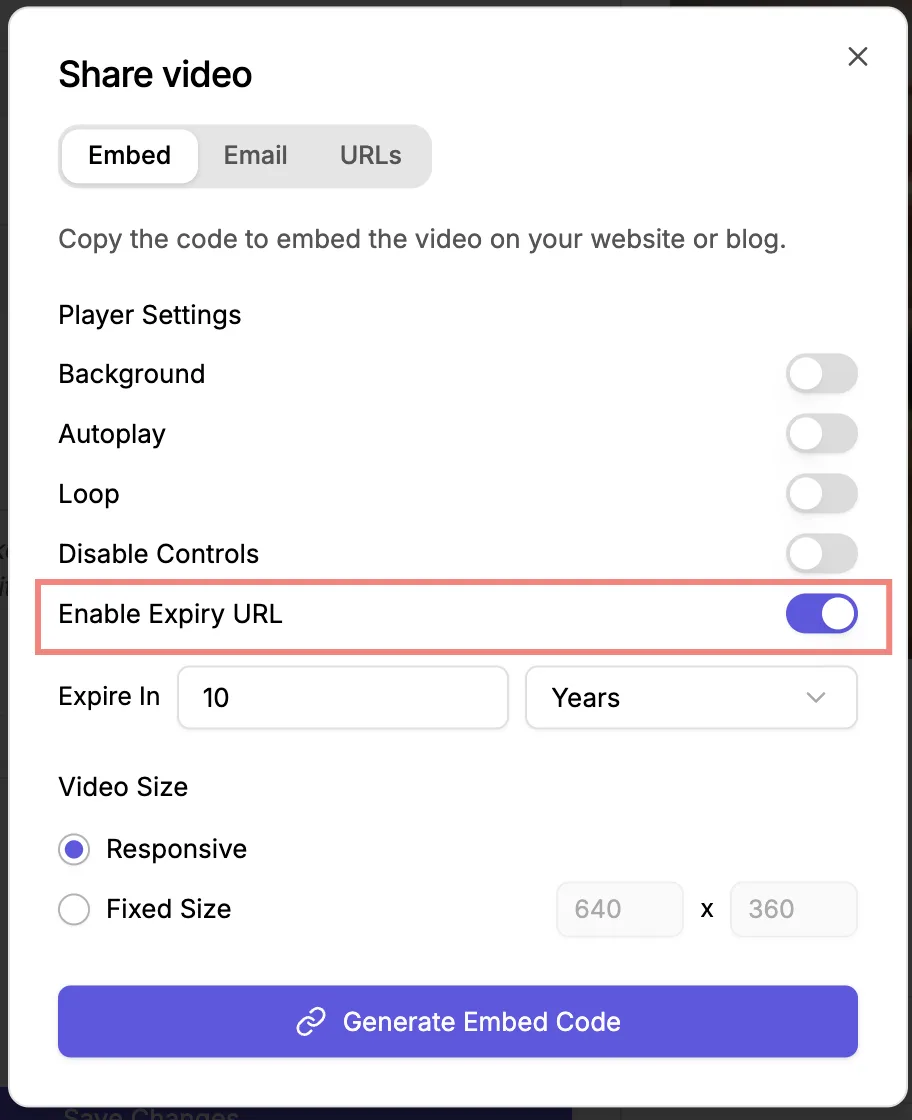
Enable expiry URLs at the video level.
-
Select the time duration for how long the URL should work. The generated URL stays active for the selected duration and expires automatically after that.
-
Click Generate to create the expiry URL and copy the embed code.
-
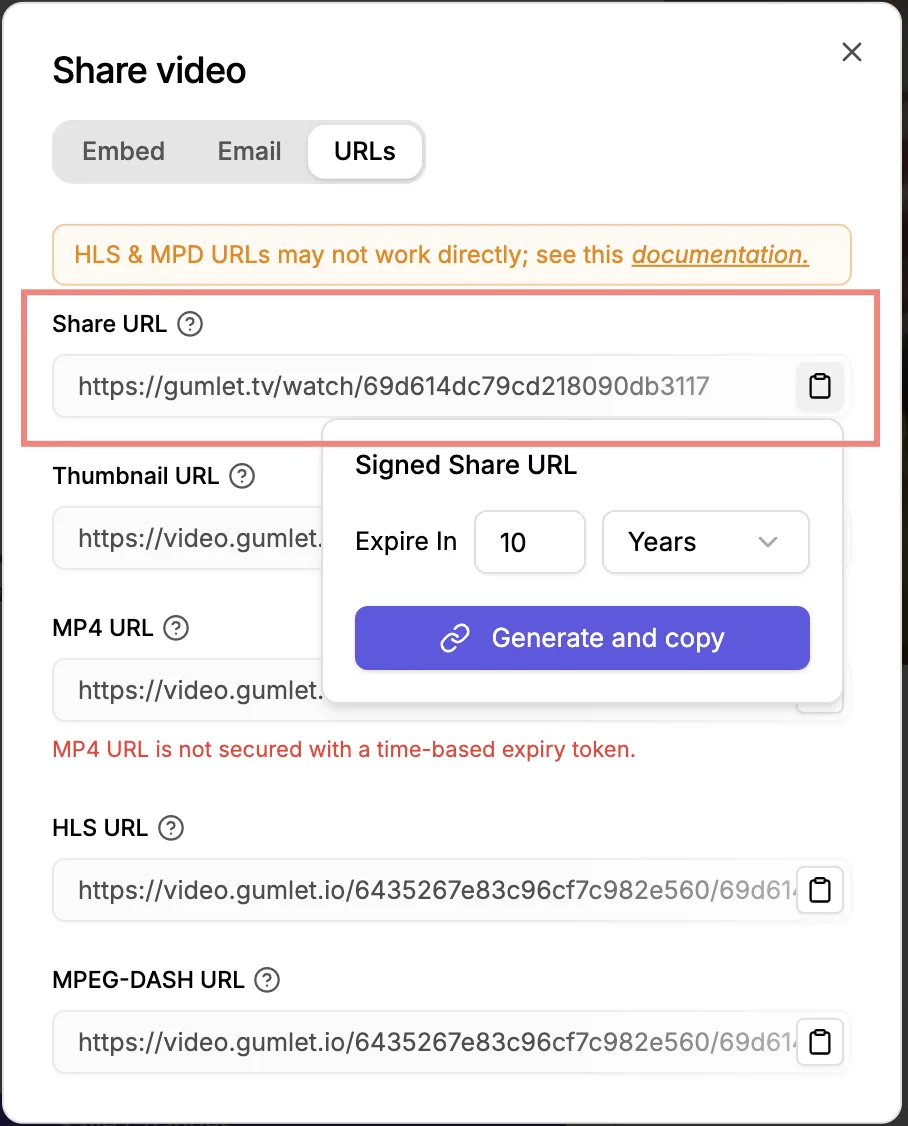
To generate a preview URL, go to the URLs tab and click Copy.
When to use it
Use time-based expiry URLs when you need temporary video access, such as:
- time-limited campaigns
- private customer shares
- embed codes that should stop working after a set period
Limitations
- The video may stop playing after the time has passed, even if a viewer is still in the middle.
- To generate secret URLs for MPD and M3U8, use our signed URL code snippet.
- If you have an MP4 file for your video, it will function without a secret token. To use expiry URLs, disable MP4 generation in the Processing settings.