Embed Videos on LifterLMS
Learn how to embed Gumlet videos, including DRM-protected videos, on LifterLMS
LifterLMS is a WordPress LMS plugin. Add Gumlet videos from the lesson Content editor in the LifterLMS course builder. The official Gumlet WordPress plugin inserts a shortcode that plays in the Gumlet player.
Before you start
- Install and activate the Gumlet Video plugin from your WordPress dashboard: Plugins → Add New, search for "Gumlet Video". Or install it from WordPress.org.
- In Gumlet, create an API key under Developer → API keys.
- In WordPress, open Settings → Gumlet Video, open the API tab, paste the key, and click Save Options. Use Test connection to confirm it works.
The Gumlet Video tab in the media library stays empty until the API key is saved. See the WordPress Video Plugin guide for upload, shortcode options, dynamic watermarking, and user-level analytics.
Add a video to a lesson
-
In WordPress, go to LifterLMS → Courses, hover the course, and click Builder. Select the lesson to open its settings.
-
In the lesson panel, under Content, click Add media.
Insert the video in the lesson content. Leave Video Embed URL empty. That field does not play a Gumlet shortcode.
-
In the media window, open the Gumlet Video tab.
-
Under Browse library, choose the Workspace that contains the video. Use Search by title to narrow the list.
-
Select the video and click Insert into post.
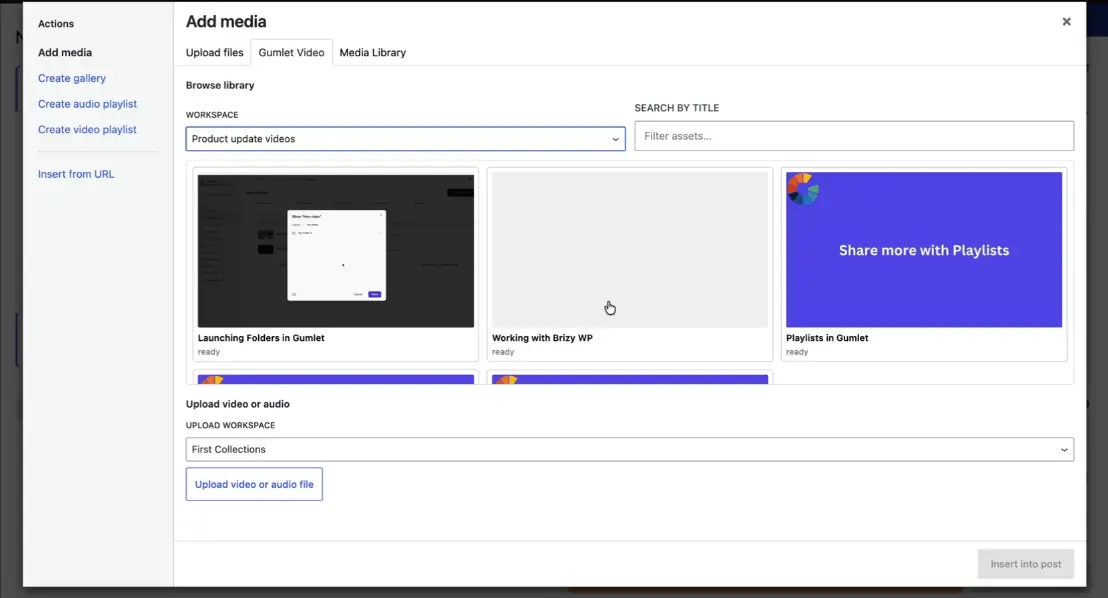
-
The lesson content now contains a Gumlet shortcode:
[gumlet id=YOUR_ASSET_ID]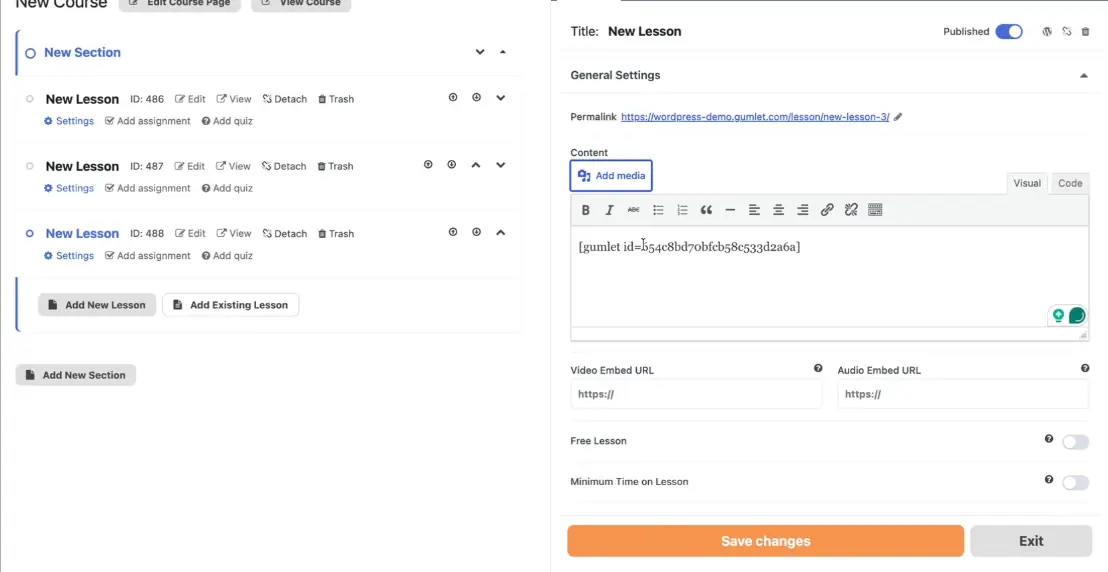
-
Click Save changes.
-
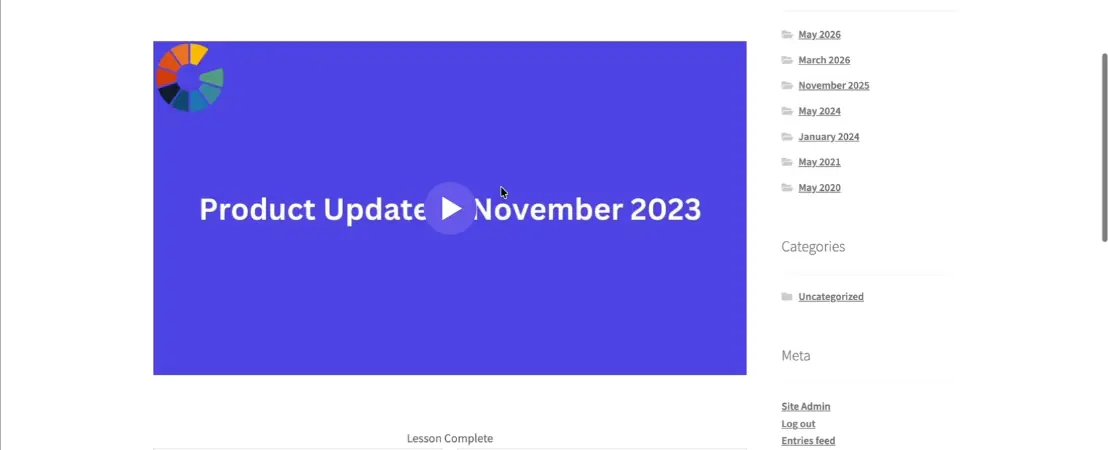
Click View Course, open the lesson, and confirm the Gumlet player loads. DRM-protected videos play here the same way.
Add more than one video
Repeat Add media for each video. Every insert adds another [gumlet] shortcode in the lesson content. Save the lesson. On the lesson page, the players appear in the order you inserted them.
You can also paste a shortcode yourself. Copy the asset ID from the video details page:
[gumlet id=YOUR_ASSET_ID]