Embed Videos on Thinkific
Learn how to Embed Gumlet videos, including DRM-protected videos, on Thinkific
Thinkific's built-in Video field only accepts a file from your Asset Library, so it can't be used to embed a Gumlet video. Instead, embed the video directly into the lesson's Content area using its code view.
Steps to Embed:
-
Go to your course's curriculum and open the Text lesson you want to add the video to.
-
In the Content editor toolbar, click the code view icon (
</>). -
Go to the video details page and copy the embed code.
-
Paste the copied embed code into the code view.
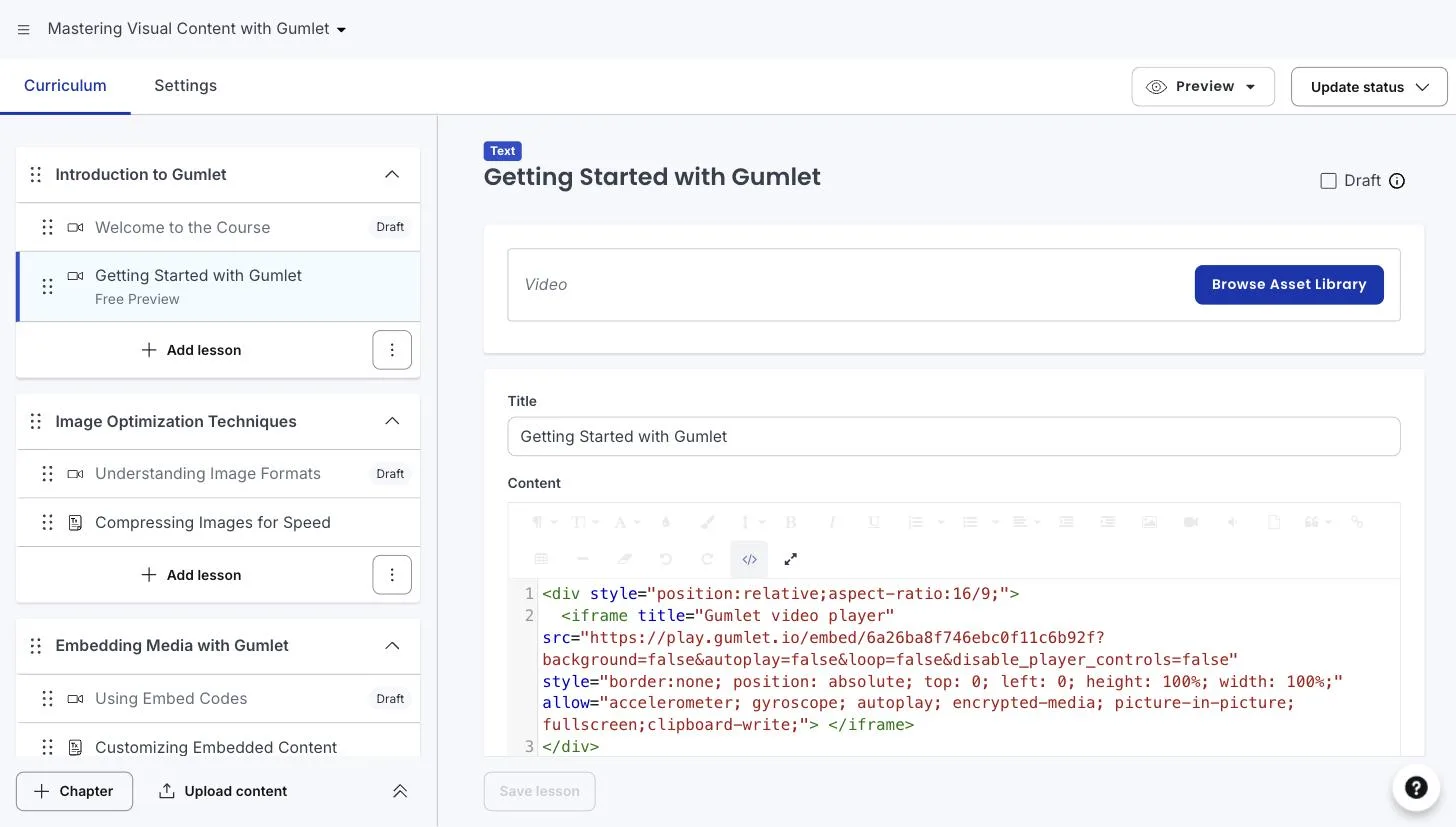
-
Click the code view icon again to switch back to the visual editor and confirm the video appears.
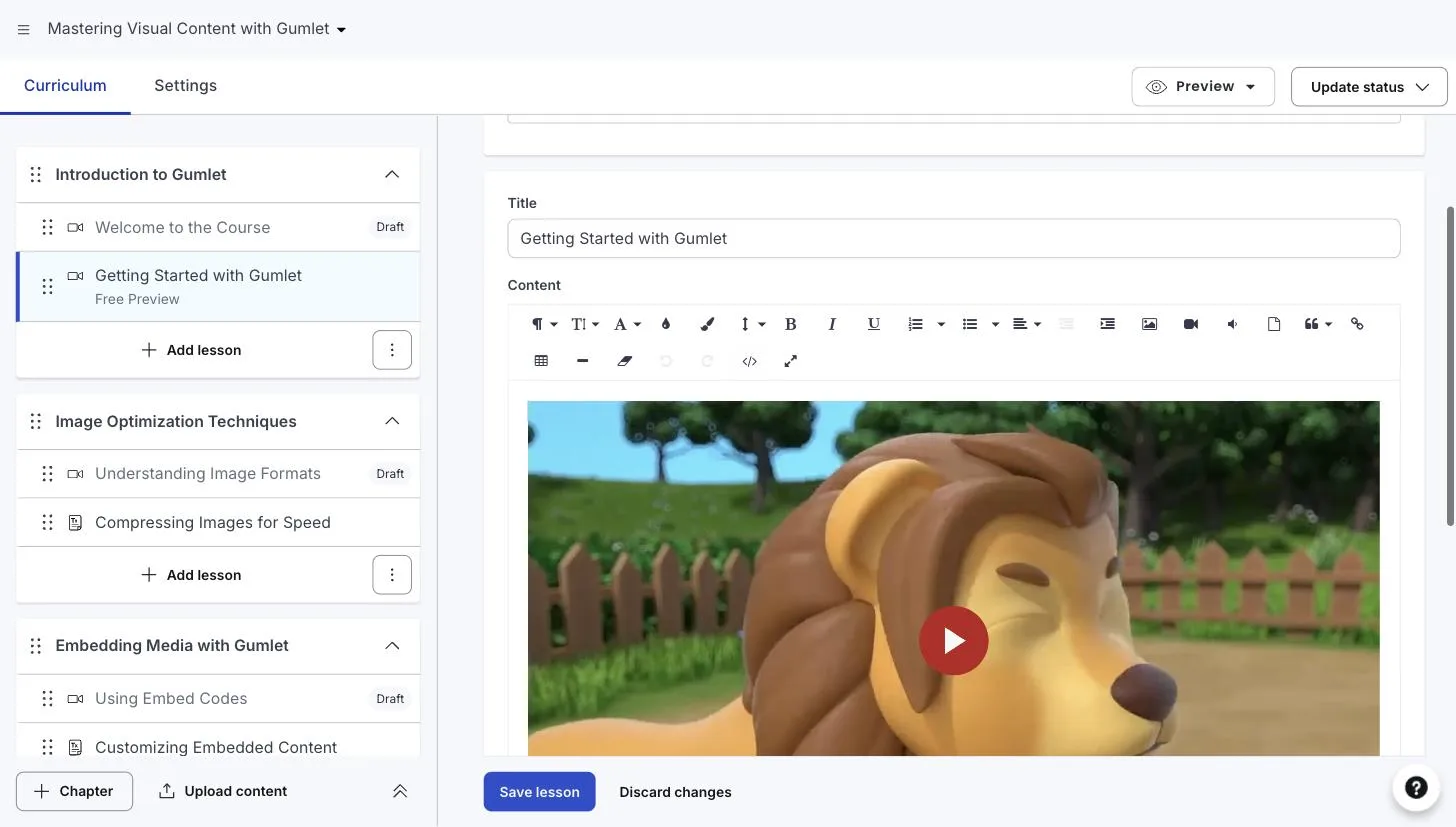
-
Save the lesson. The video will play where you added it, including DRM-protected videos.