Azure
Learn how to set up SCIM provisioning for Gumlet using Microsoft Entra ID (Azure AD).
There are three main steps:
- Enable SCIM on Gumlet and generate a token
- Create and configure a non-gallery enterprise application in Azure for provisioning
- Map attributes and roles, then assign users and start provisioning
Prerequisites
- SSO with Azure is already set up for your Gumlet organization. See Setup SSO with Gumlet on Azure.
- SCIM requires SSO to remain enabled. Disabling SSO also disables SCIM.
Enable SCIM on Gumlet
- Log in to Gumlet with an admin/Owner account.
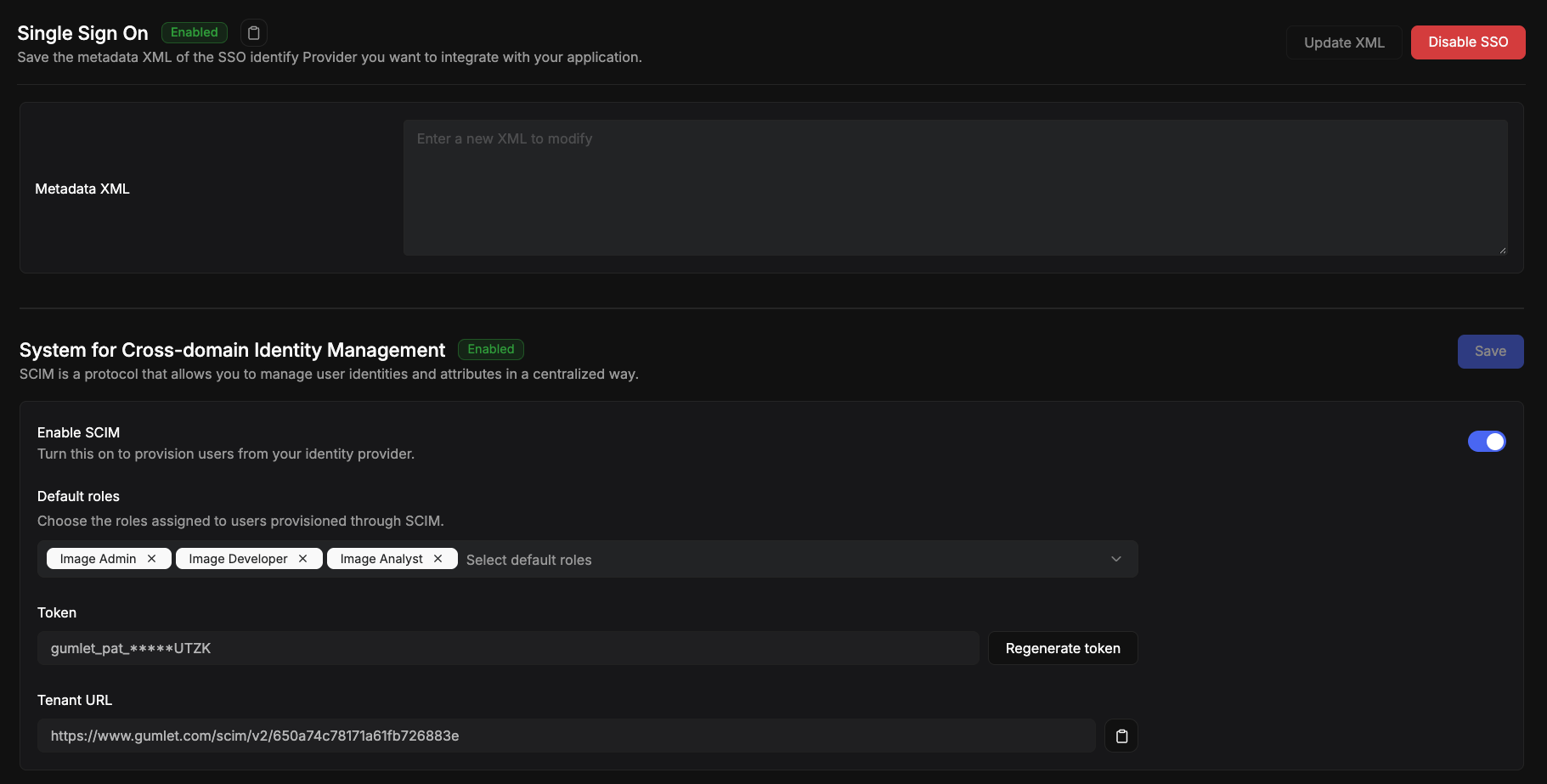
- Go to My Account -> Single Sign On -> System for Cross-domain Identity Management
- Enable SCIM.
- Set Default roles — Gumlet roles assigned when Azure does not send any valid Gumlet role (for example, only the default Entra “User” assignment). Choose at least one valid role such as
developeroranalyst. - Generate a SCIM bearer token and copy it once. Store it securely; Gumlet only shows a token hint after generation.
- The Tenant URL is already pre-generated for your organization, which will be used later in the Azure non-gallery application setup
You will need:
| Field | Value |
|---|---|
| Tenant URL | https://www.gumlet.com/scim/v2/<your_gumlet_org_id> Replace <your_gumlet_org_id> with your organization ID. |
| Secret token | The SCIM bearer token generated in Gumlet (starts with gumlet_pat_) |
Create an Azure enterprise application for provisioning
You may use a separate non-gallery app for SCIM (recommended) or add provisioning to an existing app. A dedicated app keeps SSO and provisioning easier to manage.
- Sign in to the Microsoft Entra admin center or Azure Portal.
- Go to Enterprise applications → New application → Create your own application.
- Choose Integrate any other application you don't find in the gallery (Non-gallery).
- Name it (for example
Gumlet-SCIM) and create it.
Official overview: How application provisioning works.
Configure automatic provisioning
-
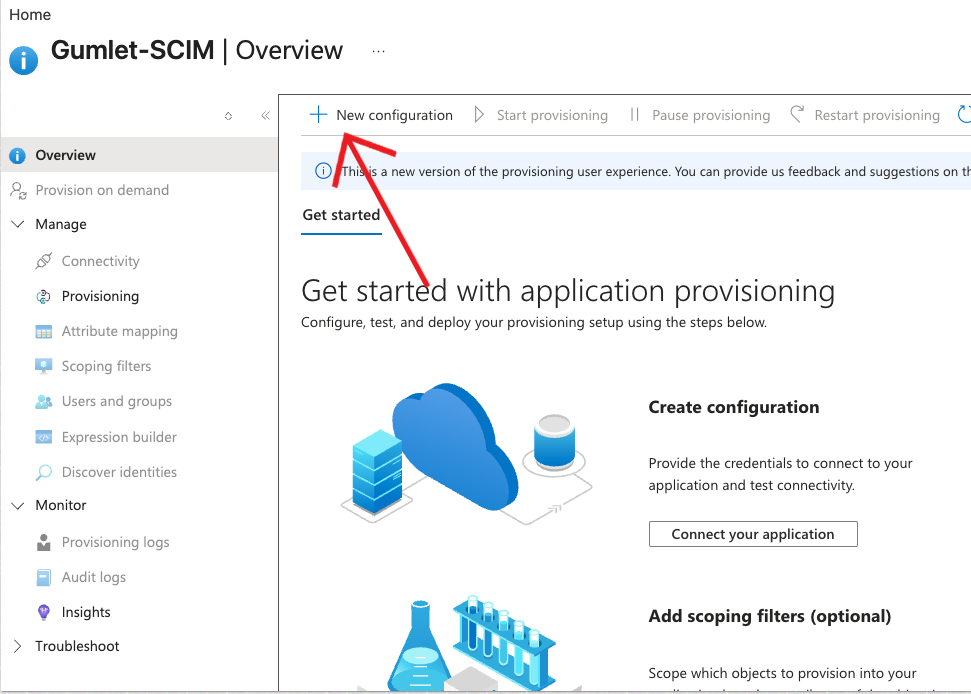
Open the enterprise application →Manage -> Provisioning.
-
Click on New Configuration.
-
Under New provisioning configuration:
- Tenant URL: paste the Gumlet SCIM Tenant URL
- Secret Token: paste the Gumlet SCIM bearer token
-
Click Test Connection, then click Create.
Target object actions (Attribute Mapping)
- Under **Mapping -> Provision Microsoft Entra ID Groups, Disable this **(Gumlet does not support Group provisioning)
- Under Mappings → Provision Microsoft Entra ID Users, keep:
- Create — checked
- Update — checked
- Delete — checked
Soft-delete / disable mapping (Attribute Mapping)
Keep (or add) a mapping from Entra soft-delete state to SCIM active, For example:
| Target attribute | Source/expression |
|---|---|
active |
Switch([IsSoftDeleted], , "False", "True", "True", "False") |
Unassigning a user or soft-deleting them typically sends active: false. Gumlet deprovisions that user (account is removed from the organization). Permanent delete in Entra (with Delete enabled) can send DELETE /Users/{id}.
See Microsoft’s deprovisioning section.
Attribute mappings
Recommended core mappings:
| Target (SCIM) | Source (Entra) | Notes |
|---|---|---|
userName |
userPrincipalName |
Matching attribute (precedence 1) |
emails[type eq "work"].value |
mail |
Primary email |
externalId |
mailNickname |
stored as the user’s external id |
displayName |
displayName |
display name |
active |
Switch([IsSoftDeleted], , "False", "True", "True", "False") |
IsSoftDeleted expression above, Required for disable/deprovision |
roles |
See next section | Required for Gumlet roles |
Optional: You can leave unused address/phone mappings unmapped or remove them to reduce sync noise.
Create / Update Gumlet roles
When Azure provisions or updates a user, map Entra App roles to Gumlet roles via SCIM roles.
Go to Home -> Microsoft Entra ID -> App Registrations -> All Applications -> Your Application -> App Roles -> Create app role
-
In Entra, define App roles whose Value exactly matches a Gumlet role name from the table below (for example
developer,video-admin). -
Assign users (or groups) to that app role under Users and groups.
-
Configure the SCIM
rolesmapping as described below. If Azure sends no valid Gumlet role (for example, only the default Entra User assignment), Gumlet applies your organization's default roles.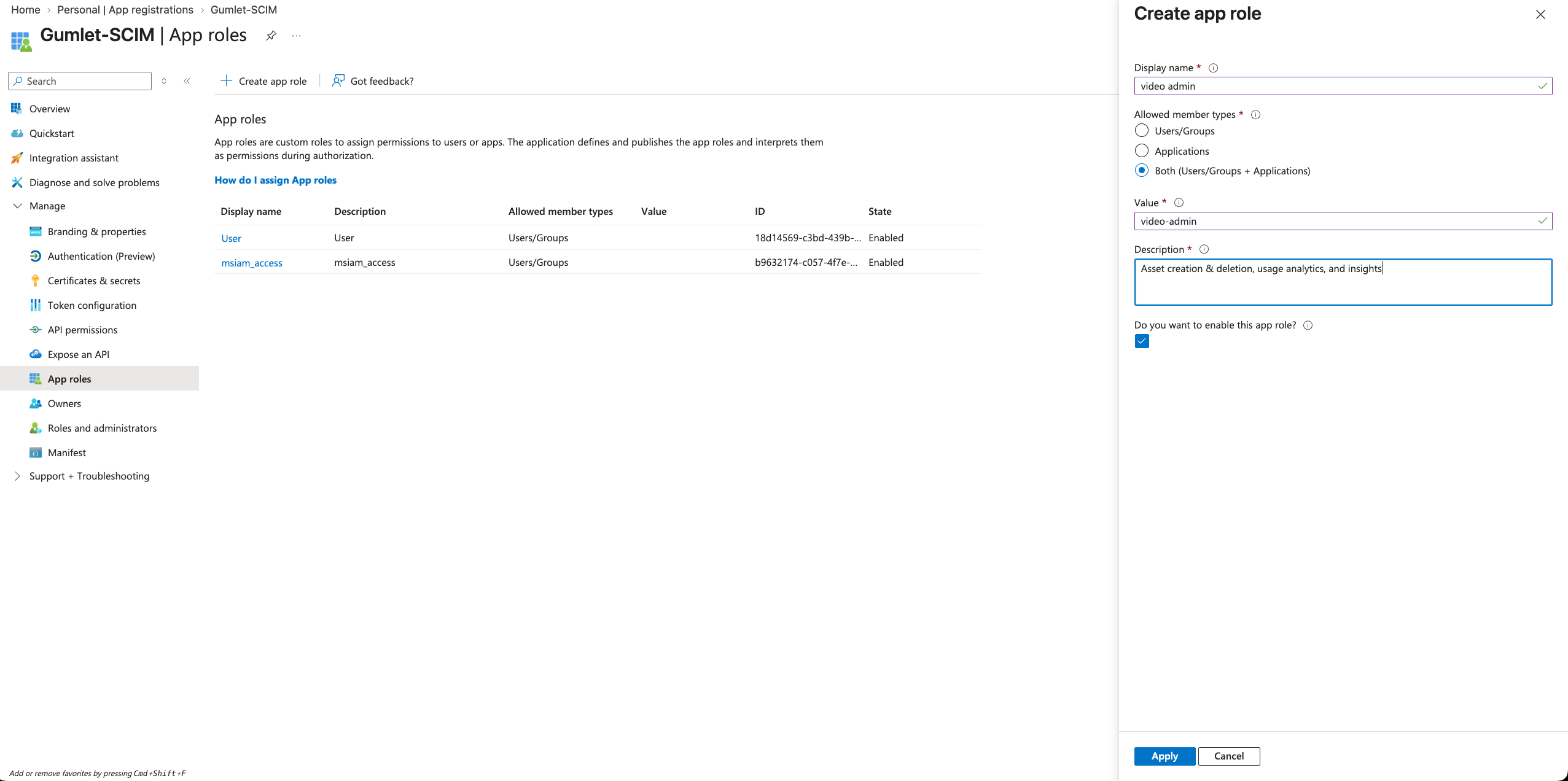
Supported Gumlet roles for SCIM
| Role | Product | Access |
|---|---|---|
video-admin |
video | Asset creation & deletion, usage analytics, and insights |
video-developer |
video | Asset creation & deletion |
| video-dev | video | All video developer access but can not create workspaces or manage analytics & insights |
video-analyst |
video | Usage analytics and video insights |
| video-readonly | video | Can only see video CMS |
admin |
image | Source creation & deletion, usage analytics, and insights |
developer |
image | Source creation & deletion |
analyst |
image | Usage analytics and image insights |
| image-readonly | image | Can see image sources |
accountant |
image, video | Billing panel — view and pay invoices |
For the complete roles reference, see User Management.
Roles not supported via SCIM
Do not create App roles for source-scoped access (not supported for SCIM provisioning at this time):
source-specific(image source–specific)video-workspace-specific(video workspace–specific)
Protected roles
SCIM cannot assign or remove owner. Prefer not mapping those as provisionable App roles.
Map application roles to Gumlet roles
Gumlet reads SCIM roles and maps App Role values to Gumlet RBAC role names (for example developer, analyst, video-dev, admin).
For the full list of Gumlet roles, see User Management.
1. Define app roles in Entra
On the app registration/enterprise app App roles, create roles whose Value exactly matches a Gumlet role name (for example developer, video-dev, accountant). The display name can be anything; the Value must match Gumlet.
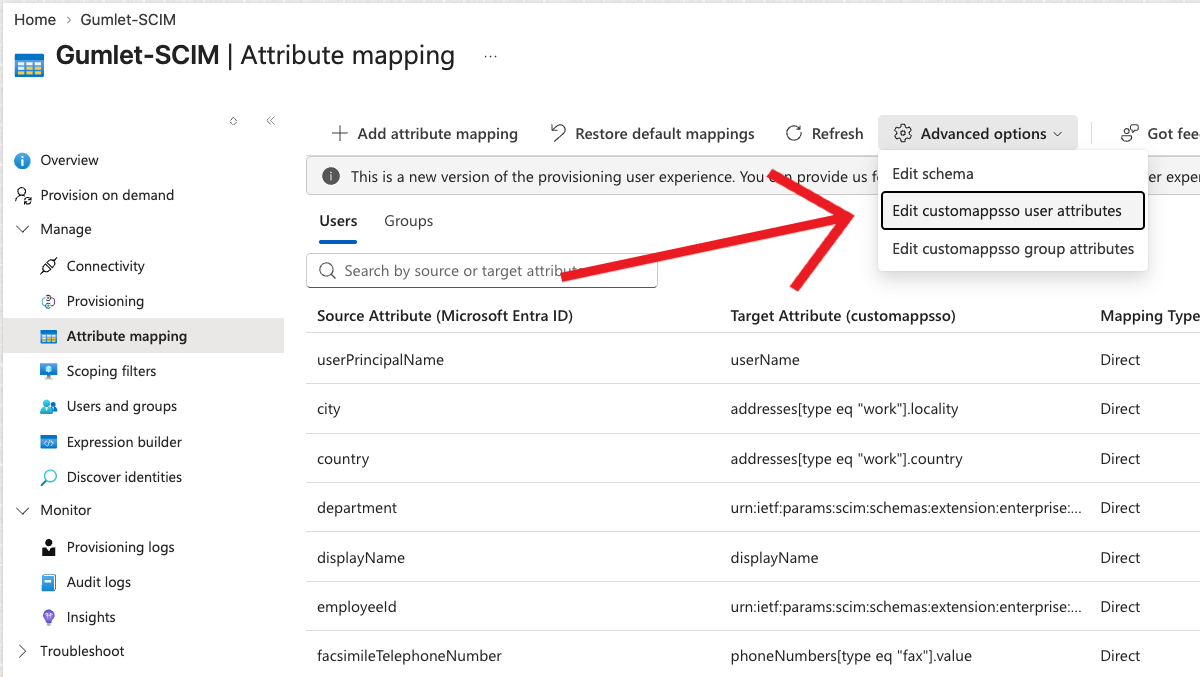
2. Add a roles attribute to the provisioning schema
Entra does not always list a plain roles target by default.
-
Attribute Mappings → ** advanced options** → Edit customappsso user attributes
-
Add New Attribute:
-
Name:
roles -
Type:
String -
Multi-value:
Checked
-
-
Save
Do not map AppRoleAssignmentsComplex only to roles[primary eq "True"].value / .type / .display.
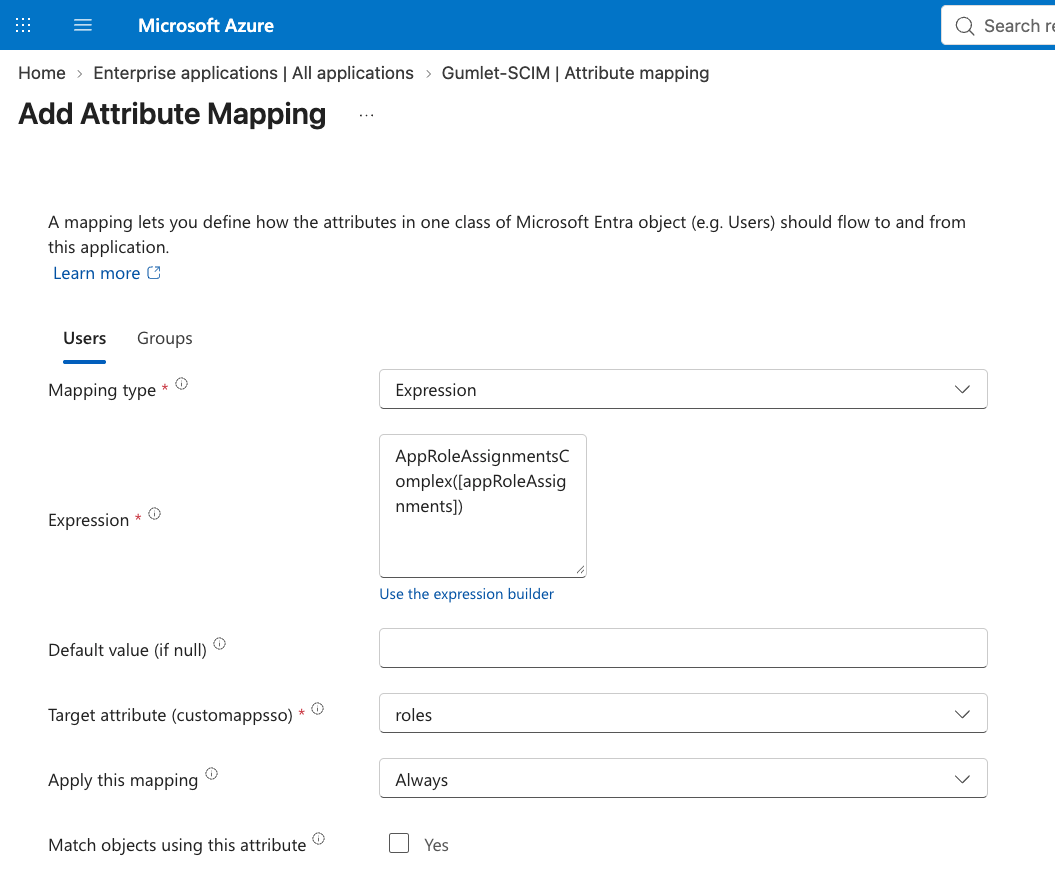
3. Map roles with AppRoleAssignmentsComplex
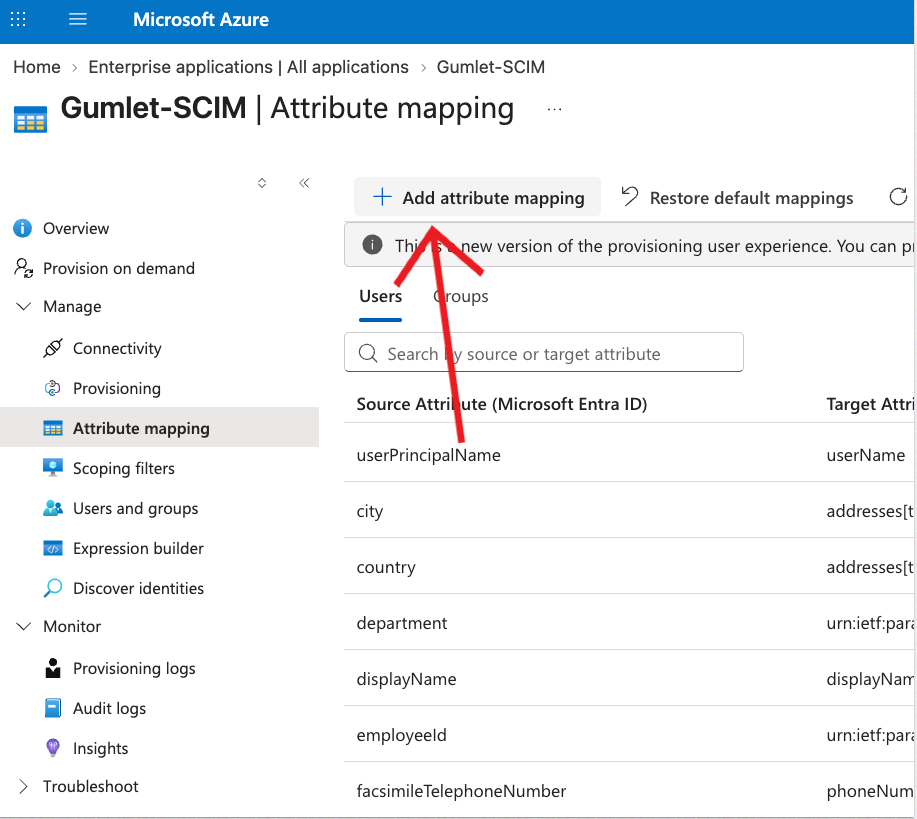
Go to Attribute mappings -> Add attribute mapping
| Field | Value |
|---|---|
| Mapping type | Expression |
| Expression | AppRoleAssignmentsComplex([appRoleAssignments]) |
| Target attribute | roles |
| Apply this mapping | Always |
Click on Add, then Save. Refresh the page. You will see Target Attribute as Roles in the Attribute Mapping list.
Microsoft guide: Customize attribute mappings / provisioning a role to a SCIM app.
Notes:
- Prefer provisioning scope: Sync only assigned users and groups.
AppRoleAssignmentsComplexis not compatible with “Sync all users and groups.” You can find this setting under Provisioning Application Overview -> Properties - Entra often sends a default User assignment plus your app role. Gumlet ignores the default
Userrole and keeps valid Gumlet role values. - If no valid Gumlet role is present in the payload, Gumlet applies your org's default** roles**.
Assign users and start provisioning
-
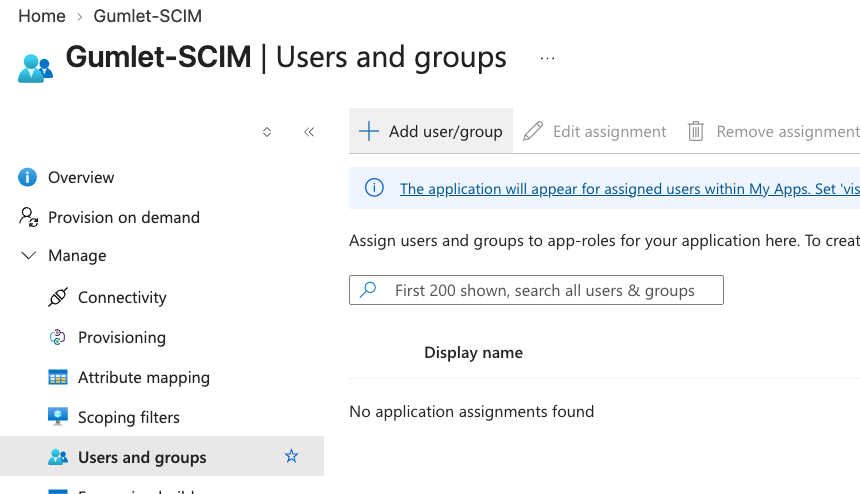
Enterprise application → Users and groups → assign users (or groups) and select an app role whose value is a Gumlet role. You can assign more than one role to a user.
-
Provisioning → set status to On → Save.
-
Use Provision on demand for a test user, or wait for the incremental cycle.
-
Confirm the user appears under **User -> My Account -> Manage User ** with the expected role(s).
What Gumlet supports
| Operation | Behavior |
|---|---|
| Create user | Creates a SAML/SCIM subuser; email is the identity |
| Update user | Updates display name, username, external id, roles |
Disable (active: false) |
Deprovisions (removes) the user from Gumlet |
| Delete | Hard-deletes the user |
| Roles | Multi-role supported; invalid / default Entra User skipped |
Protected roles: SCIM cannot assign or remove owner. Existing holders of those roles keep them. admin and other standard roles can be managed via SCIM.
Troubleshooting
| Symptom | What to check |
|---|---|
| Test connection fails | Tenant URL includes correct org id; token is current; SSO and SCIM enabled on Gumlet |
SchemaPropertyCanOnlyAcceptValue on roles |
Add roles as String in Edit attribute list; map Complex expression to roles, not roles[primary eq "True"].… |
MappingEvaluationFailed on AppRoleAssignmentsComplex |
User is assigned with an app role; scope is assigned users/groups; roles mapping Apply = Always |
| User created with default roles only | Azure did not send a valid Gumlet role value; fix App Role Value and roles mapping; re-provision |
| Roles not updating on update | Confirm Modified attributes includes roles; mapping Apply = Always; force role change (re-assign app role) |
| Unassign does not DELETE | Expected: unassign usually sends active: false. Hard DELETE needs permanent delete in Entra with Delete target action enabled |
Disable SCIM on Gumlet
- Log in to Gumlet with an admin account.
- Go to Organization settings → SCIM.
- Disable SCIM.
Disabling SCIM stops provisioning. Existing users remain until deprovisioned. Disabling SSO also turns SCIM off.