User Management
You can add multiple users under your organization with different levels of access. Your role will be Owner and you can add users with the following roles. The owner possesses special abilities that no other role has, such as adding users, accessing billing details, and managing the API key.
- developer: Has access to add, update and delete sources.
- analyst: Has access to a complete analytical dashboard.
- accountant: Has access to the complete billing panel. Can view invoices and pay bills.
- admin: Has access to 'developer', 'analyst' and 'accountant'. The only limitation of this role is that it can not add users or access billing details or API keys.
- source-specific: Has access to some specific sources and their analytics.
- video-developer: Has access to create and delete video assets.
- video-analyst: Has access to video usage and video insights.
- video-admin: Has access to 'video-developer' and 'video-analyst'.
- video-workspace-specific: Has access to some specific video workspace and their usage and insights.
- owner: Has all the access.
| Role | Product | Access |
|---|---|---|
| owner | image, video | all access |
| video-admin | video | asset creation & deletion, usage analytics, and insights |
| video-developer | video | asset creation & deletion |
| video-analyst | video | usage analytics and video insights |
| video-workspace-specific | video | specific video workspace, their usage, and insights |
| admin | image | source creation & deletion, usage analytics, and insights |
| developer | image | source creation & deletion |
| analyst | image | usage analytics and image insights |
| source-specific | image | specific image source, their usage, and insights |
| accountant | image, video | complete billing panel, view and pay invoices |
Add new user
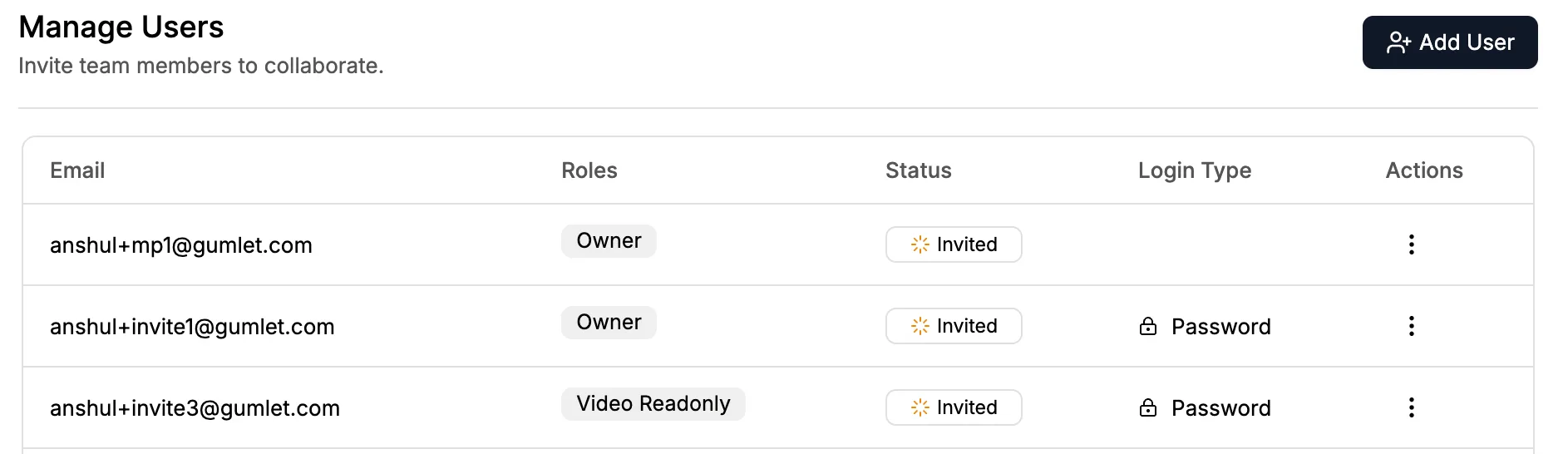
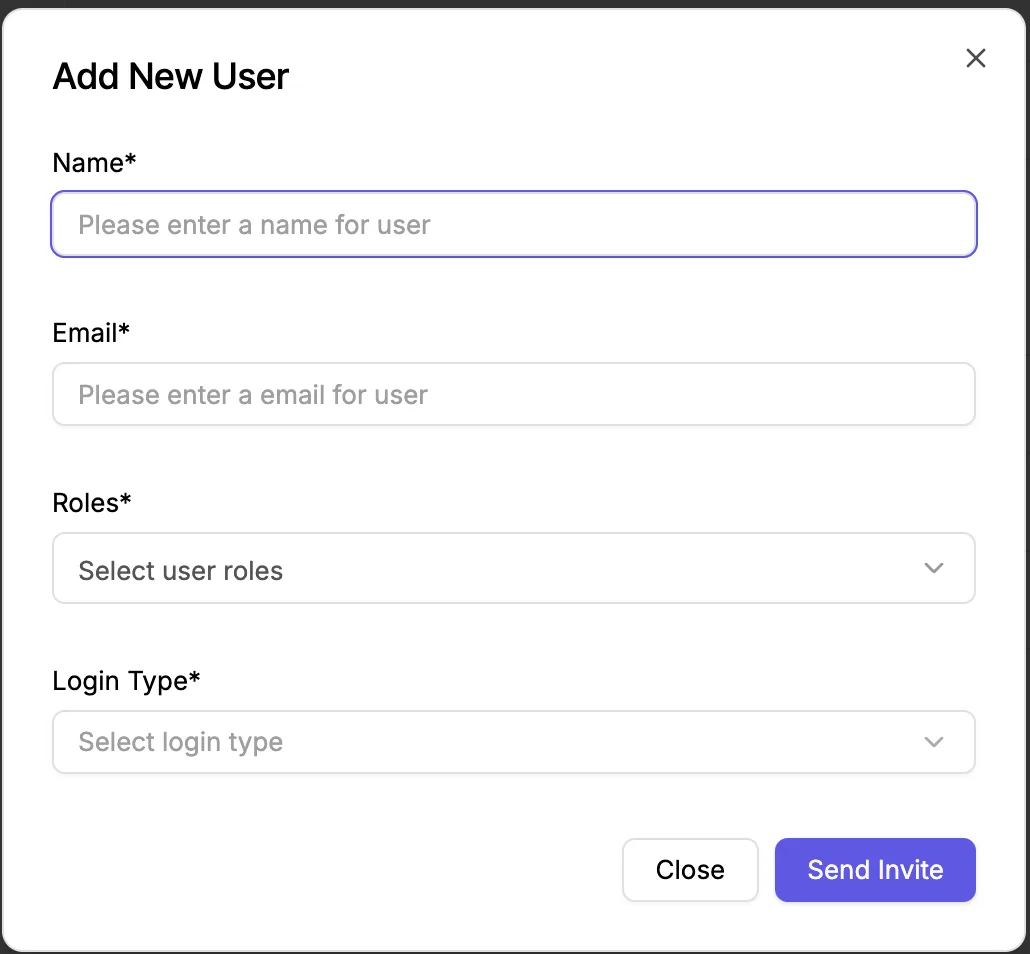
Click on Manage Users under the 'My account' section, and click on 'Add User'. Provide an Email ID, select a role, and choose a login type.
Manage Users
All users are visible under Manage Users under the 'My Account' section. 'Owner' can edit any existing user's role or delete it.