Images from Video
Generate stills, animated GIFs, and timeline storyboards from any processed Gumlet video by requesting a URL. No extra encoding job is required.
| You need | Request this | Typical use |
|---|---|---|
| A still frame | thumbnail-1-0.png | Player poster, social cards, catalog images |
| A short motion preview | thumbnail-1-0.png?format=gif | Hover previews, emails, cards |
| Scrub-bar thumbnails | preview_thumbnails.png + .vtt | Timeline hover previews in a video player |
Images from video do not work when DRM protection is enabled. Frame extraction is blocked for DRM assets.
URL structure
https://video.gumlet.io/{WORKSPACE_ID}/{ASSET_ID}/thumbnail-1-0.png?time=20&width=640&format=auto
| Part | Where to get it |
|---|---|
WORKSPACE_ID | Video dashboard or source_id / workspace_id on the Create Asset and Asset Details APIs |
ASSET_ID | Video details page, embed URL (play.gumlet.io/embed/ + asset ID), or asset_id in the API response |
thumbnail-1-0.png | Default auto-generated thumbnail. The same path is returned as output.thumbnail_url |
Always pass width (and format=auto for stills). The source thumbnail can be the original video
resolution. Requesting it without width can return a multi-megabyte image.
The v query parameter you may see on API URLs is a cache-buster. Include it after you replace a thumbnail so clients pick up the new image.
Generate a thumbnail
https://video.gumlet.io/{WORKSPACE_ID}/{ASSET_ID}/thumbnail-1-0.png?time=20&width=640
Pick any playback instant with time. Values can be seconds (20) or HH:MM:SS.MS (00:00:20.00).
Live example at time=20, width=640:

Compare frames
time=1 | time=20 | time=60 |
|---|---|---|

| 
| 
|
Resize and crop
Thumbnail URLs accept the size and image operations parameters (mode, crop, flip, blur, and others).
width=480 | width=240&height=240&mode=crop |
|---|---|
|
| 
|
Thumbnail parameters
| Parameter | Type | Example | Default | Description |
|---|---|---|---|---|
time | int or string | 13 or 00:00:13.12 | First thumbnail frame | Playback instant. Seconds or HH:MM:SS.MS |
width (w) | int (pixels) | 640 | Source width | Output width. Prefer setting this on every request |
height (h) | int (pixels) | 360 | Source height | Output height. Aspect ratio is preserved unless mode says otherwise |
format (fm) | string | auto, jpeg, webp, png | Source format | Use auto for stills so the browser gets the smallest supported type |
mode | string | crop | fit | How width and height are applied. See size parameters |
dpr | float | 2 | 1 | Device pixel ratio. width=640&dpr=2 delivers a 1280px-wide image |
To change the default thumbnail stored on the asset (CMS, embed player, oEmbed), pick a frame in Video Settings or use the thumbnail APIs. This URL API generates images on demand without changing that default.
Use the thumbnail in your app
HTML poster (requires MP4 output or another progressive file):
<video
  controls
  playsinline
  poster="https://video.gumlet.io/{WORKSPACE_ID}/{ASSET_ID}/thumbnail-1-0.png?time=8&width=1280&format=auto"
>
  <source src="https://video.gumlet.io/{WORKSPACE_ID}/{ASSET_ID}/720p.mp4" type="video/mp4" />
</video>
Gumlet embed with a custom poster. Encode the thumbnail URL because it contains query parameters:
<iframe
  src="https://play.gumlet.io/embed/{ASSET_ID}?thumbnail=https%3A%2F%2Fvideo.gumlet.io%2F{WORKSPACE_ID}%2F{ASSET_ID}%2Fthumbnail-1-0.png%3Ftime%3D8%26width%3D1280%26format%3Dauto"
  title="Gumlet video player"
  style="border:none;width:100%;aspect-ratio:16/9"
  allow="accelerometer; autoplay; encrypted-media; picture-in-picture; fullscreen"
></iframe>
Open Graph / Twitter card:
<meta property="og:image" content="https://video.gumlet.io/{WORKSPACE_ID}/{ASSET_ID}/thumbnail-1-0.png?time=8&width=1200&height=630&mode=crop" />
<meta name="twitter:image" content="https://video.gumlet.io/{WORKSPACE_ID}/{ASSET_ID}/thumbnail-1-0.png?time=8&width=1200&height=630&mode=crop" />
Responsive catalog image:
<img
  alt="Video title"
  src="https://video.gumlet.io/{WORKSPACE_ID}/{ASSET_ID}/thumbnail-1-0.png?time=8&width=640&format=auto"
  srcset="https://video.gumlet.io/{WORKSPACE_ID}/{ASSET_ID}/thumbnail-1-0.png?time=8&width=640&format=auto 1x,
          https://video.gumlet.io/{WORKSPACE_ID}/{ASSET_ID}/thumbnail-1-0.png?time=8&width=640&dpr=2&format=auto 2x"
  width="640"
  height="360"
/>
Build the URL in code:
function gumletFrame({ workspaceId, assetId, time = 0, width = 1280, extra = {} }) {
  const url = new URL(`https://video.gumlet.io/${workspaceId}/${assetId}/thumbnail-1-0.png`);
  url.searchParams.set("time", time);
  url.searchParams.set("width", String(width));
  url.searchParams.set("format", extra.format ?? "auto");
  for (const [key, value] of Object.entries(extra)) {
    if (value != null) url.searchParams.set(key, String(value));
  }
  return url.toString();
}

gumletFrame({
  workspaceId: "WORKSPACE_ID",
  assetId: "ASSET_ID",
  time: 8,
  extra: { height: 720, mode: "crop" },
});
Generate a GIF from a video
Add format=gif to the same thumbnail path. duration is the length of video to include, starting at time.
https://video.gumlet.io/{WORKSPACE_ID}/{ASSET_ID}/thumbnail-1-0.png?time=20&format=gif&duration=3&width=480&fps=10
Live example:

Keep GIFs small: cap width (320–640), keep duration to 2–4 seconds, and use fps of 8–12 unless you need smoother motion.
GIF parameters
| Parameter | Type | Example | Default | Description |
|---|---|---|---|---|
format | string | gif | — | Required. Set to gif |
time | int or string | 13 or 00:00:13.12 | First frame | Start instant of the clip |
duration | int (seconds) | 3 | NONE | Length of video to include in the GIF (this is a must have parameter to generate animated output. Without this, the output will not be animated) |
fps | int | 10 | 10 | Frames per second in the output GIF |
width | int (pixels) | 480 | Source width | Output width |
height | int (pixels) | 270 | Source height | Output height |
Hover preview on a catalog card
Show a still by default and swap to the GIF on hover.
<a class="video-card" href="https://play.gumlet.io/embed/{ASSET_ID}">
  <img
    class="still"
    src="https://video.gumlet.io/{WORKSPACE_ID}/{ASSET_ID}/thumbnail-1-0.png?time=8&width=640&format=auto"
    alt="Video title"
  />
  <img
    class="motion"
    src="https://video.gumlet.io/{WORKSPACE_ID}/{ASSET_ID}/thumbnail-1-0.png?time=8&width=640&format=gif&duration=3&fps=10"
    alt=""
  />
</a>
.video-card { display: block; position: relative; }
.video-card img { width: 100%; height: auto; }
.video-card .motion { display: none; }
.video-card:hover .still,
.video-card:focus .still { display: none; }
.video-card:hover .motion,
.video-card:focus .motion { display: block; }
You can also request an animated GIF at ingest time with the animated_gif field on Create Asset. The URL above is on-demand and does not require that setting.
Generate timeline hover previews
Timeline hover previews are the thumbnails that appear when a viewer scrubs the player timeline. Each tile is a frame taken at a regular interval. Those tiles are packed into one sprite image (the storyboard) and described by a WebVTT file.
Hover the timeline on this player to see them:
Storyboard generated for the same Big Buck Bunny asset:
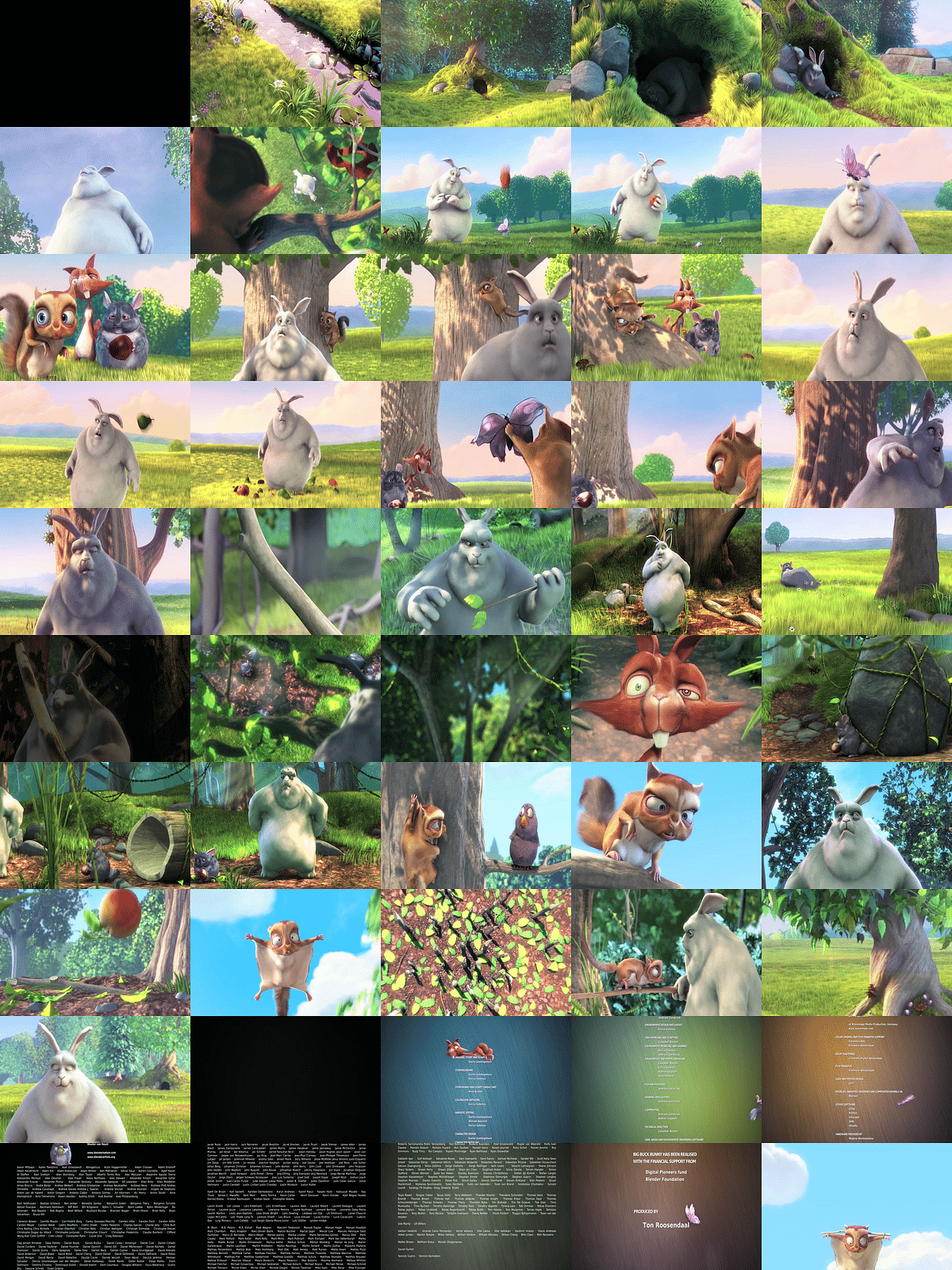
Storyboard and WebVTT URLs
https://video.gumlet.io/{WORKSPACE_ID}/{ASSET_ID}/preview_thumbnails.png
https://video.gumlet.io/{WORKSPACE_ID}/{ASSET_ID}/preview_thumbnails.vtt
The VTT file maps each time range to an xywh crop on the sprite:
WEBVTT

00:00:00.000 --> 00:00:11.929
preview_thumbnails.png#xywh=0,0,240,160

00:00:11.929 --> 00:00:23.858
preview_thumbnails.png#xywh=240,0,240,160
Both files are created automatically after processing. preview_thumbnails_url on the Asset Details response is the VTT URL. Create Asset returns output.thumbnail_url immediately; the storyboard is available once status is ready.
Default tile count:
- Under 15 minutes: 50 tiles
- 15 minutes or longer: 100 tiles
For a custom tile count, contact support@gumlet.com.
Add hover previews to your player
Point the player's thumbnail track at the VTT URL. Players resolve preview_thumbnails.png relative to that file.
Plyr:
<video id="player" controls crossorigin>
  <source src="https://video.gumlet.io/{WORKSPACE_ID}/{ASSET_ID}/main.m3u8" type="application/x-mpegURL" />
</video>
<script src="https://cdn.plyr.io/3.7.8/plyr.polyfilled.js"></script>
<script>
  new Plyr('#player', {
    previewThumbnails: {
      enabled: true,
      src: 'https://video.gumlet.io/{WORKSPACE_ID}/{ASSET_ID}/preview_thumbnails.vtt',
    },
  });
</script>
Video.js with videojs-vtt-thumbnails:
<video id="player" class="video-js" controls>
  <source src="https://video.gumlet.io/{WORKSPACE_ID}/{ASSET_ID}/main.m3u8" type="application/x-mpegURL" />
</video>
<script>
  const player = videojs('player');
  player.vttThumbnails({
    src: 'https://video.gumlet.io/{WORKSPACE_ID}/{ASSET_ID}/preview_thumbnails.vtt',
  });
</script>
JW Player:
jwplayer("player").setup({
  file: "https://video.gumlet.io/{WORKSPACE_ID}/{ASSET_ID}/main.m3u8",
  tracks: [
    {
      file: "https://video.gumlet.io/{WORKSPACE_ID}/{ASSET_ID}/preview_thumbnails.vtt",
      kind: "thumbnails",
    },
  ],
});
Other WebVTT-compatible players:
WebVTT on native apps
WebVTT hover previews are for HTML5 browser players. iOS, Android, and other device SDKs typically use an HLS iFrame playlist instead (for example 720p_iframe.m3u8 in the asset's playlist files).
Gumlet generates an iFrame playlist for every video automatically.
Related
- Video Settings — pick or replace the default thumbnail in the dashboard
- Direct Thumbnail Upload — upload your own image via API
- Embed parameters —
thumbnailquery param onplay.gumlet.io - Image size and image operations — crop, format, DPR, and filters on the same URLs