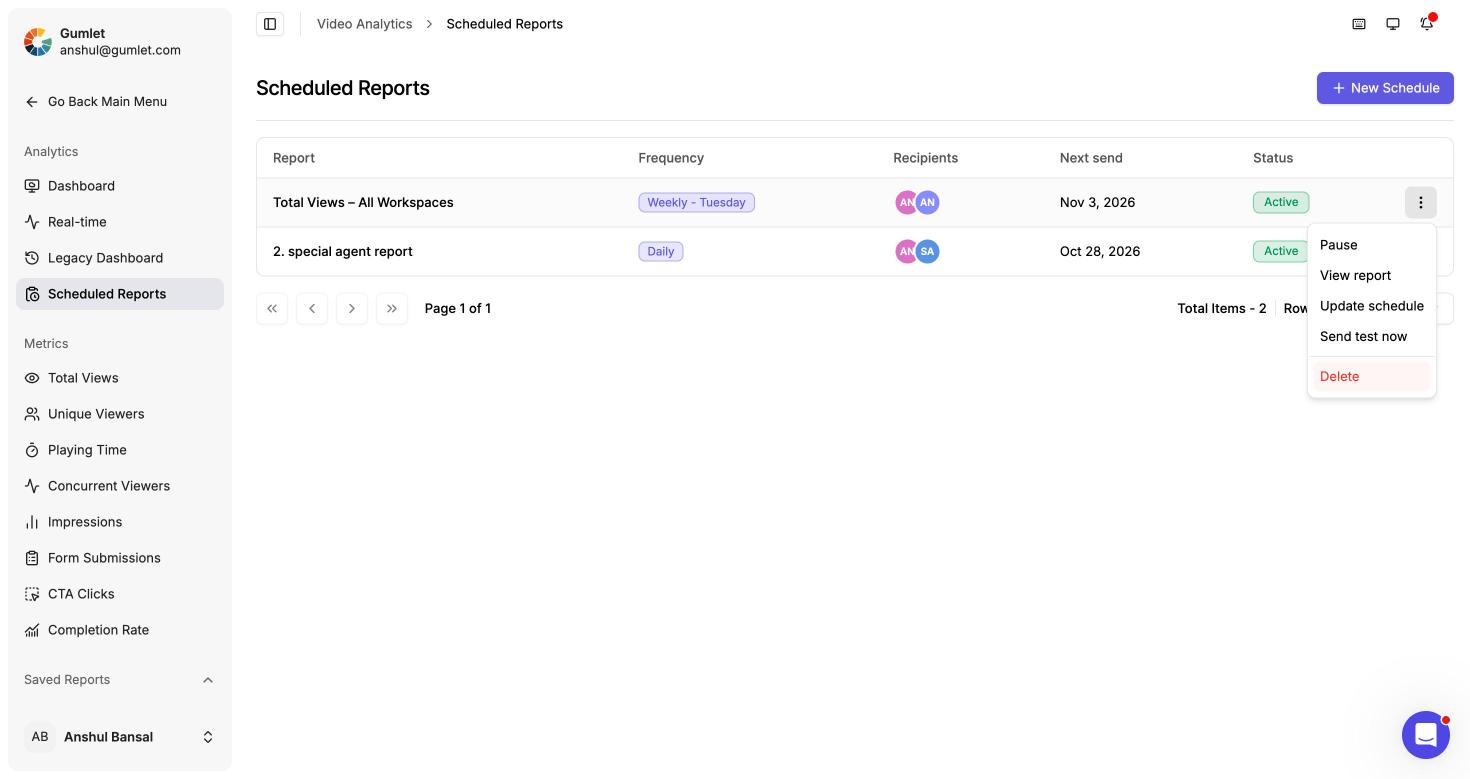
Scheduled Reports
Email any analytics metric to your team on a daily, weekly, or monthly schedule.
Scheduled reports send a metric's live view to the people you choose. Each send is refreshed with the latest data and keeps the same workspace, date range, and filters you had applied when you created the schedule.
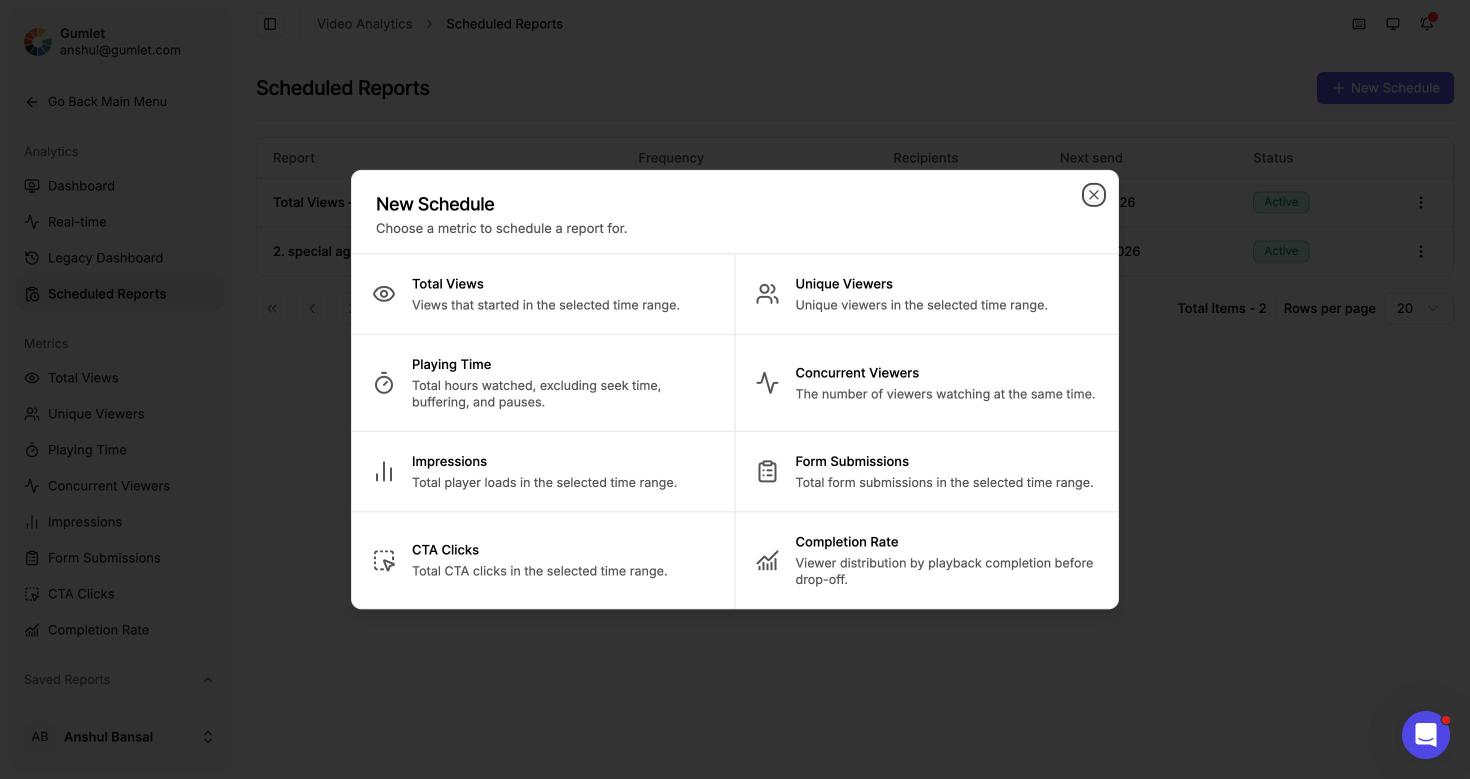
You can schedule reports for these metrics:
- Total Views
- Unique Viewers
- Playing Time
- Concurrent Viewers
- Impressions
- Form Submissions
- CTA Clicks
- Completion Rate
There are two ways to create a schedule: from the Scheduled Reports page, or directly from any metric page.
Schedule from the Scheduled Reports page
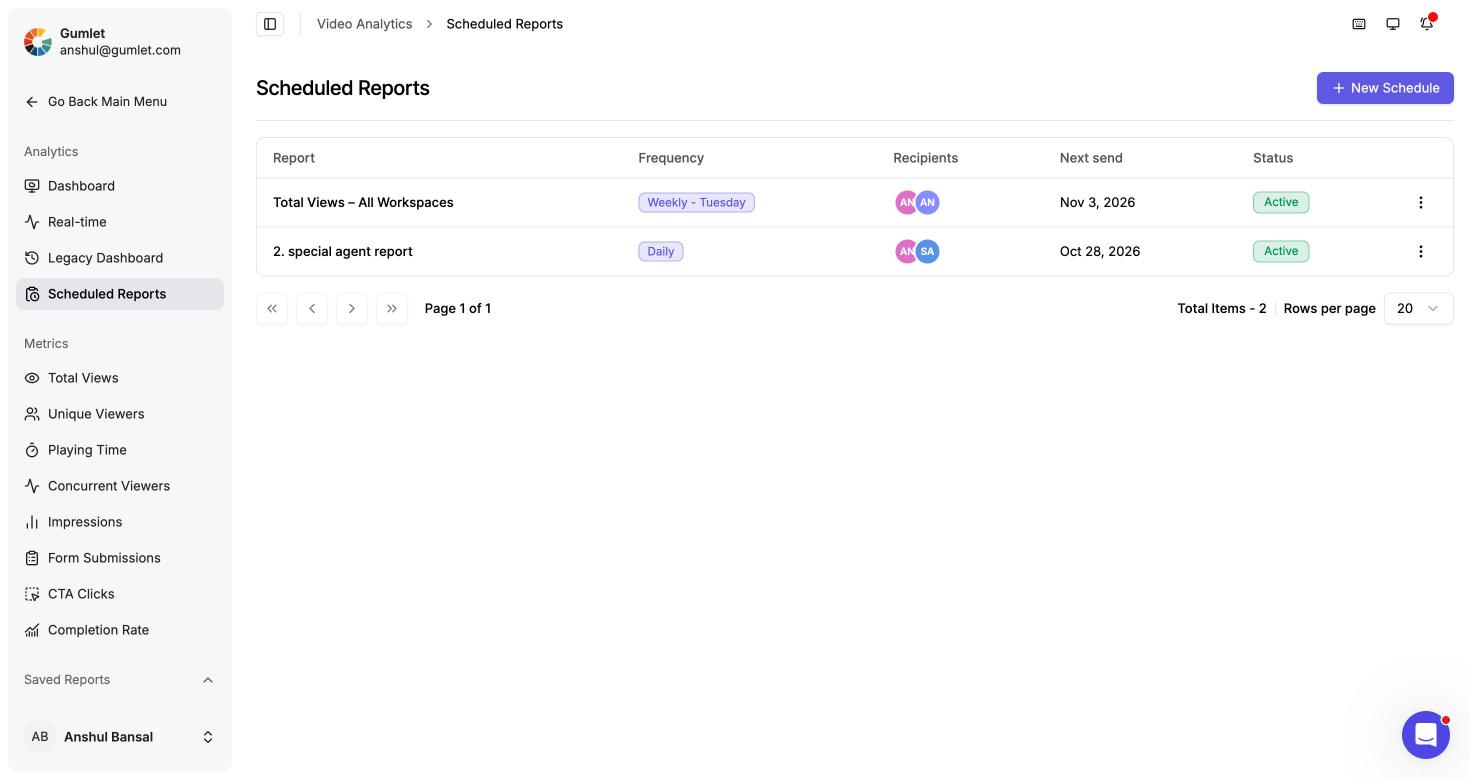
Go to Video Analytics → Scheduled Reports in the dashboard. This page lists every scheduled report in your account.
-
Click New Schedule.
-
Choose the metric you want to schedule.
-
The metric page opens. Set the workspace, date range, and any filters you want the report to use, then click Schedule.
-
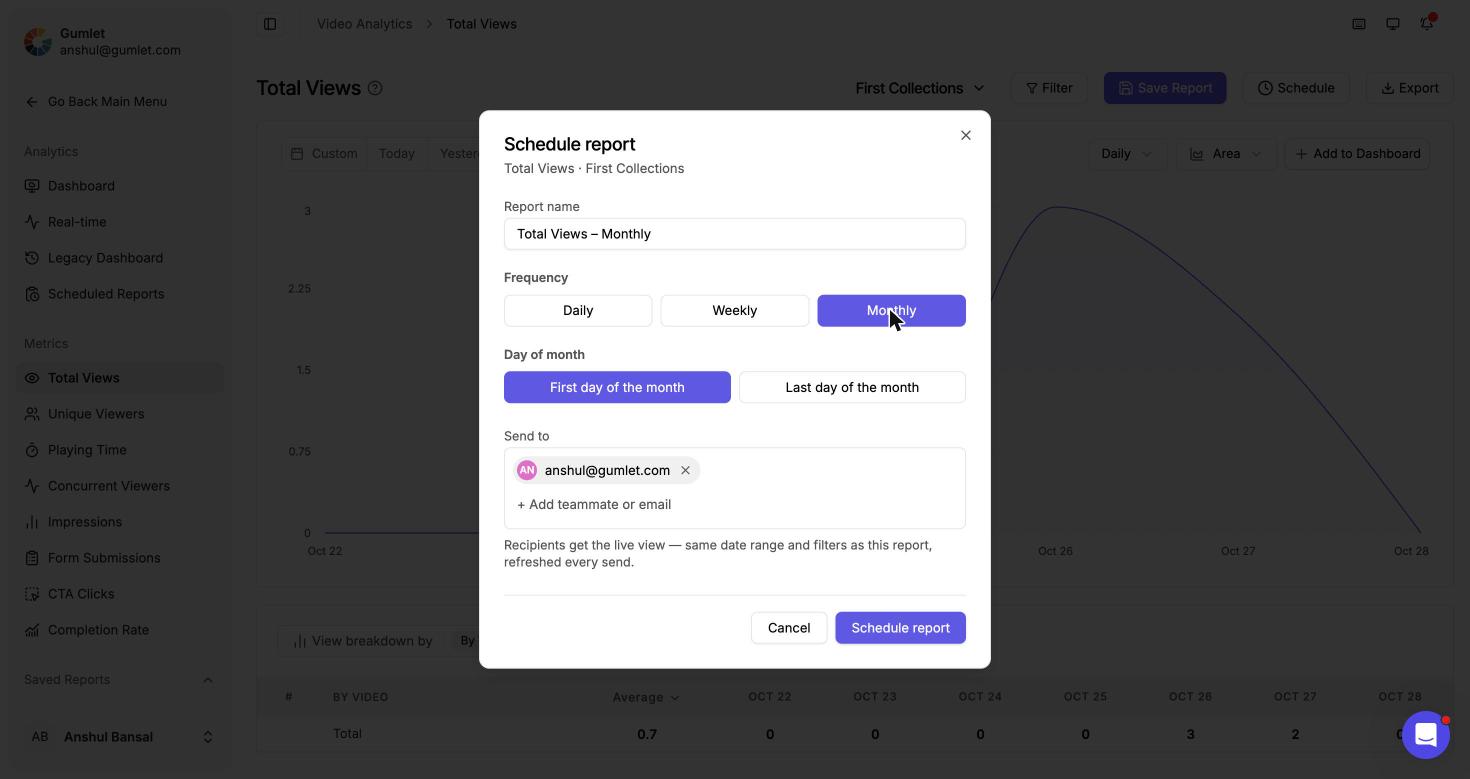
In the Schedule report dialog, fill in the details:
- Report name - Filled in automatically as the metric name and frequency (for example, Total Views – Weekly). You can change it.
- Frequency - Choose Daily, Weekly, or Monthly.
- Repeats on - For weekly reports, choose the day of the week the report is sent.
- Send to - You are added by default. Type a teammate's name or any email address and press Enter to add more recipients. Click × on a recipient to remove them.
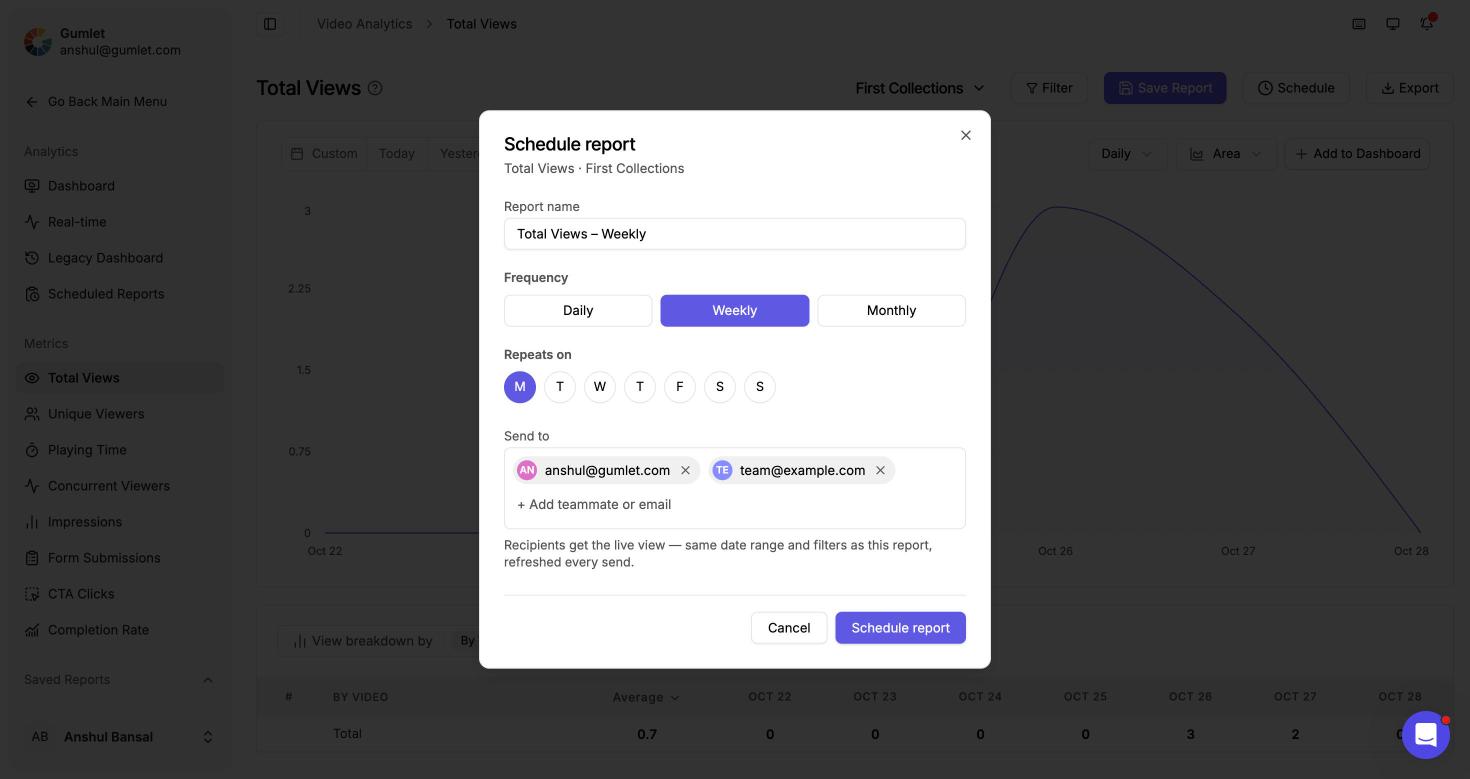
For monthly reports, choose whether the report is sent on the First day of the month or the Last day of the month.
-
Click Schedule report.
The new schedule appears on the Scheduled Reports page.
Schedule from a metrics page
Use this when you are already looking at a metric and want to share that exact view on a schedule.
-
Open any metric under Video Analytics → Metrics, for example Total Views.
-
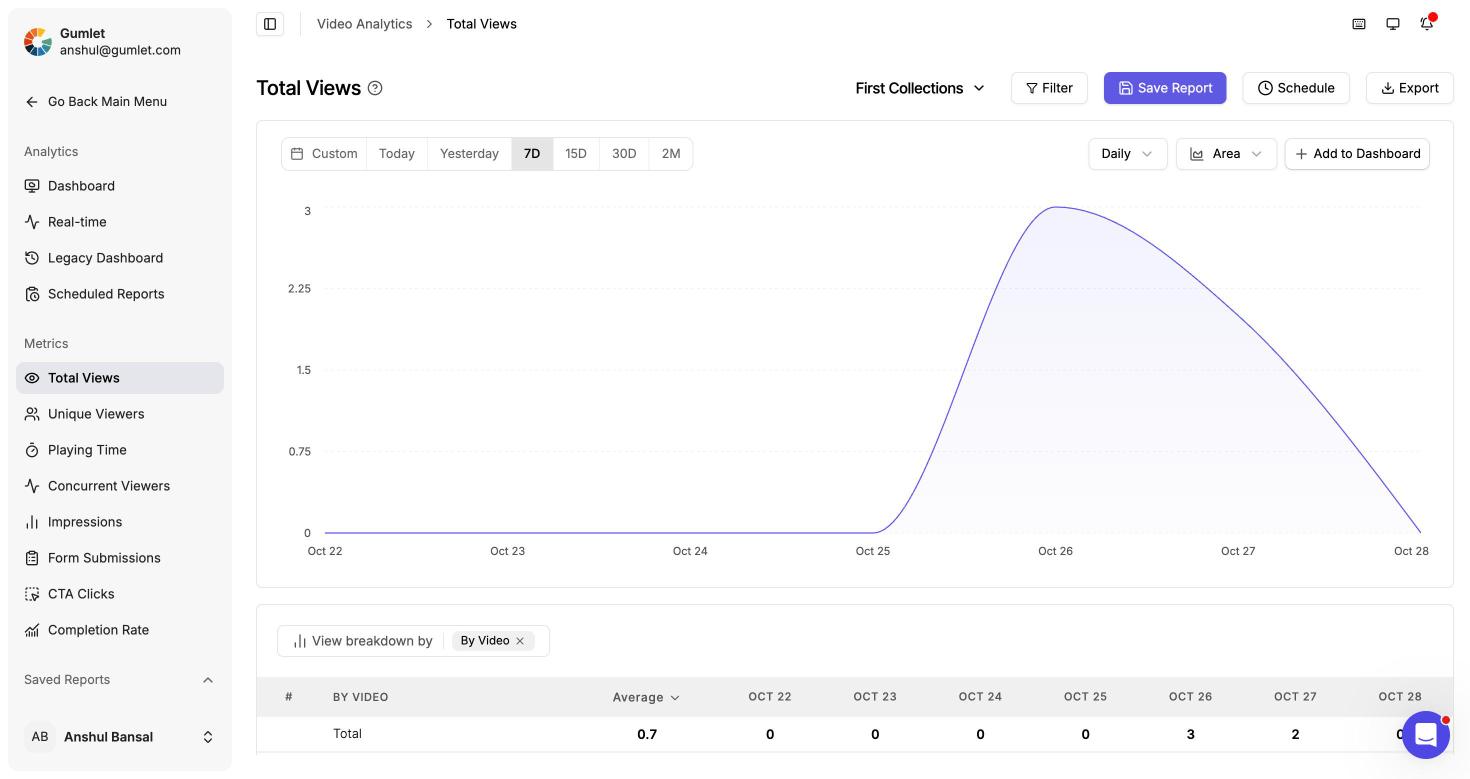
Select the workspace, set the date range, and apply any filters or breakdowns you want the report to include.
-
Click Schedule in the top-right corner of the page.
-
Fill in the Schedule report dialog (report name, frequency, and recipients) as described above. The subtitle of the dialog shows the metric and workspace being scheduled.
-
Click Schedule report.
Recipients get the live view of this report with the same date range and filters, refreshed on every send.
Manage scheduled reports
The Scheduled Reports page shows each report's frequency, recipients, next send date, and status.
Click the ⋮ menu on a report to:
- Pause - Stop sending the report without deleting it.
- View report - Open the report in the dashboard.
- Update schedule - Change the report name, frequency, or recipients. This dialog also has a Send a test email option.
- Send test now - Send the report right away to check what recipients will see.
- Delete - Remove the schedule permanently.